Tips
Notion guest vs member: access, limits, and costs

8 Min Read
Compare what Notion guests and members can access, how permissions and guest limits work, and when adding someone affects your workspace bill.
Share article:


Notion guest vs member: the short version
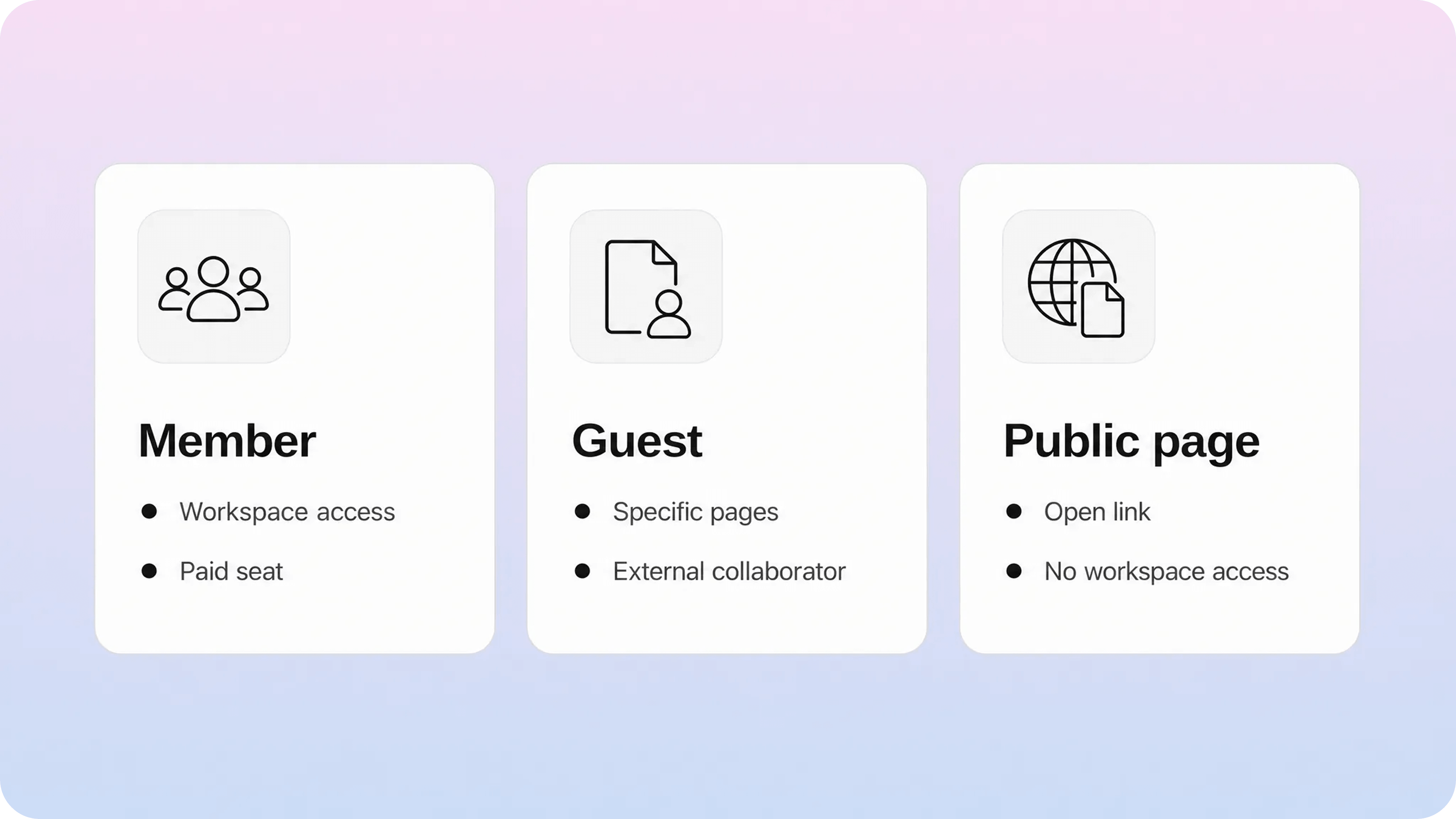
The simplest way to understand Notion guest vs member access is to ask one question: should this person belong to the workspace, or should they only reach a specific page?
Members are part of the workspace. In Notion’s own language, members are usually people in your company or organization who read, edit, and comment on many of the same pages. They can work across shared areas, join teamspaces, belong to groups, create private pages, and participate in the workspace as an ongoing teammate.
Guests are narrower. Notion defines guests as external people invited into a workspace on a page-by-page basis. A guest can collaborate on the pages they are invited to and may see subpages beneath those pages, but they do not get broad workspace access.
That distinction matters for permissions, security, and cost. If someone needs regular access to a lot of shared work, making them a member is usually cleaner. If they only need a client portal, project page, draft review, task list, or shared document, guest access is usually safer and cheaper.
Need | Use a Notion member | Use a Notion guest | Use a public page |
|---|---|---|---|
Ongoing team collaboration | Yes | Sometimes, only for narrow projects | No |
Workspace-wide access | Yes, within workspace permissions | No | No |
Specific page access | Yes | Yes | Yes, if published |
Teamspaces and groups | Yes | No | No |
Private workspace pages | Yes | No | No |
Billing impact | Billable on paid plans | Controlled by guest limits, not normal member seats | No viewer seat |
Best fit | Employees, long-term contractors, internal teams | Clients, vendors, reviewers, freelancers | Public docs, guides, portfolios, resources |
If you use Notion for docs, this same access question often becomes a publishing question. Internal documentation usually needs members. Client-specific resources often work as guest pages. Customer-facing support content usually works better as a public Notion help center where readers can search and browse without entering your internal workspace.
What a Notion member can access
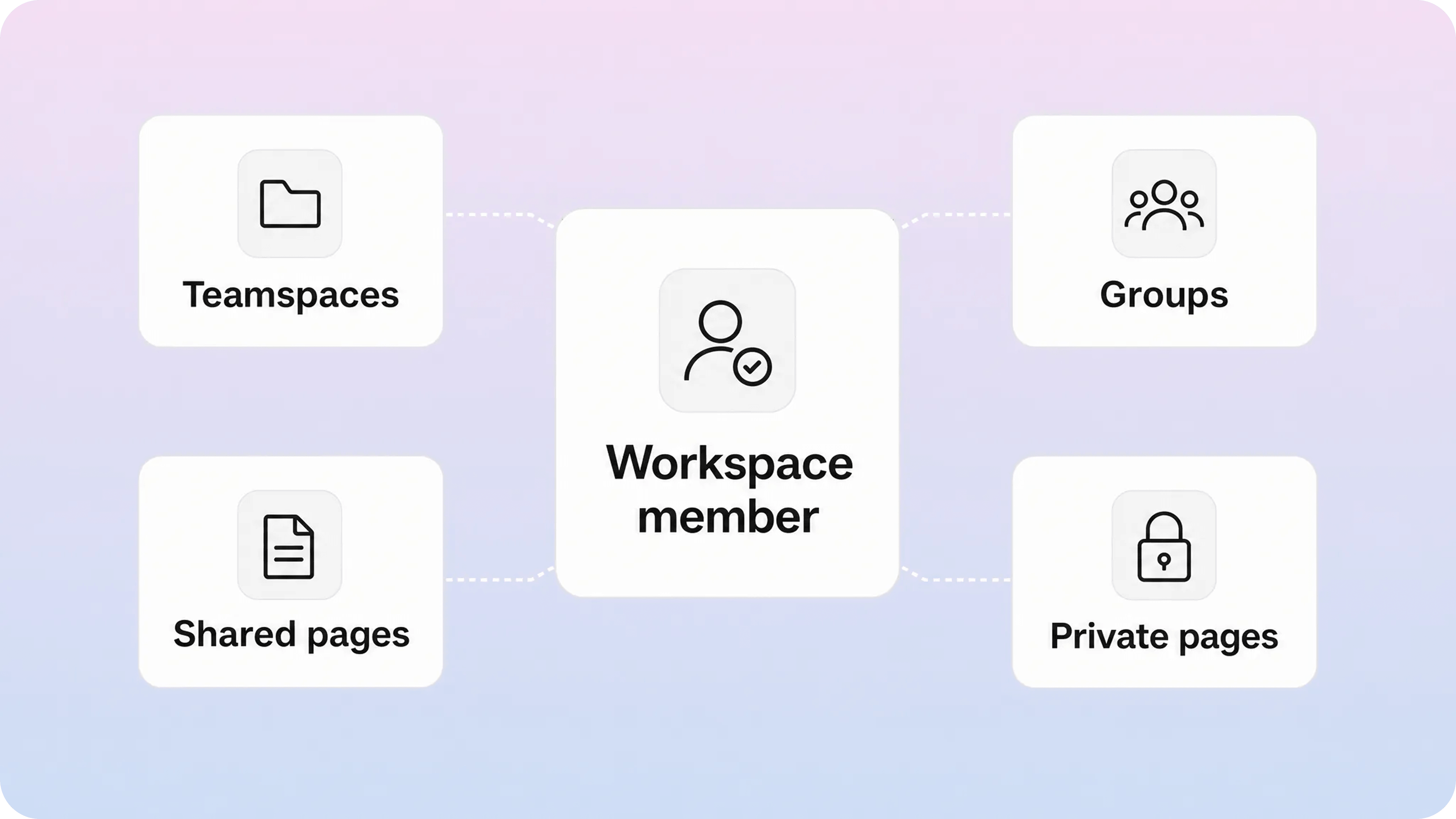
A Notion member is a workspace user. That does not mean every member automatically sees every private page, but it does mean they can participate in the broader workspace permission system.
Members can usually do the things internal teammates expect to do:
Access shared workspace content they have permission to view, comment on, or edit.
Join open teamspaces and be invited to closed or private teamspaces.
Belong to permission groups.
Create pages in places where they have access.
Keep private pages in their own sidebar.
Share pages and adjust page settings when their access level allows it.
Be assigned workspace roles such as member, workspace owner, or, on Enterprise, membership admin.
This is why a member is the right choice for employees and most long-term internal collaborators. Their work is not limited to one page. They need to move through the workspace, create new content, find company knowledge, comment on shared docs, and work inside the same structure as the rest of the team.
Members also fit when someone needs access to several different areas over time. A long-term contractor who works across product planning, support docs, project databases, and team meetings may be easier to manage as a member than as a guest on dozens of individual pages.
The tradeoff is cost and control. On paid Notion plans, Notion says you pay for each member added to the workspace. That means every unnecessary member seat can become a recurring cost. It also means access mistakes can be broader, because members may receive access through workspace-level sharing, teamspace defaults, groups, or inherited permissions.
Before adding someone as a member, ask:
Do they need access to many pages or teamspaces?
Do they need to create pages outside one shared project?
Do they need to be managed through groups, SSO, SCIM, or admin policies?
Will they be part of the workspace for more than one short project?
Would guest access become annoying because you would need to invite them to page after page?
If most answers are yes, they probably belong as a member. If most answers are no, a guest invite is usually cleaner.
What a Notion guest can access
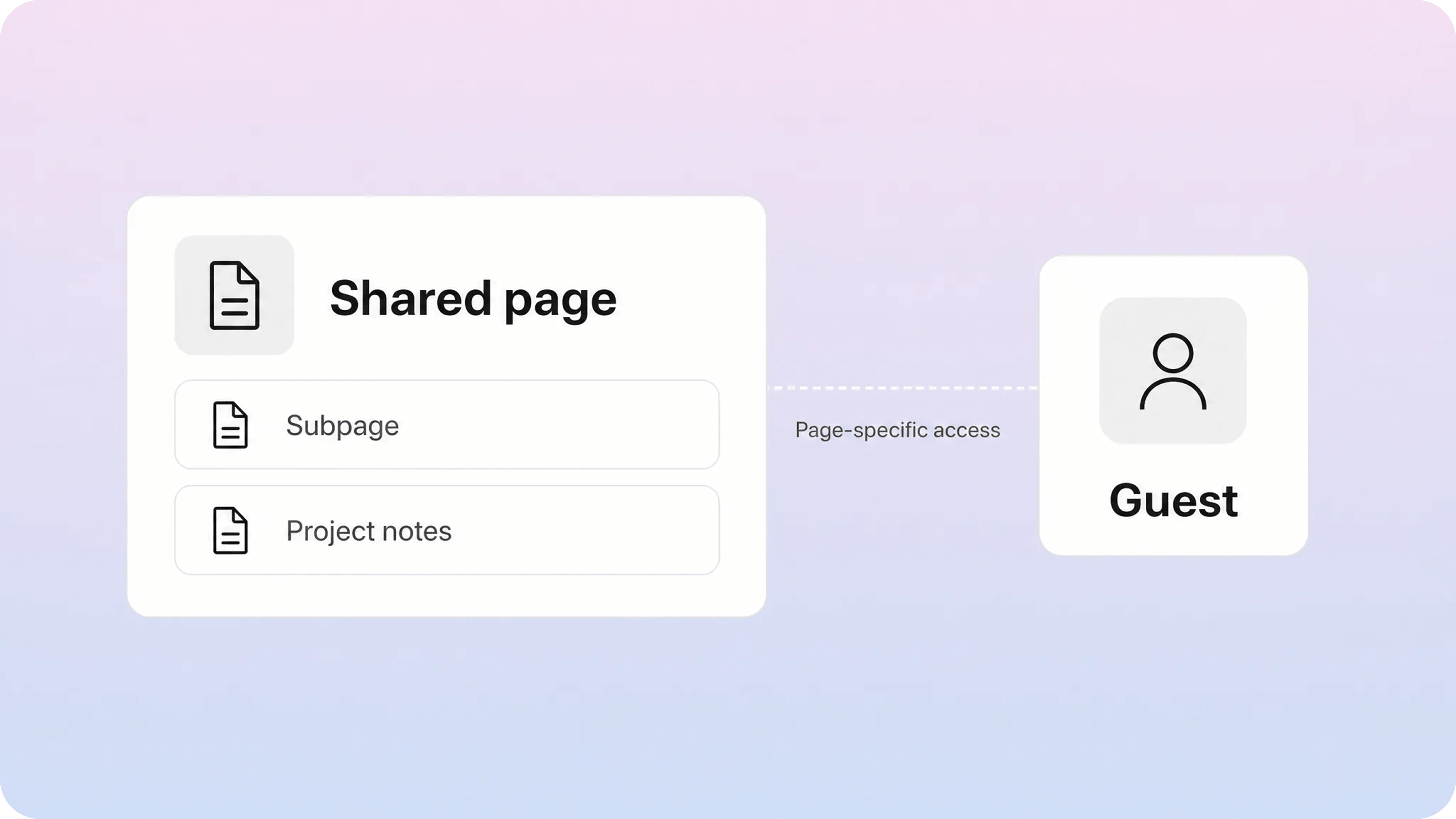
Notion guest access is designed for external collaboration without opening the whole workspace. You invite a guest from the Share menu on a specific page, choose their access level, and Notion sends them an email link. If they do not already use Notion, they need to create an account to access that private shared page.
Guests can collaborate on the pages they are invited to. If the shared page contains subpages, guests may see those subpages too, unless you change the subpage permissions. That makes guests useful for project hubs, client portals, review spaces, shared roadmaps, contractor tasks, and other contained collaboration spaces.
Guests cannot do several things that members can do:
They cannot be given workspace-wide access.
They cannot join teamspaces.
They cannot be added to member groups.
They cannot adjust workspace settings or billing.
They cannot add new workspace members.
They cannot create pages outside the content they were invited to, except for subpages nested inside shared content where their access allows it.
That limitation is a feature, not a weakness. Guest access keeps the collaboration boundary close to the work. A client can review a proposal without seeing your internal operating docs. A freelance writer can edit a draft without joining the whole company workspace. A vendor can comment on an implementation page without being added to every teamspace.
Guest access is usually the better choice when the person is outside your organization and the scope is clear. It also helps keep workspace navigation cleaner. Instead of adding a short-term collaborator to the sidebar, teamspaces, and workspace member list, you give them the one page they need.
There is still an admin job here. Guests should not accumulate forever. Notion’s guest list lets admins see which pages each guest can access, convert a guest to a member, or remove them. Review that list regularly, especially after projects end, contractors leave, agencies rotate, or client work closes.
How Notion permissions work for both guests and members
Notion permissions sit underneath the guest versus member decision. A person can be a member with limited access to one page, or a guest with edit access to a shared project page. The role decides their relationship to the workspace. The permission level decides what they can do on a specific page.
The important Notion page permissions are:
Full access: the person can edit the page and usually share it or change page permissions.
Can edit: the person can edit page content but has less control over sharing.
Can edit content: the person can edit content but not database structure or page settings in the same way as full access.
Can comment: the person can view and leave comments, but not change the page content.
Can view: the person can only read the page.
No access: the person cannot view the page.
For simple reviews, comment access is often enough. For client approval, view or comment access may be safer than edit access. For a freelancer actively drafting a page, edit access may be necessary. For an internal teammate managing the source content, full access may make sense.
Inherited permissions are where teams get surprised. In Notion, subpages usually inherit permissions from their parent page. If you invite a guest to a client portal page, assume anything nested underneath may also be visible unless you restrict it. If you move sensitive subpages around, check access again.
Permission overrides matter too. Notion says it respects the broadest level of access a person has. If someone receives view-only access through one rule but full access through a workspace, group, teamspace, or broader share setting, the broader permission can win. This is especially important for members because they can receive access from more places than guests.
For databases, Business and Enterprise plans can use page-level access rules tied to person properties. That can help when people should only see or edit specific database pages, such as their own tickets, candidates, or tasks. It is useful, but it does not remove the need to design the overall sharing model carefully.
If your Notion workspace is also the source for customer documentation, keep the private collaboration model separate from the public help experience. Internal teams can draft and manage docs in Notion, then use Helpview to publish a clearer customer-facing layer with search, categories, and article structure. That prevents customer documentation from depending on raw Notion page permissions alone.
Notion guest limits and pricing
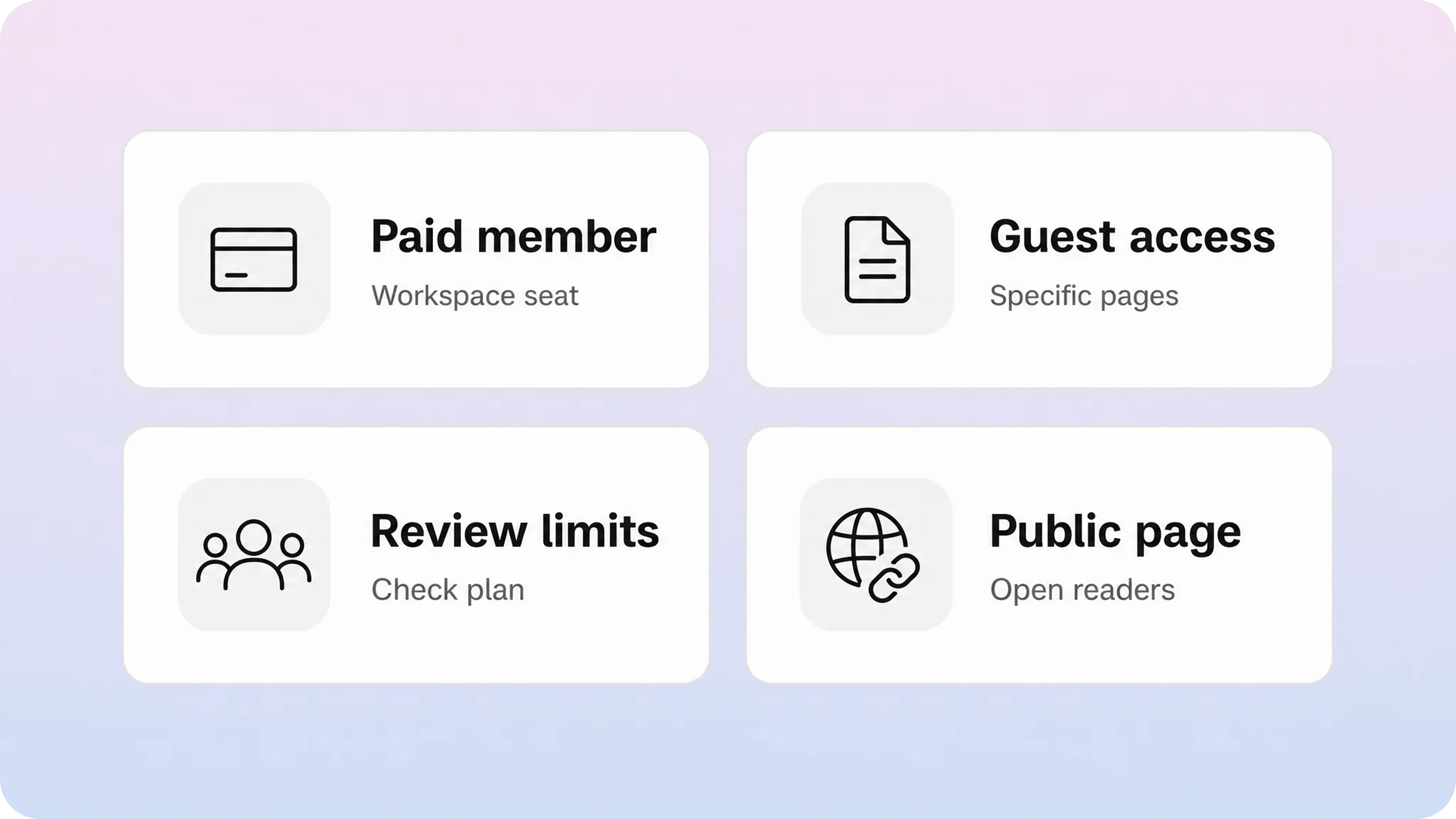
Notion member vs guest pricing comes down to seats. Members are billable on paid plans. Guests are controlled by guest limits and access rules rather than normal paid member seats.
As of the current Notion pricing page checked for this workflow, Notion lists the Free plan at $0, Plus at $10 per seat/month, Business at $20 per seat/month, and Enterprise by sales contact for US visitors. The pricing matrix also lists an external guest limit of 10 on Free and unlimited guests on Plus, Business, and Enterprise. Because pricing and limits can change, the safest publish wording is to point readers to Notion’s current pricing page before they make a budget decision.
The practical cost rule is simple: do not use members when guest access would do the job.
For example, imagine a five-person team on a paid plan. If it adds three clients as members, those clients can become recurring paid seats. If those clients only need access to one shared project page, guest access may avoid unnecessary seat cost and reduce the chance of them seeing unrelated workspace content.
But the reverse mistake is also common. Some teams keep long-term collaborators as guests even when those people need broad workspace access every week. That can become messy. They get invited to too many individual pages, miss context, request access often, and fall outside normal workspace management. In that case, paying for a member seat may be more practical and more secure.
Use guest access to control scope, not to hide real employees from the bill. Use member access when someone is part of the operating team. The point is not to minimize seats at all costs. The point is to match cost to the access someone actually needs.
Public Notion pages are different from guests and members
A public Notion page is not a guest invite. It is a published page that people can view on the web, often without signing into Notion. That makes it useful for public resources, portfolios, lightweight docs, landing pages, job boards, and simple knowledge hubs.
Public pages solve a different problem:
Members are for internal workspace collaboration.
Guests are for private, page-specific collaboration with named people.
Public pages are for open access by anyone with the public link or, when indexing is enabled, people who find the page through search.
This matters because teams sometimes use public pages as a shortcut for sharing. That can be fine for public information, but it is the wrong choice for sensitive docs, client-specific material, internal plans, customer records, or anything that should be limited to known people.
Notion Sites can make publishing fast. Notion says teams can launch a site, customize the look, connect custom domains, and manage public pages. Helpview’s guide to Notion Sites for documentation covers when that is enough and where it starts to feel thin for customer docs.
The main limitation is that public pages are not a permission model for private collaboration. They are a publishing model. They can help people read content, but they do not give the same controlled identity, page-specific private access, or workspace membership behavior as guests and members.
For customer-facing documentation, public access usually needs more than a published Notion page. Readers need search, categories, related articles, clear titles, SEO basics, and a support path when they cannot find the answer. That is why Helpview separates Notion as the writing layer from the public help-center experience.
How to choose between a guest, a member, and a public page
Use the narrowest access that still lets the person do their work.
Choose a Notion member when the person is part of your organization or long-term operating team. They need recurring access to company knowledge, teamspaces, groups, projects, meeting notes, internal docs, and private work. They should be managed like a teammate because that is how they work.
Choose a Notion guest when the person is external and the work is scoped to a page or small set of pages. They may need to view, comment, or edit, but they do not need the whole workspace. Clients, agencies, vendors, contractors, advisors, reviewers, and freelancers often fit this pattern.
Choose a public page when the content is meant to be open. A public guide, FAQ, changelog, resource hub, portfolio, or simple documentation page should not require you to invite every reader. If the content should be discoverable or customer-facing, think about the public experience, not just the Notion share toggle.
For support docs, the strongest pattern is often:
Keep internal drafts, review notes, and ownership in Notion.
Use members for the team maintaining the docs.
Use guests for external reviewers or partners who need private access to specific pages.
Publish customer-ready articles through a structured help center instead of exposing the workspace directly.
That keeps the workspace useful for the team while giving customers a cleaner path to answers. Helpview’s article on using Notion for documentation explains this broader pattern: Notion is often excellent for writing and collaboration, but the public layer needs stronger structure when documentation becomes part of customer support.
Common mistakes with Notion sharing permissions
The first mistake is adding every collaborator as a member. It feels easier in the moment, but it can raise costs and widen access more than necessary. Before adding a new member, check whether one page invite would solve the problem.
The second mistake is using guests for people who behave like full teammates. If someone needs to work across many teamspaces, join groups, create internal pages, and participate in the workspace every week, guest access can become fragile. A member seat may be the cleaner administrative choice.
The third mistake is forgetting inherited permissions. A shared parent page can expose nested subpages. A public page can reveal linked or nested content more broadly than expected. A member can receive broader access from a group or teamspace even if one page looks restricted.
The fourth mistake is confusing public pages with secure sharing. If a page is public, it is for public reading. Do not use public publishing for anything that should be limited to named collaborators.
The fifth mistake is treating permissions as a one-time setup. Access should be reviewed when a project ends, a client relationship closes, a contractor leaves, an internal team changes, or documentation moves from draft to public.
A simple monthly review can prevent most issues:
Remove guests who no longer need access.
Check high-sensitivity parent pages for inherited subpage access.
Review members who may only need guest access.
Confirm public pages are intentionally public.
Audit docs that moved from internal notes to customer-facing content.
For public documentation, also review the experience after access is solved. A page may be correctly shared but still hard to find, search, or understand. Helpview’s guides to Notion SEO, Notion website design, and Notion analytics are useful next steps once the access model is clear.
Conclusion
The best Notion guest vs member decision is usually straightforward once you separate workspace belonging from page access. Members are for people who need to operate inside the workspace. Guests are for named external collaborators who only need specific pages. Public pages are for information meant to be read openly, not for private collaboration. Get that distinction right, then use Notion permissions carefully so each person can do their work without adding unnecessary cost or exposing more content than intended.
Frequently asked questions
What is the difference between a Notion guest and a member?
A Notion member belongs to the workspace and can participate in the broader workspace structure, including teamspaces, groups, shared pages, and private workspace pages. A Notion guest is invited to specific pages and can only work within the content they have been given access to.
Do Notion guests cost money?
Can a Notion guest edit a page?
Should contractors be Notion guests or members?
Is a public Notion page the same as guest access?
Share article:

2 free months of Pro
Turn Notion pages into help center answers.
Keep writing in Notion and publish a real, searchable Notion help center.

Articles
Keep reading