Tips
Notion analytics: page views, viewers, and tracking limits

9 Min Read
Notion analytics shows page views and some identifiable viewer activity. Learn what it reveals, what stays anonymous, and when public pages need more detailed tracking.
Share article:


What Notion analytics tracks natively
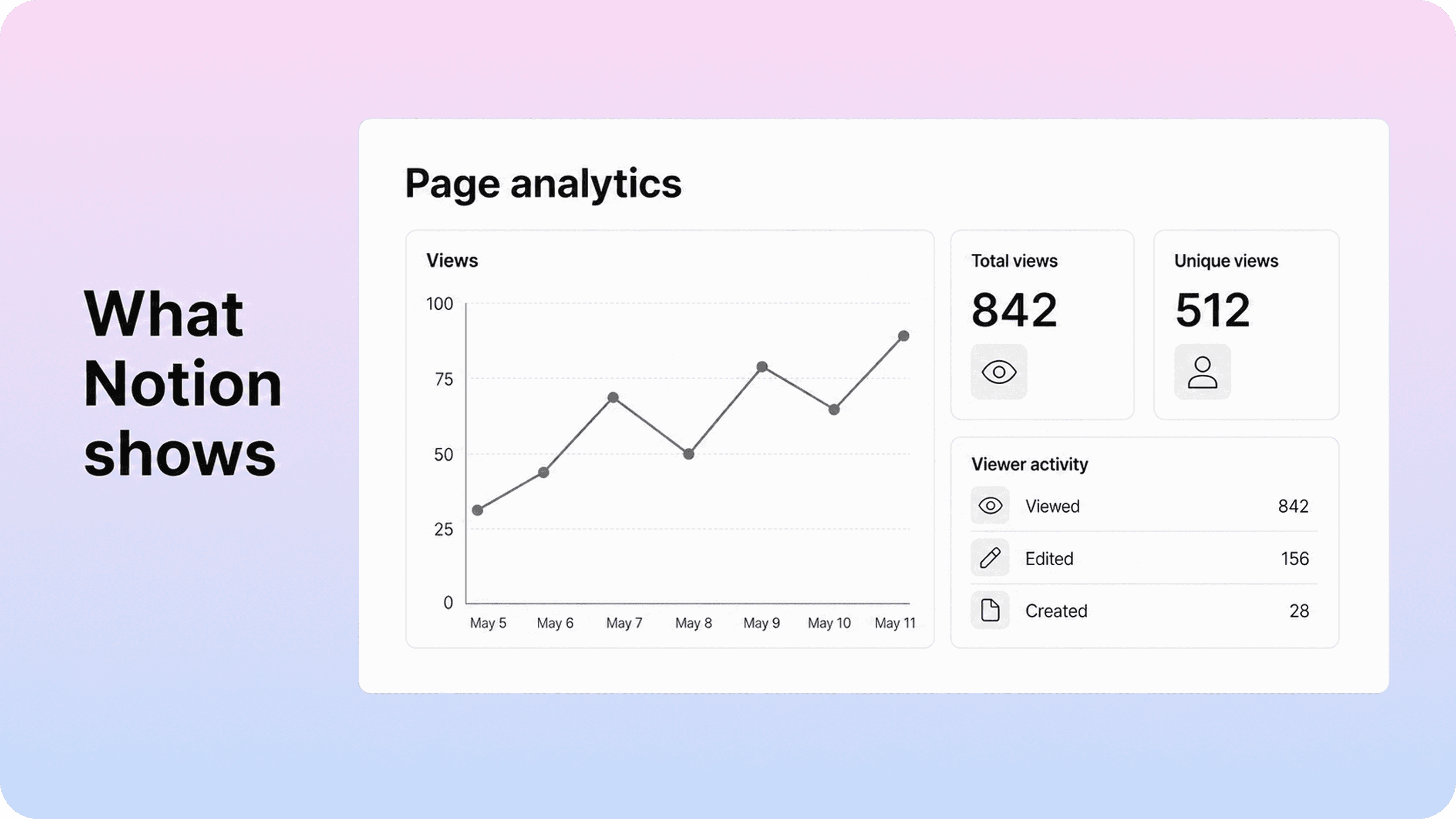
Notion's native analytics are built around understanding how pages and workspace content are being used. For individual pages, Notion's own help docs say owners and editors can open Updates & analytics, switch to the Analytics tab, and see total views, unique views, and a list of people who created, edited, or viewed the page when those people are identifiable inside the workspace (Notion page analytics).
That makes native Notion analytics useful for internal knowledge work. If a product spec, policy page, onboarding doc, or project update was shared with a team, page analytics can help you check whether people have seen it. If a page was updated recently, the viewer and editor history can also help you understand whether the right collaborators are engaging with the latest version.
For shared web pages, Notion's page analytics guide notes that online views are included in the total and unique views graph, but anonymous public visitors are not listed as named viewers. That distinction is important. Native Notion page analytics can tell you that a public page received attention, but they are not a full website analytics system for understanding who those visitors were, where they came from, or what they did next.
Notion also has workspace analytics for broader internal usage. Workspace analytics are designed for understanding adoption, content engagement, and search behavior across the workspace. Notion describes this as an Enterprise feature that helps organizations see how members engage with content, including workspace-level tabs for content and search behavior (Notion workspace analytics).
For many teams, that creates two different analytics layers:
Analytics layer | Best for | Main limitation |
|---|---|---|
Page analytics | Understanding views and known reader activity on a page | Limited visitor behavior and traffic context |
Workspace analytics | Understanding internal adoption, content, members, and workspace search | Enterprise-focused and not a complete public website analytics layer |
Google Analytics on Notion Sites | Measuring public site traffic, sources, and engagement | Requires GA setup and works outside the native Notion page analytics view |
The practical takeaway is simple: Notion analytics are good for page visibility and internal content usage. They are weaker when the job is public visitor analytics.
What native Notion analytics does not show
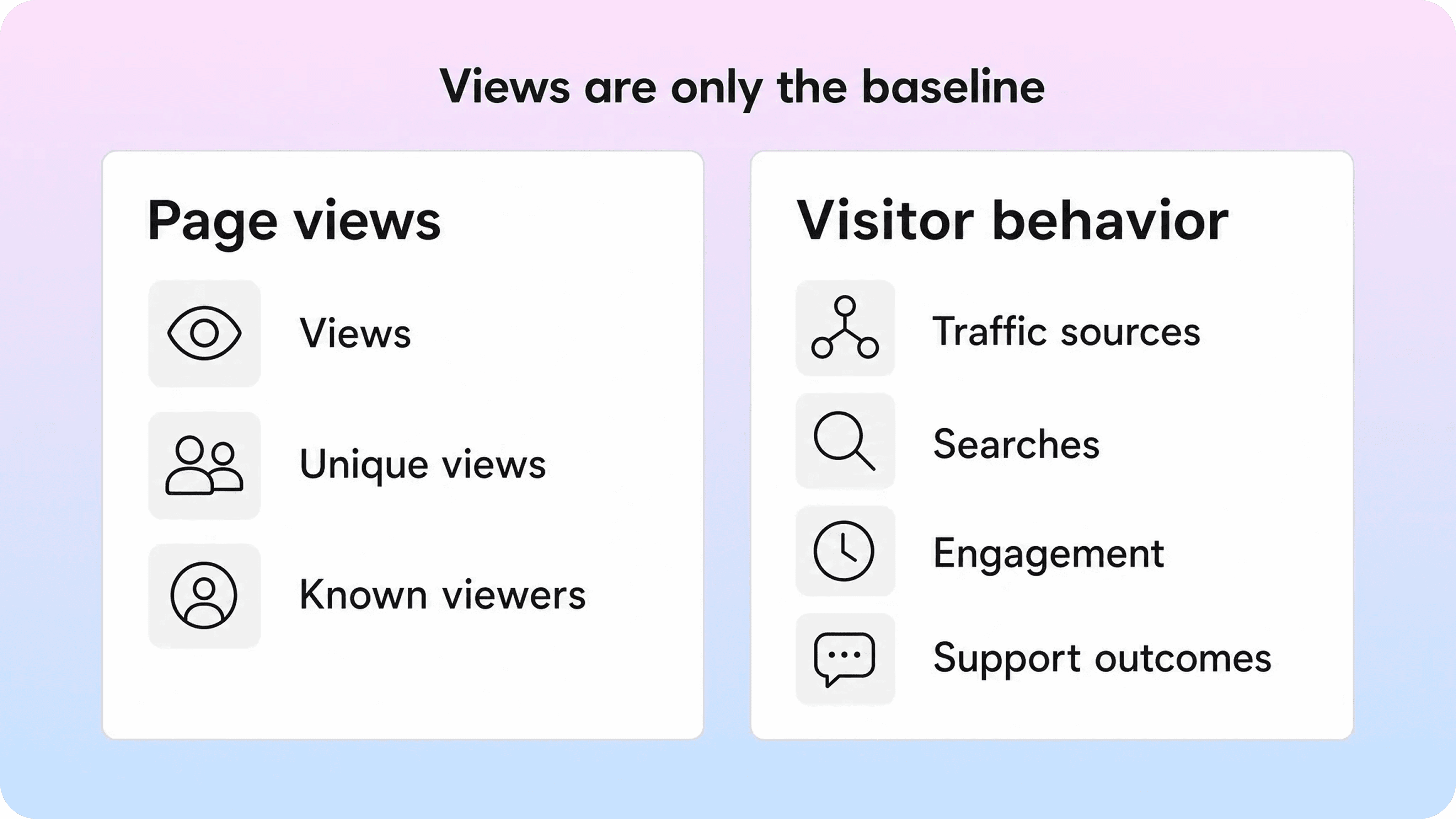
The biggest mistake is treating Notion page views as if they explain visitor behavior. A page view tells you that a page loaded. A unique view helps separate repeat loads from distinct viewers. Neither metric explains whether the visitor arrived from Google, clicked from your product, used search, read enough to solve a problem, or left because the page did not answer the question.
Native Notion page analytics does not give teams the full public-site picture they usually want from notion website analytics. You should not expect it to show a complete breakdown of acquisition channels, campaigns, referral sources, device categories, scroll depth, article exits, conversion events, or search-to-contact behavior.
That matters most when Notion pages become customer-facing. A small public page may only need a rough sense of traffic. A help center, documentation hub, product guide library, or Notion Site connected to a marketing funnel needs sharper signals. Page views can tell you what was opened, but not whether the content helped.
For customer documentation, the missing information usually falls into six categories:
Traffic sources: whether readers came from organic search, your app, support replies, ads, email, social, or direct links.
Visitor behavior: which pages people entered on, which pages they visited next, and where they dropped off.
Search intent: what people typed into the help center search box, which results they clicked, and which searches failed.
Engagement quality: whether readers stayed long enough to use the article or bounced quickly.
Content gaps: which questions show up in support but do not have a strong article yet.
Deflection signals: whether better articles reduce repeated tickets, chats, or support macros.
This is why teams often start with Notion analytics, then add a separate measurement layer as the public experience grows. The goal is not to collect more numbers for the sake of it. The goal is to understand whether public Notion content is helping people find the right answer.
How to track Notion page views
For basic Notion page views, start inside Notion. Open the page, select the page menu, choose Updates & analytics, and review the Analytics tab. This is the cleanest way to check whether a page is being seen without adding another tool.
Native page analytics are especially useful for internal or semi-internal content:
company policies
onboarding pages
product requirement docs
project plans
team announcements
shared customer notes
early public pages that only need basic view tracking
For public pages, page analytics can still answer a narrow question: "Is this page getting viewed?" That is enough when you are checking whether a newly shared page has any activity or whether a simple resource page is still being used.
It is not enough when you need to compare content performance across a site. A page with many views may still create support tickets if the answer is unclear. A page with few views may still be valuable if it solves a high-value edge case. A page with rising traffic may be receiving irrelevant visitors from the wrong search query.
Use notion page analytics for the baseline, then add context before making decisions. A better content review usually asks:
Which pages are getting viewed?
Which pages are getting viewed by the intended audience?
Which pages lead to a solved question, a next step, or a support deflection?
Which topics have support demand but low or missing page traffic?
That fourth question is where page analytics alone starts to break. If users cannot find the page, the page will not have many views. Low views can mean the article is unnecessary, but it can also mean the article is buried, poorly titled, missing from search, or not linked from the right place.
How to add Google Analytics to a Notion Site
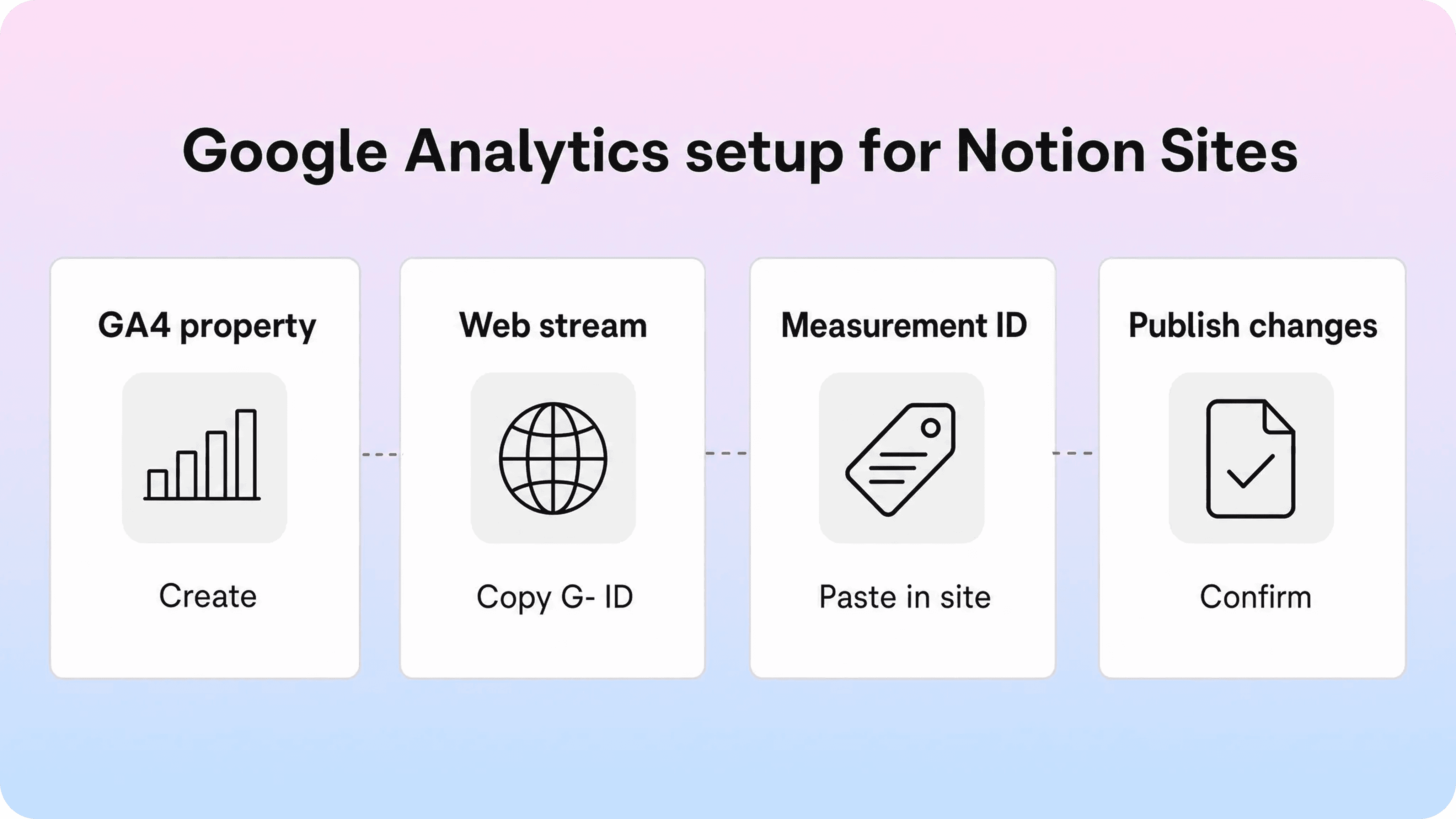
For public Notion Sites, Notion provides a built-in Google Analytics integration on paid plans. Notion's customization documentation says paid users can open Share on a published page, go to Publish, open Site customization, choose Google Analytics, enter a measurement ID, and publish the changes (Notion Sites customization).
The measurement ID comes from Google Analytics 4. Google defines a measurement ID as the identifier for a web data stream, usually formatted like G-XXXXXXXXXX, and says it connects the website to the correct GA4 data stream (GA4 measurement ID).
Once connected, Google Analytics can give you a richer view of notion site analytics than native page analytics alone. In GA4, the Pages and screens report can show metrics such as views, active users, views per active user, average engagement time, event count, and key events (GA4 pages and screens report). The traffic acquisition report helps show where sessions came from, such as organic search, referral, paid, email, or direct traffic (GA4 traffic acquisition report).
The basic setup flow looks like this:
Create or open a Google Analytics 4 property.
Add a web data stream for the public Notion Site or custom domain.
Copy the GA4 measurement ID.
Open the published Notion page.
Go to Share -> Publish -> Site customization.
Open Google Analytics.
Paste the measurement ID.
Publish changes.
Wait for data to appear in Google Analytics.
If the Notion Site uses a custom domain, use the final public domain in your analytics checks. If the same content is reachable from multiple URLs, keep your measurement and reporting consistent so you do not split attention across messy page paths.
Google Analytics will not magically explain everything, but it changes the quality of the questions you can ask. Instead of only asking "How many views did this Notion page get?", you can ask:
Which channels bring visitors to the page?
Which pages are entry points?
Which pages receive repeat views but low engagement?
Which pages send people deeper into the site?
Which articles deserve stronger internal links?
Which traffic sources produce users who actually read or act?
That is the difference between tracking notion page views and understanding a public Notion website.
What to measure for public Notion content
Once Notion content becomes public, the right metrics depend on the job of the page. A landing page, documentation article, template page, and help center answer should not be judged by the same number.
For customer-facing documentation, a Notion help center gives teams a clearer way to measure what matters beyond page views, including searches, article engagement, feedback, and the questions customers still cannot answer on their own.
For simple public pages, start with visibility:
page views
unique visitors or active users
top pages
traffic source
landing page
basic engagement time
For customer documentation, add findability:
search queries
zero-result searches
clicked search results
category visits
related article clicks
repeated support questions
article feedback
For product or support workflows, add outcomes:
contact support clicks
ticket creation after article view
support macro usage
article links sent by agents
onboarding task completion
conversion or key event tracking where appropriate
Google Analytics can help with site traffic and page engagement. It is less natural for measuring help-center-specific behavior such as failed searches, article helpfulness feedback, search-to-ticket movement, or whether support teams keep sending the same manual explanation.
That is why teams using Notion for documentation often outgrow plain publishing before they outgrow Notion as an editor. Notion is still a good place to write, organize, and update docs. The weak point is the customer-facing layer around the docs: search, browsing, related content, metadata, feedback, and analytics. Helpview's guide to using Notion for documentation explains this split: Notion works well as the writing layer, but public documentation usually needs more structure once customers rely on it.
If you are measuring a public knowledge base, focus less on vanity traffic and more on answer quality. A useful analytics review might combine:
high-view articles that still create tickets
low-view articles linked from high-volume product moments
search terms with no matching article
articles with low engagement but high support demand
pages that receive traffic from the wrong source
outdated pages that keep getting views
Those are the signals that help improve content, not just report on it.
Analytics options for Notion websites and docs

There are four practical ways to measure Notion-powered public content. The right choice depends on how serious the public experience is.
The first option is native Notion page analytics. Use this when you only need to confirm that pages are being viewed or when the audience is mostly internal. It is easy, already available in Notion, and does not require technical setup.
The second option is Notion Sites with Google Analytics. Use this when the content is public and you need traffic sources, top pages, active users, engagement metrics, and campaign reporting. This is the most direct answer for teams searching for notion Google Analytics or notion website analytics.
The third option is a third-party Notion website builder or wrapper. Some tools add their own analytics or make it easier to insert scripts. This can be useful for marketing-style Notion websites, but it adds another publishing layer and may not solve help-center-specific needs unless the tool is built for documentation.
The fourth option is a dedicated help-center layer on top of Notion. This is usually the better fit when the content is support documentation, onboarding help, or product docs. A help-center layer should measure not just views, but how people browse, search, find related answers, give feedback, and avoid opening tickets.
For a Notion-first support team, the best setup is often:
write and maintain articles in Notion
publish through a structured help center
connect website analytics for traffic visibility
review search and support signals to improve content
keep article ownership and update workflows close to the Notion source
That is also where Helpview fits. Helpview is built for teams that already use Notion for docs but need a more polished customer-facing help center with clearer structure, better search, custom branding, and a more useful browsing experience than raw Notion pages. If your team is already writing support content in Notion, adding a help-center layer is usually more practical than rebuilding the whole docs workflow from scratch.
How to choose the right analytics setup
Choose the lightest setup that answers the decisions you actually need to make.
If you only need to know whether an internal page was seen, Notion page analytics are enough. They show page views, unique views, and known viewer history for people who can be identified in the workspace. Adding Google Analytics to an internal workflow would create extra noise.
If you publish a small Notion Site, connect Google Analytics once traffic starts to matter. The setup is straightforward on paid Notion plans, and it gives you the acquisition and engagement context that native page analytics does not provide.
If you run customer documentation, do not stop at page views. Track whether readers can find answers. Watch searches, article feedback, repeated tickets, and the pages support agents keep sending manually. A page with modest traffic can still be a high-value support asset if it prevents a painful conversation.
If you use Notion as the writing layer for a serious help center, consider a dedicated delivery layer. Helpview's article on Notion docs for customer documentation covers the broader breakpoint: Notion is strong for drafting and collaboration, but customer-facing docs need search, navigation, related content, metadata, and polish around the pages.
A good analytics setup should help you make better content decisions. It should show which articles to update, which questions need new answers, which pages deserve stronger links, and which support paths still send users in circles. If the data does not change what you do next, it is probably not the right data yet.
For a broader measurement framework, see our guide to knowledge base analytics.
Conclusion
Notion analytics are useful for seeing whether pages are viewed, but public visitor behavior needs more context than Notion provides natively. Start with page analytics for basic views, add Google Analytics for public Notion Sites, and use a help-center layer when the real goal is understanding search behavior, content gaps, support deflection, and whether customers actually find the answers they need.
Frequently asked questions
Does Notion have analytics?
Yes. Notion has page analytics that show total views, unique views, and viewer or editor activity for pages you can edit. Notion also offers workspace analytics for broader internal usage on Enterprise plans.
Can you track Notion page views?
Can you add Google Analytics to Notion?
What is missing from native Notion analytics?
What is the best analytics setup for Notion docs?
Share article:

2 free months of Pro
Turn Notion pages into help center answers.
Keep writing in Notion and publish a real, searchable Notion help center.

Articles
Keep reading