Tips
Using Notion for documentation: what works and what breaks

10 Min Read
Notion is a strong place to write, organize, and maintain documentation, especially when the team already works there. It starts to break when documentation needs to become a structured, searchable, customer-facing help experience rather than a flexible workspace of pages.
Share article:


What Notion documentation is actually good at
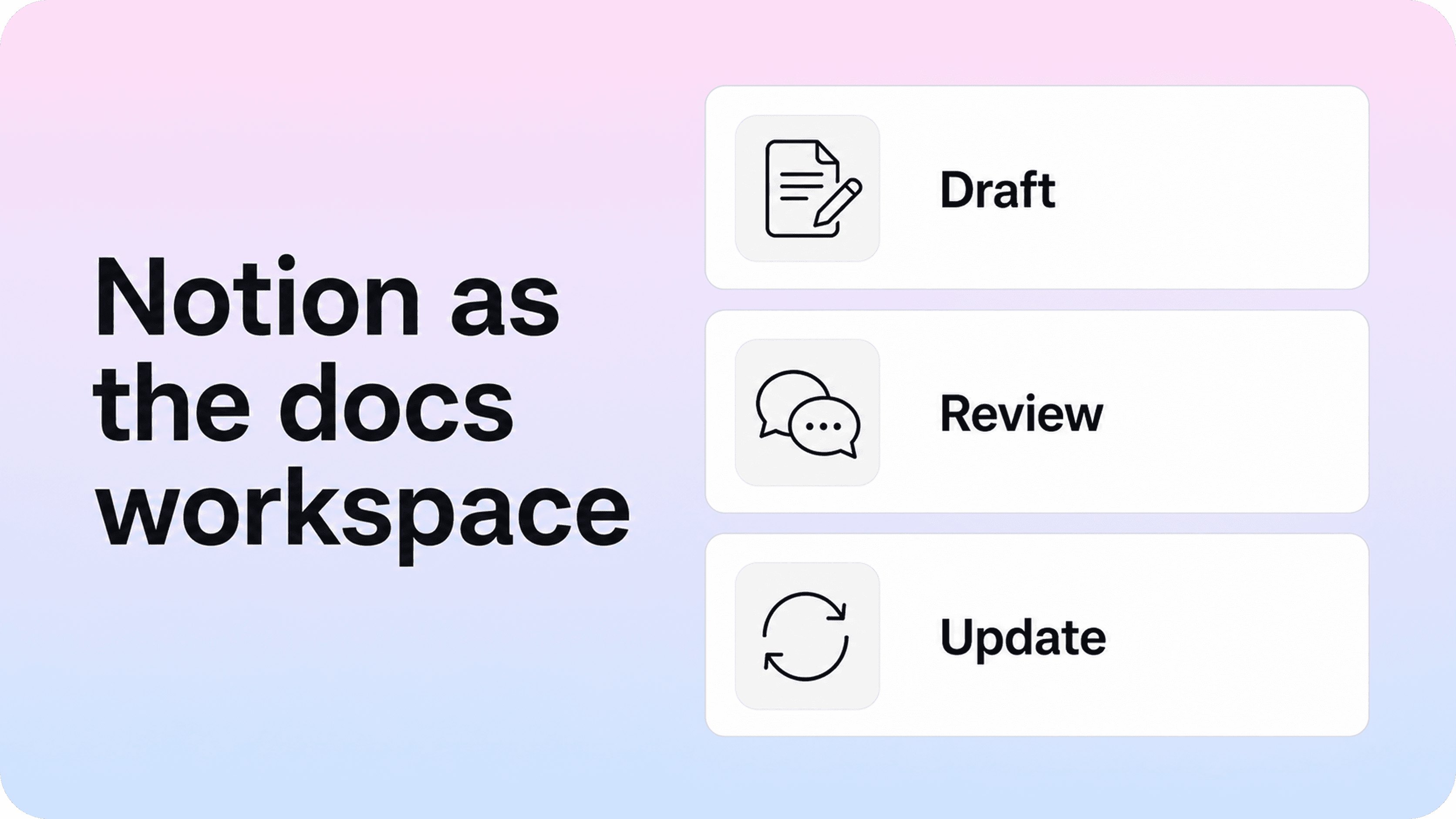
Notion documentation works best when the team’s main problem is getting knowledge out of people’s heads and into a shared place. It gives support, product, success, founders, and operations teams a common workspace where they can draft pages, leave comments, update instructions, and keep related notes close to the source of work.
That is a real advantage. Many documentation problems are not tool problems at first. They are ownership problems, workflow problems, and blank-page problems. If the team cannot easily write or update docs, a polished publishing layer will not fix the underlying content.
Notion helps because it lowers the cost of writing. A support lead can turn a repeated customer answer into a draft. A product manager can clarify the expected behavior. A founder can add context. A teammate can leave a comment directly beside the unclear step. That makes Notion useful for early and growing documentation systems where the content is still changing often.
It also works well for mixed documentation types. A single workspace can hold internal runbooks, product specs, customer-facing guides, onboarding notes, release notes, and draft support articles. That flexibility is convenient when a team is still deciding which information should stay internal and which information should become public docs.
The important caveat is that flexibility is not the same as structure. Notion makes it easy to create pages. It does not automatically make those pages easy for customers to browse, search, trust, or understand as a complete help center. That distinction is where most Notion documentation systems eventually need more discipline.
How to structure Notion documentation before it gets messy
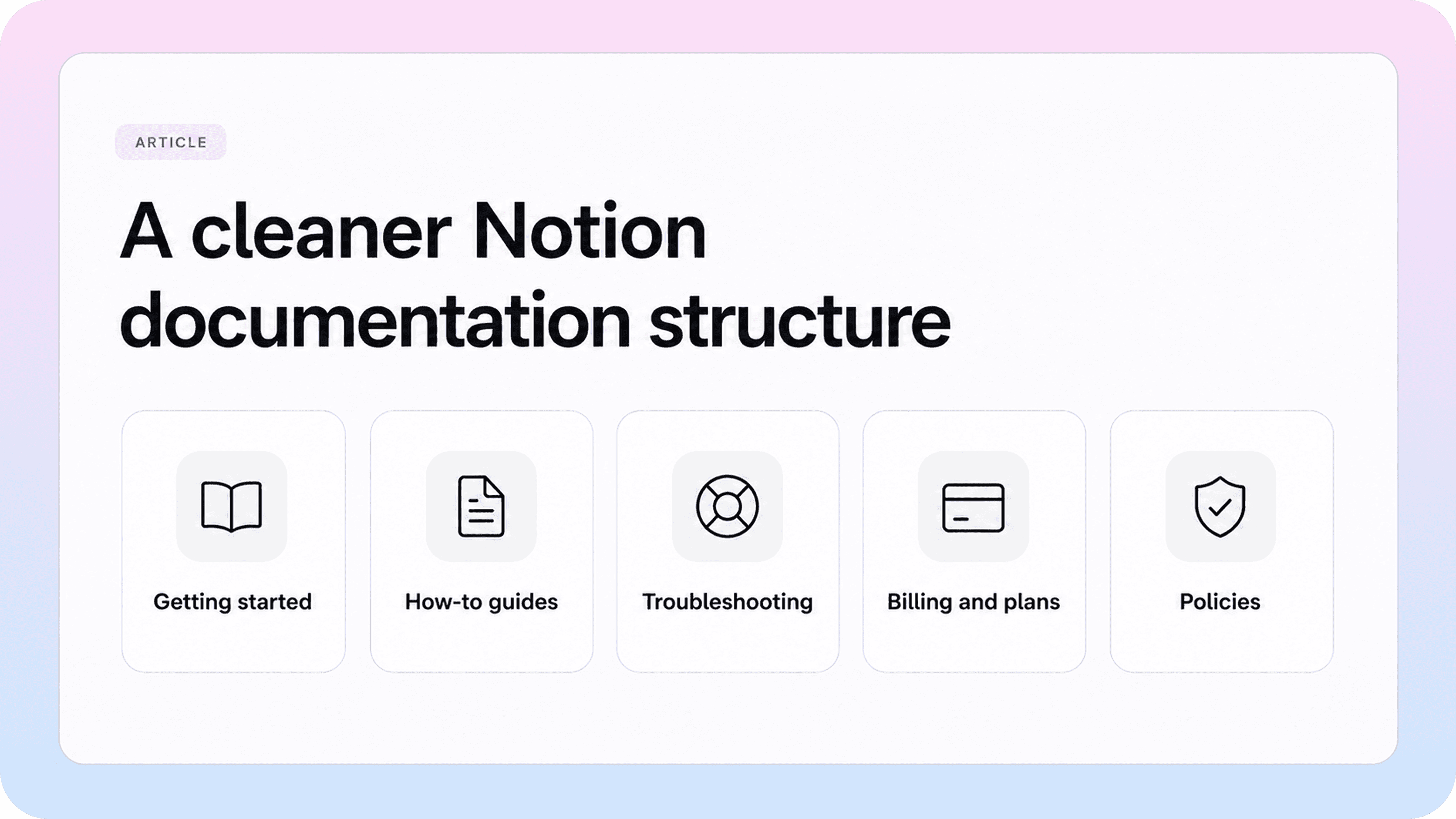
A good Notion documentation structure should make the next page obvious: obvious for writers, obvious for reviewers, and obvious for readers once the content is published. If every page is just “a doc,” the workspace will feel simple for a few weeks and confusing for everyone after that.
Start by separating documentation by job. Most teams need a small set of repeatable page types rather than one generic template for everything:
Getting started pages for first setup, onboarding, and the shortest path to value.
How-to guides for task-based instructions with a clear outcome.
Troubleshooting articles for symptoms, causes, checks, and fixes.
Reference pages for settings, fields, limits, plans, or technical details.
Policy pages for billing, access, account rules, security boundaries, or operational expectations.
This structure matters because each page type has a different reader promise. A how-to guide should not become a product overview. A troubleshooting page should not hide the fix under background context. A policy page should not read like a marketing explanation. When Notion docs mix those jobs together, the workspace may still look organized from the inside, but customers feel the friction immediately.
Next, create a simple database or index that shows the operating state of every important documentation page. At minimum, track the title, category, audience, owner, status, last reviewed date, and intended publishing destination. For customer-facing documentation, it also helps to track target keywords, related articles, support tags, and whether the article should be public, private, or internal only.
A Notion documentation structure does not need to be complicated. It needs to be visible. Writers should know where a new page belongs. Reviewers should know which pages need approval. Support should know which answers are published and which are still drafts. If the structure only lives in one person’s head, it is already too fragile.
Where Notion works well for docs teams
Notion works well for docs teams when speed, collaboration, and update flexibility matter more than advanced publishing controls. That makes it especially useful for teams that are still building their documentation habit.
The authoring experience is the biggest win. Notion gives teams a familiar editor, quick page creation, comments, mentions, databases, linked views, and reusable templates. Those features help documentation become part of normal product and support work instead of a separate chore that only one person can handle.
It also supports lightweight review. A draft can move from idea to comments to approval without leaving the workspace. Product can check accuracy. Support can check whether the answer matches real customer questions. Success can flag missing context. That cross-functional input is often more valuable than a heavy docs tool if the team is still trying to get its first strong content set in place.
Notion is also useful as a source of truth for internal documentation. Internal docs can stay close to product planning, team notes, decision records, and operating processes. For many teams, that is exactly where internal knowledge belongs. The same workspace can then feed customer-facing documentation when a topic becomes stable enough to publish.
Where teams get into trouble is assuming that because Notion is good for writing docs, it must also be enough for delivering docs to customers. Those are related jobs, but they are not the same job.
Where Notion starts to break for documentation
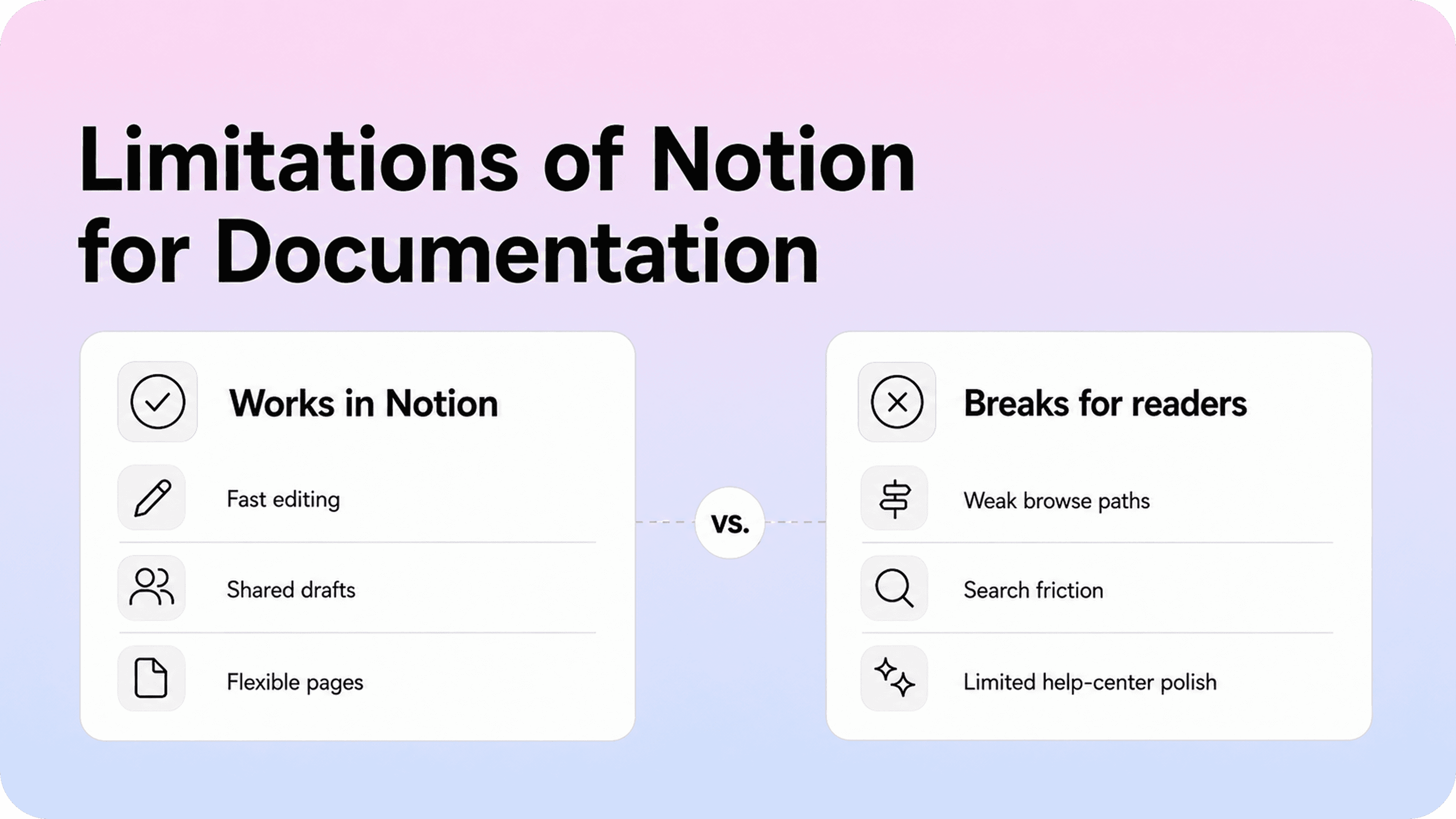
The limitations of Notion for documentation usually appear when the content set grows or when readers depend on the docs to solve problems without help from your team. At that point, the documentation system needs more than pages. It needs findability, navigation, metadata, ownership, publishing discipline, and feedback loops.
Search is one of the first breakpoints. A small set of pages can survive with direct links and manual browsing. A growing help center cannot. Customers search with messy language, partial product terms, symptoms, and questions that do not match your internal page titles. Good documentation search depends on titles, structure, article relationships, metadata, and search behavior over time. Plain Notion pages do not give support teams the same level of control or insight as a dedicated help-center layer.
Navigation is another common issue. Notion can organize pages, but a workspace hierarchy is not the same as a customer-facing information architecture. Internal teams understand how the product is built. Customers care about what they are trying to do. If the public structure mirrors the team’s internal workspace too closely, customers may end up browsing through categories that make sense to the company but not to the person looking for an answer.
Metadata and SEO control can also become limiting. Public documentation often needs clean titles, descriptions, slugs, canonical structure, social previews, and clear page relationships. Those details matter when documentation is meant to be found through search engines, shared in support replies, or trusted as the official source of customer guidance.
Permissions and exposure need care too. Notion workspaces often contain a mix of internal notes, drafts, customer-facing pages, private operational details, and old decisions. Publishing from that environment requires strong discipline around what is public, what is internal, and what should never be exposed. The larger the workspace, the more important those boundaries become.
Finally, Notion does not naturally give support teams the full feedback loop they need from public docs. A mature help center should show what people search for, which terms return no useful result, which articles attract repeated visits, and where documentation gaps create support tickets. Without that loop, teams often keep polishing visible pages while missing the questions customers are actually asking.
Notion for internal docs vs customer docs
Notion can be excellent for internal documentation and still be incomplete for customer documentation. The difference is the reader’s context.
Internal readers already understand the team, the product, the terminology, and the surrounding work. They can ask a teammate when something is unclear. They may tolerate a rough page if it contains the answer they need. For internal docs, Notion’s flexibility is usually a strength because the workspace can adapt to how the team thinks.
Customer readers have less context and less patience. They arrive with a problem. They may not know your internal terms. They may not know whether the page they found is current. They need clear categories, strong article titles, clean next steps, and a support path if the answer does not work. For customer docs, the experience around the page matters as much as the page itself.
That is why a Notion documentation workflow often works best in layers. Notion remains the writing layer. It holds drafts, owners, review notes, templates, source material, and update history. A customer-facing help center handles the public layer: browsing, search, branding, URLs, article relationships, and a clearer path from question to answer.
This layered approach avoids a false choice. Teams do not have to abandon Notion just because plain Notion starts to feel thin as a help center. They can keep the workspace their team already uses and add the missing delivery layer around it.
A practical Notion documentation workflow
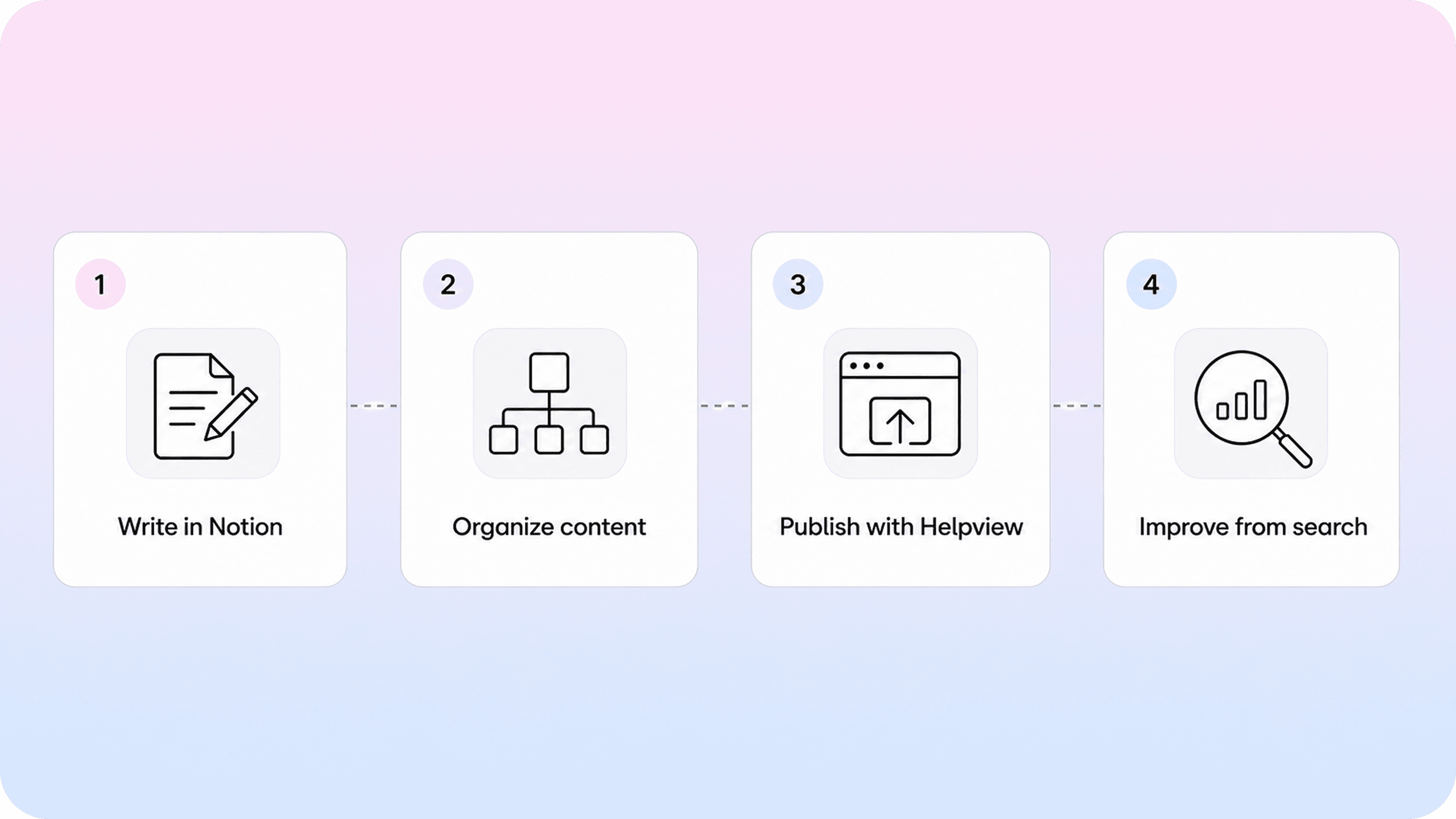
A practical Notion documentation workflow should make it easy to move from repeated question to published answer without losing ownership along the way. The workflow does not need to be heavy, but it does need clear handoffs.
Use a simple sequence:
Capture the need. Start with a real customer question, support trend, product change, onboarding gap, or internal process that keeps causing confusion.
Choose the page type. Decide whether the answer should be a how-to guide, troubleshooting article, reference page, policy page, or internal note.
Draft in a template. Use a repeatable structure so every article has a clear title, audience, purpose, steps, related links, and review owner.
Review for accuracy and usefulness. Ask the person closest to the facts to verify the content, then ask support or success whether it answers the real question clearly.
Publish in the right place. Keep internal-only notes inside Notion, and publish customer-facing answers through a help center when discovery, search, and polish matter.
Review after reality changes. Trigger updates when the product changes, support tickets repeat, search terms fail, or an owner spots stale language.
The key is to avoid treating publication as the end of the workflow. Documentation becomes useful when it stays aligned with the product and the questions people actually ask. That means every important page needs an owner, a review rhythm, and a signal that brings it back into work.
When Notion is enough for documentation
Notion may be enough when your documentation is small, mostly internal, or shared with a narrow audience that already has context. If most readers arrive from a direct link, the page count is low, and the team mainly needs a fast way to keep instructions current, Notion can be a practical choice.
It can also be enough for early customer documentation when the goal is to get useful answers online quickly. A small startup might publish a few setup guides, FAQs, and onboarding pages from Notion while it learns which questions customers ask most often. In that stage, speed matters. Waiting for the perfect help center can delay documentation that users need now.
A simple rule helps: Notion is enough when the cost of extra tooling is higher than the cost of the current friction. If the docs are easy to browse, search is not a major support driver, and the team can keep pages accurate, there may be no urgent reason to add a new layer yet.
But “enough for now” should not become “good enough forever.” Documentation systems tend to break gradually. The moment customers struggle to find answers, support starts sending the same links repeatedly, or the team loses track of which pages are current, the cost of staying simple starts to rise.
When to add a help-center layer on top of Notion
Add a help-center layer when Notion is still useful for writing, but the public documentation experience needs to be better than a shared workspace or simple site.
A Notion help center is a practical way to make that change while keeping Notion as the team’s source of truth for writing and updating content.
The signs are usually clear:
Customers search for answers before they contact support.
The documentation set has grown beyond a handful of pages.
Support keeps answering questions that should be self-serve.
Readers need clearer categories, related articles, and next steps.
The team needs better control over URLs, metadata, branding, and publishing quality.
You want search insights, zero-result searches, or article-performance signals to guide improvements.
Internal Notion structure no longer matches how customers think about the product.
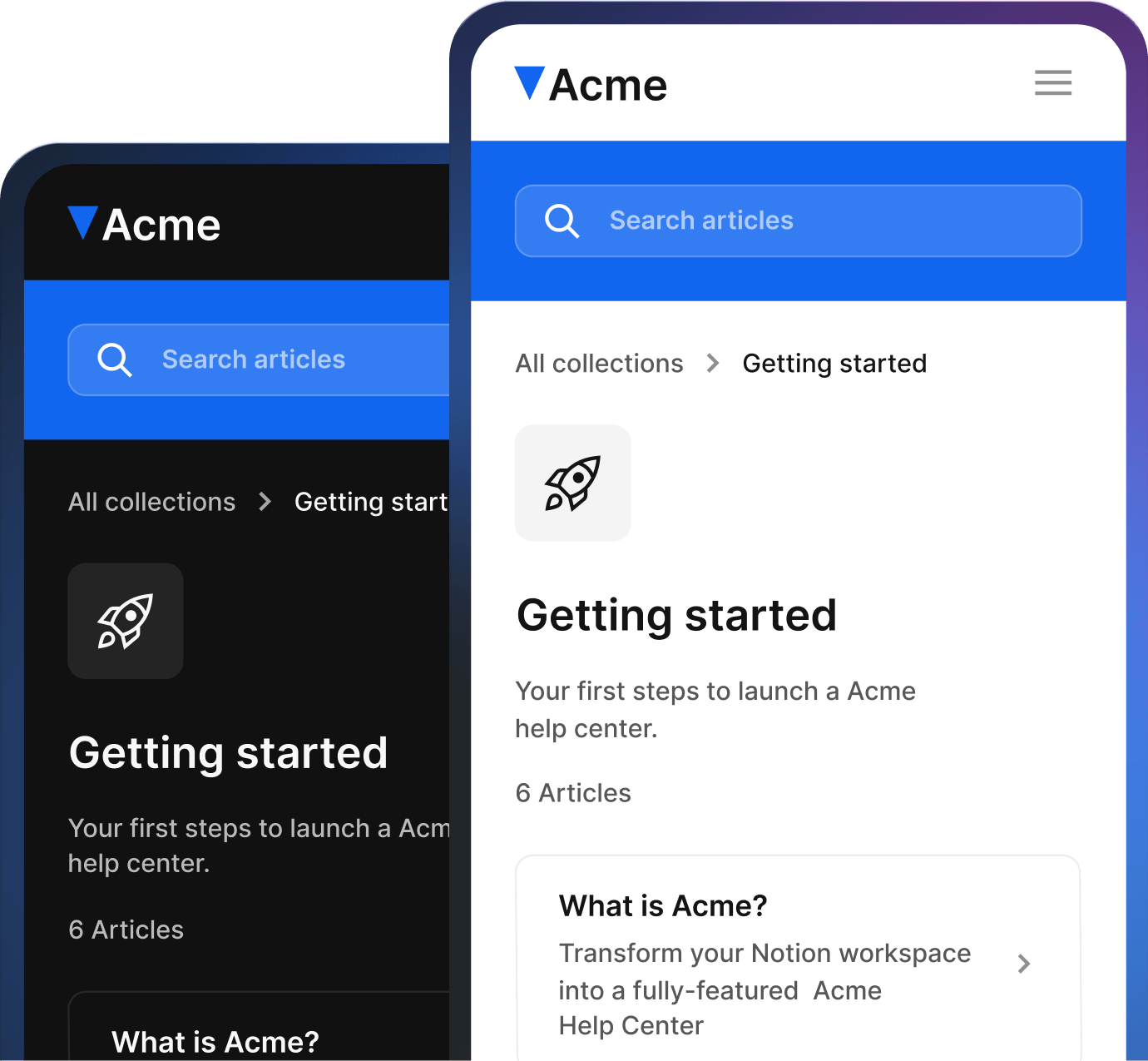
For Helpview’s audience, this is the natural model: keep using Notion where the team already writes, then turn those Notion docs into a polished help center with stronger search, structure, and customer-facing presentation.
That approach protects the team’s workflow while improving the reader’s experience. It also fits teams building a Notion help center for SaaS without moving the whole team into a new editor. Writers do not need to move into a complicated new editor. Customers do not need to navigate a raw workspace. The documentation system gets to use Notion for what it does well and a help-center layer for the parts Notion was not designed to own.
Common mistakes when using Notion for documentation
The biggest mistake is treating Notion’s flexibility as a structure. A workspace can look tidy while still being hard to use. Nested pages, databases, and icons do not automatically create a documentation system. The system comes from clear categories, page types, ownership, review rules, and publishing decisions.
Another mistake is mixing internal and customer-facing content without a strong boundary. Internal notes often contain assumptions, rough wording, private context, or outdated thinking. Customer docs need cleaner scope and more deliberate wording. If the same page tries to serve both audiences, it usually serves neither well.
Teams also overuse broad overview pages. A single page called “Setup” or “Billing” may be easy to create, but it quickly becomes too vague. Readers need specific answers: how to invite a teammate, how to change a plan, how to fix a failed integration, or what happens after cancellation. Strong Notion docs use narrow pages with clear jobs.
Finally, teams forget to maintain docs after publishing. Documentation that was accurate last quarter can quietly become misleading after a product change. A Notion database can help track owners and review dates, but the team still needs the habit of bringing pages back into review when reality changes.
Conclusion
Notion is a strong documentation workspace, but it is not always a complete documentation experience. It works well for writing, collaboration, templates, internal docs, and early customer-facing pages. It starts to break when customers need better search, clearer navigation, stronger metadata, cleaner publishing boundaries, and a more polished help center.
The best setup is usually not to choose between Notion and documentation software. It is to use each layer for the job it handles best. Keep Notion as the source of truth for writing and updates. Add a customer-facing help-center layer when discovery, structure, branding, and support deflection matter.
That way, Notion documentation can stay easy for the team to maintain while becoming much easier for customers to use.
Frequently asked questions
Is Notion good for documentation?
Yes, Notion is good for documentation when the team needs a flexible place to write, organize, review, and update docs. It is especially useful for internal documentation, early customer guides, and teams that already work in Notion. It becomes less complete when documentation needs advanced search, structured browsing, metadata control, public presentation, and support analytics.
Can you use Notion for customer documentation?
What is the best Notion documentation structure?
What are the main limitations of Notion for documentation?
Should teams move documentation out of Notion?
Share article:

2 free months of Pro
Turn Notion pages into help center answers.
Keep writing in Notion and publish a real, searchable Notion help center.

Articles
Keep reading