Tips
Can You Password Protect a Notion Page? Available Options Explained

12 Min Read
Notion does not currently offer native password protection for public Notion pages, so the right setup depends on what you are trying to protect: a private workspace page, a semi-private client doc, a public Notion Site, or a customer-facing help center. This guide explains the available options, where each one fits, and when to use a stronger publishing layer instead of a raw Notion public link.
Share article:


Can you password protect a Notion page?
No. Notion does not currently provide native password protection for a public Notion page. Notion's own help page for public pages and web publishing says that password protection is not available at the moment, and recommends inviting a person privately when the person has a Notion account.
That distinction matters. A password-protected page and a private Notion page are not the same thing.
A password-protected page is usually a public URL that anyone can open if they know the password. A private Notion page is access-controlled inside Notion. Readers usually need to be invited, signed in, and granted permission through the page, workspace, group, or guest model.
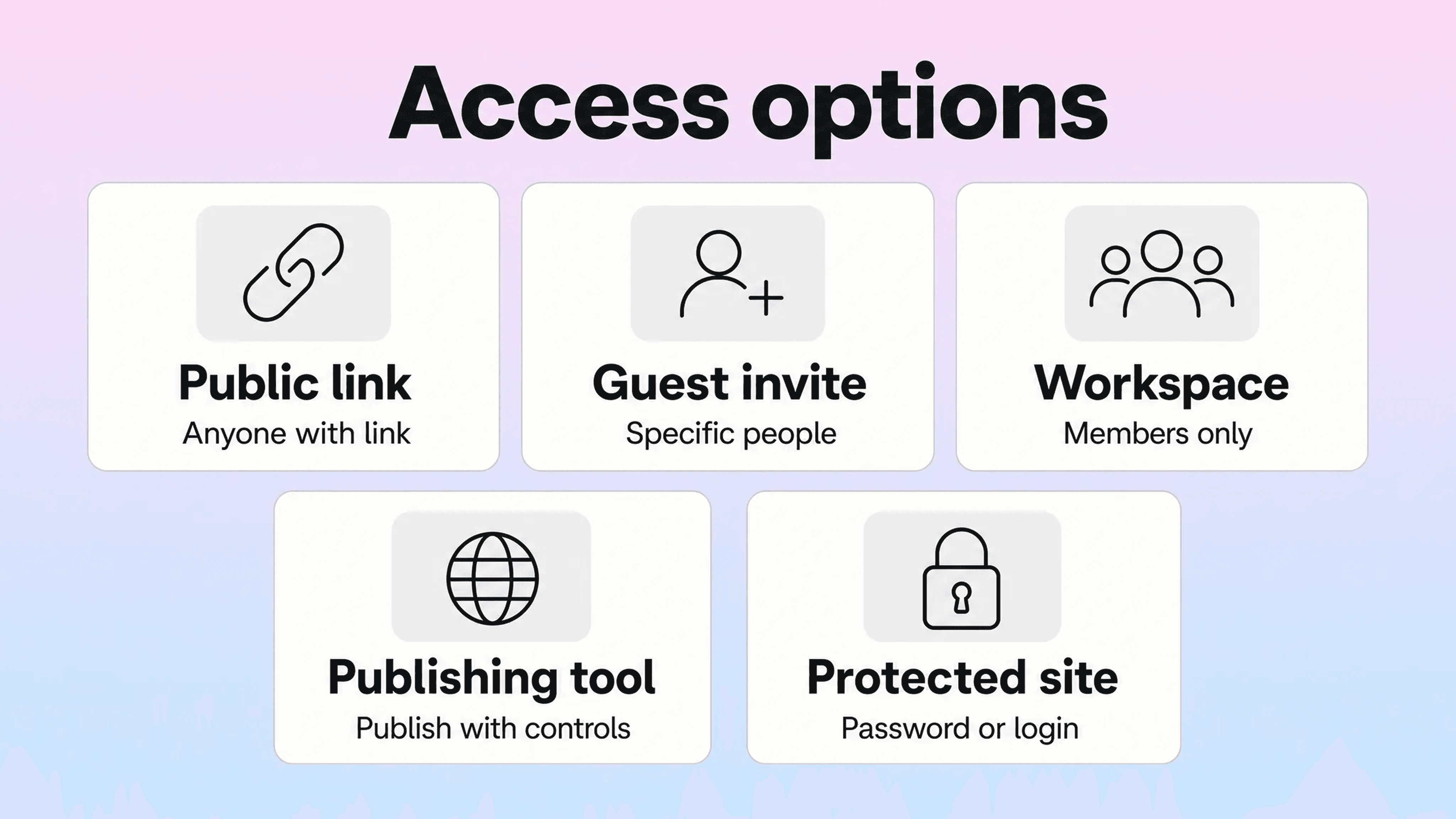
So the direct answer to "can you password protect a Notion page?" is no if you mean a native password field on a public Notion page. But you still have several ways to protect Notion content, depending on whether the page is meant for teammates, clients, logged-in collaborators, or public readers.
The practical question is not only "does Notion password protection exist?" It is "what level of access control does this content need?"
For a private internal doc, Notion permissions are usually enough. For a client portal, guest access may work if every reader has or can create a Notion account. For a public help center, a raw Notion page is often too limited because you may need branded navigation, search, analytics, and controlled publishing around the content. That is where a dedicated Notion help center layer can be a better fit than trying to make one Notion public page do everything.
What Notion public links actually do
A Notion public link makes a page available on the web. When Share to web is enabled, Notion publishes the page so people with the link can open it in a browser. Notion's security and privacy documentation also notes that this setting is turned off by default, which is good: a private page does not become public unless someone chooses to publish it.
Public links are useful when the content is intentionally open:
a public roadmap
a simple resource page
an event guide
a lightweight landing page
early documentation that does not contain sensitive information
a public Notion Site
They are weaker when people use them as a substitute for protection. A public link is not a password. It is not a login requirement. If the page is open to anyone with the URL, you should assume the page can be forwarded, indexed if search indexing is enabled, or shared beyond the original audience.
Notion does provide some useful controls around public sharing. Depending on plan and workspace settings, you may be able to control whether a public page can be duplicated, whether search engines can index it, and whether a public link expires. Enterprise workspace owners can also restrict or disable public sharing at the workspace level through sharing and permissions settings.
Those controls reduce risk, but they do not turn a public Notion page into a password protected Notion page. They are publishing controls, not a public password gate.
Use a public Notion link when the page is safe to be public. Do not use it for private customer data, client-only deliverables, paid course material, internal policies, unreleased product details, or support content that should only be visible to authenticated users.
Guest invitations are the closest native alternative
If you want to protect a Notion page with native Notion features, guest invitations are usually the closest option. Instead of publishing the page to the web, you invite specific people to the page and give them the access level they need.
Notion guests can be invited to view, comment on, or edit specific pages. This is useful for client work, contractor collaboration, partner docs, private handbooks, and project spaces where the audience is known.
Guest access has a few real advantages:
The page stays private unless someone has permission.
You can remove an individual person's access later.
You can choose a permission level instead of giving everyone edit rights.
Readers are tied to Notion accounts rather than a shared password.
The same page can still live inside your normal Notion workflow.
It also has tradeoffs. Every reader needs to be invited. Some readers may need to create or use a Notion account. The experience still feels like Notion, not a branded website. For a few clients or collaborators, that can be fine. For hundreds or thousands of customers, it becomes awkward quickly.
Guest invitations are best when access matters more than public presentation. If the person reading the page is part of a known relationship, invite them. If the page needs to behave like a public website with a simple password prompt, Notion's guest model is probably not the right interface.
Workspace permissions protect internal pages
For internal content, workspace permissions are usually stronger and cleaner than public links. Notion lets teams share pages with individual people, groups, or everyone in a workspace, and assign access levels such as view, comment, edit, or full access.
This is the right model for internal documentation:
company policies
team playbooks
onboarding pages
internal product notes
sales enablement docs
operations manuals
private knowledge bases
The benefit is that access follows the structure of the team. A support group can see support docs. A leadership group can see planning docs. A workspace-wide handbook can be view-only for everyone. When someone leaves the company, removing them from the workspace or group can also remove their access to the relevant pages.
Workspace permissions are not a public website feature, though. They work best when the reader is part of your Notion workspace. They are not designed for anonymous visitors, public customers, or people who just need to read one page without joining your workspace environment.
This is where many teams get tangled. They want Notion to be private like a workspace and public like a website at the same time. Notion can do both jobs separately, but it does not give you native Notion password protection that sits neatly between the two.
If the page is internal, use workspace permissions. If the page is customer-facing, decide whether customers should authenticate, receive an invitation, or read a public version through a better publishing layer.
Third-party publishing tools can add a protected layer
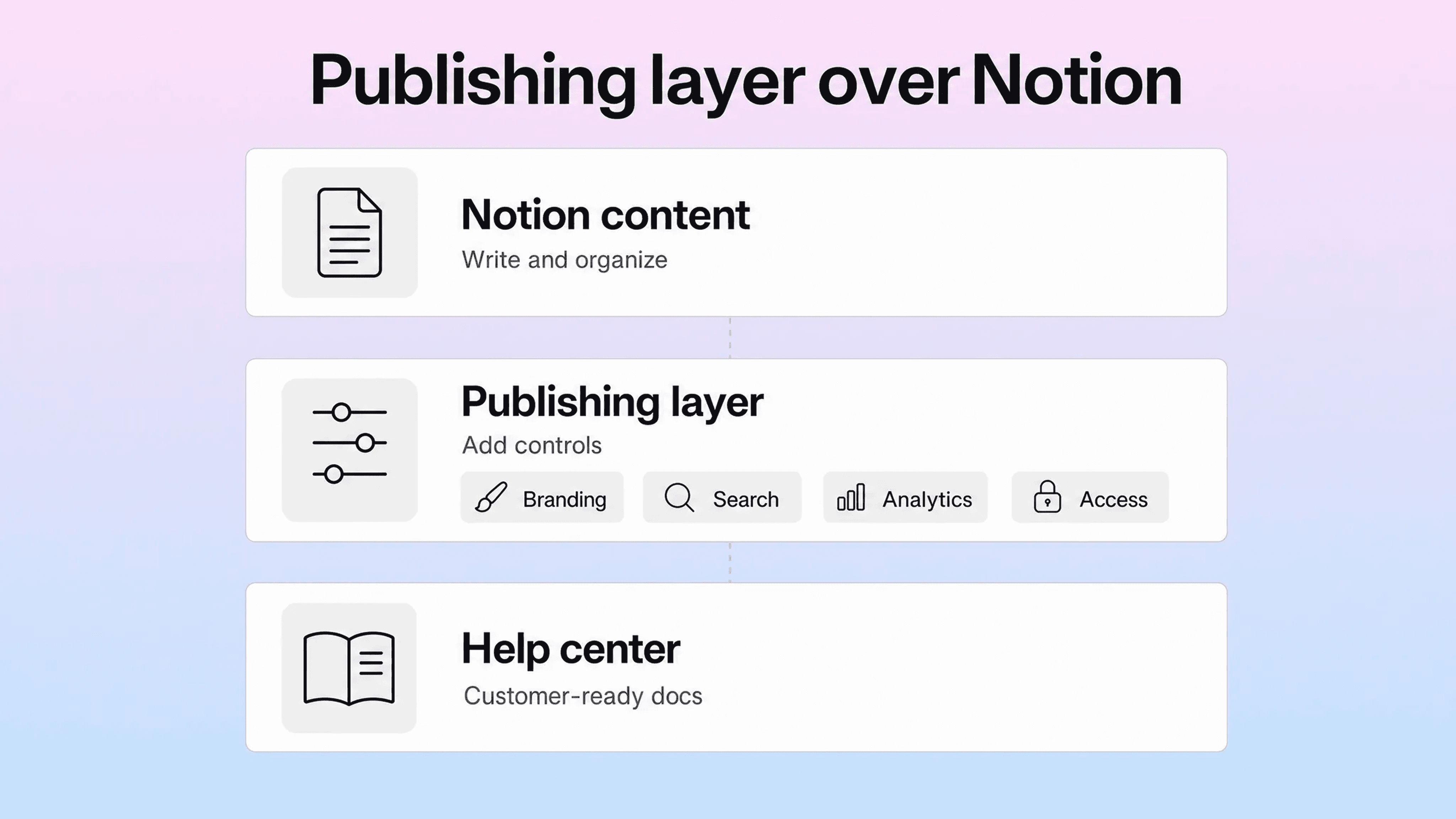
Some teams solve Notion password protection by keeping content in Notion but publishing it somewhere else. A third-party publishing tool can use Notion as the content source, then render the page as a separate website with additional features around it.
Depending on the tool, that outside layer may support:
password-protected pages
custom domains
branded layouts
navigation menus
SEO settings
analytics integrations
script injection
member-only content
gated resources
This can be a good fit when the audience does not belong inside your Notion workspace, but the writing team still wants to manage the content in Notion.
The important part is to check the exact access model. Some tools offer one shared password for a whole site. Some offer per-page passwords. Some support account-based members. Some only hide pages from navigation without truly protecting the URL. Some are built for marketing pages, while others are better suited to documentation.
For customer support content, the publishing layer should do more than hide a page. It should make the content easier to use. Help center readers need search, categories, related articles, clear article layouts, and a path back to support when the answer is not enough. Helpview's guide to Notion Sites for documentation explains the breakpoint: Notion Sites can work for simple publishing, but documentation needs more structure once customers depend on it.
If your team is already writing support docs in Notion, a dedicated help-center layer is usually more practical than moving all content into a separate CMS. Helpview keeps Notion as the writing layer and adds the public help-center experience around it, including clearer structure and a more polished browsing experience than raw Notion pages.
A separate password-protected website gives the most control
The most flexible option is to put the protected content on a website that supports the access model you need, then link or sync from Notion as appropriate.
This is the better route when access rules are more serious:
paid members should see some content and free users should not
each customer needs a separate login
content visibility depends on plan, role, or account status
you need audit logs or compliance controls
support docs must live behind your app login
you need a mature authentication system
In that setup, Notion may still be useful behind the scenes. Your team can draft in Notion, use Notion for editorial planning, or maintain source content there. But the final protected experience belongs to the website, app, customer portal, learning platform, or help center system that controls authentication.
The tradeoff is maintenance. A separate website gives you more control, but it also means more setup, more technical ownership, and more decisions about content sync, design, permissions, analytics, and updates.
Use this option when a shared password is not enough. If access affects billing, compliance, customer privacy, or product entitlements, a simple Notion public page is the wrong layer.
Which option should you use?
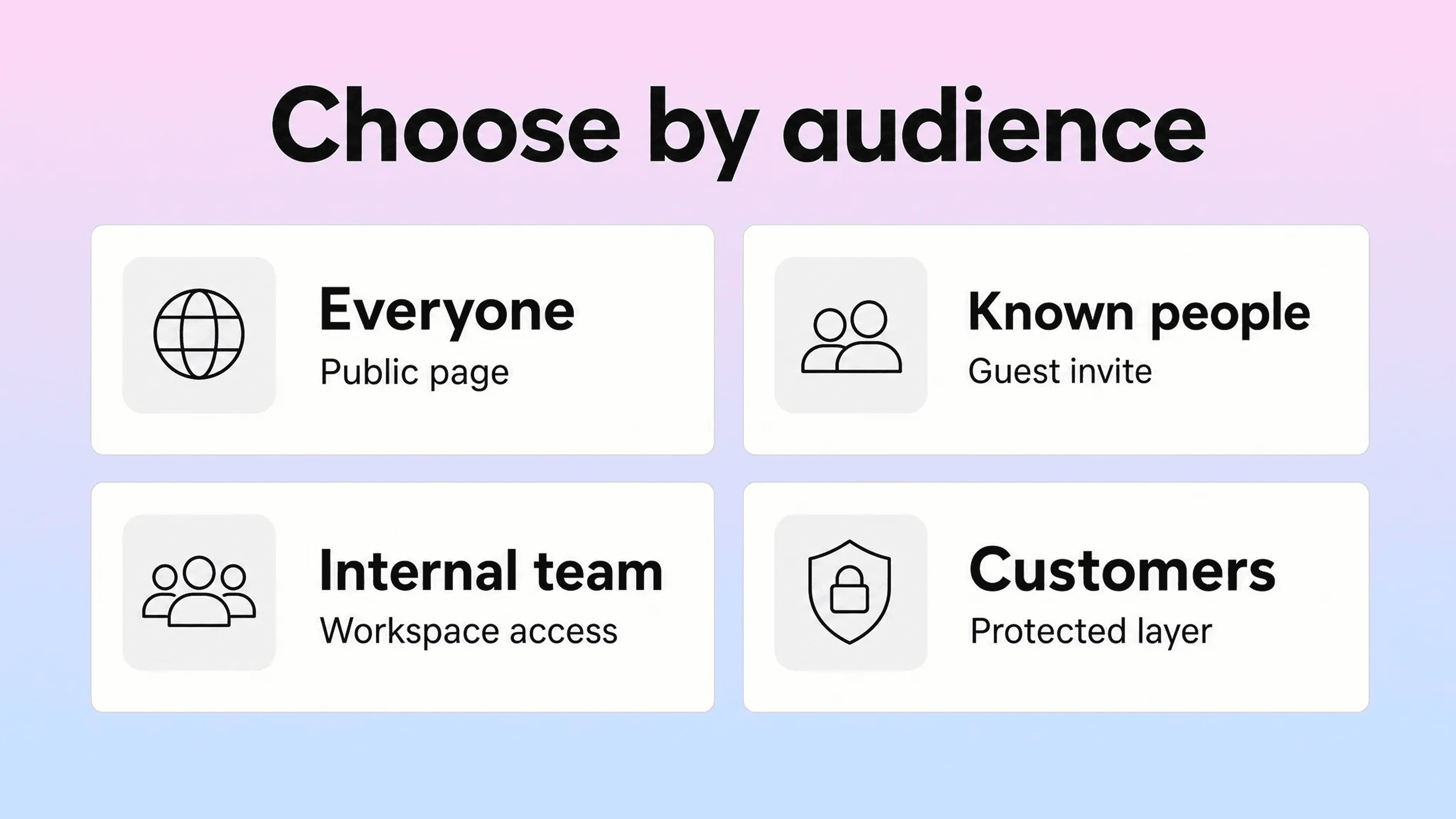
Choose the lightest option that actually protects the content.
Scenario | Best option | Why |
|---|---|---|
A page can be open to everyone | Public Notion link or Notion Site | Simple, fast, and already built into Notion |
A few known people need private access | Guest invitation | Keeps the page private and tied to specific people |
A team needs internal docs | Workspace permissions or groups | Matches access to team structure |
A public site needs a simple password gate | Third-party Notion publishing tool | Keeps Notion as the editor while adding a protected web layer |
Customers need logged-in or role-based access | Separate website, portal, or help-center system | Gives stronger authentication and access control |
The wrong move is using a public link because it is convenient, then treating obscurity as protection. If a page is sensitive, do not publish it openly. Invite people, keep it inside the workspace, or use a publishing layer that actually supports the protection model you need.
The other wrong move is overbuilding. Not every Notion page needs a private website. A client onboarding doc might be fine as a guest-shared page. An internal FAQ might only need workspace-level view access. A public support article might be better open, searchable, and indexable because the whole point is to help customers find the answer without contacting support.
The best choice depends on the reader, not the page editor.
How this changes for Notion help centers
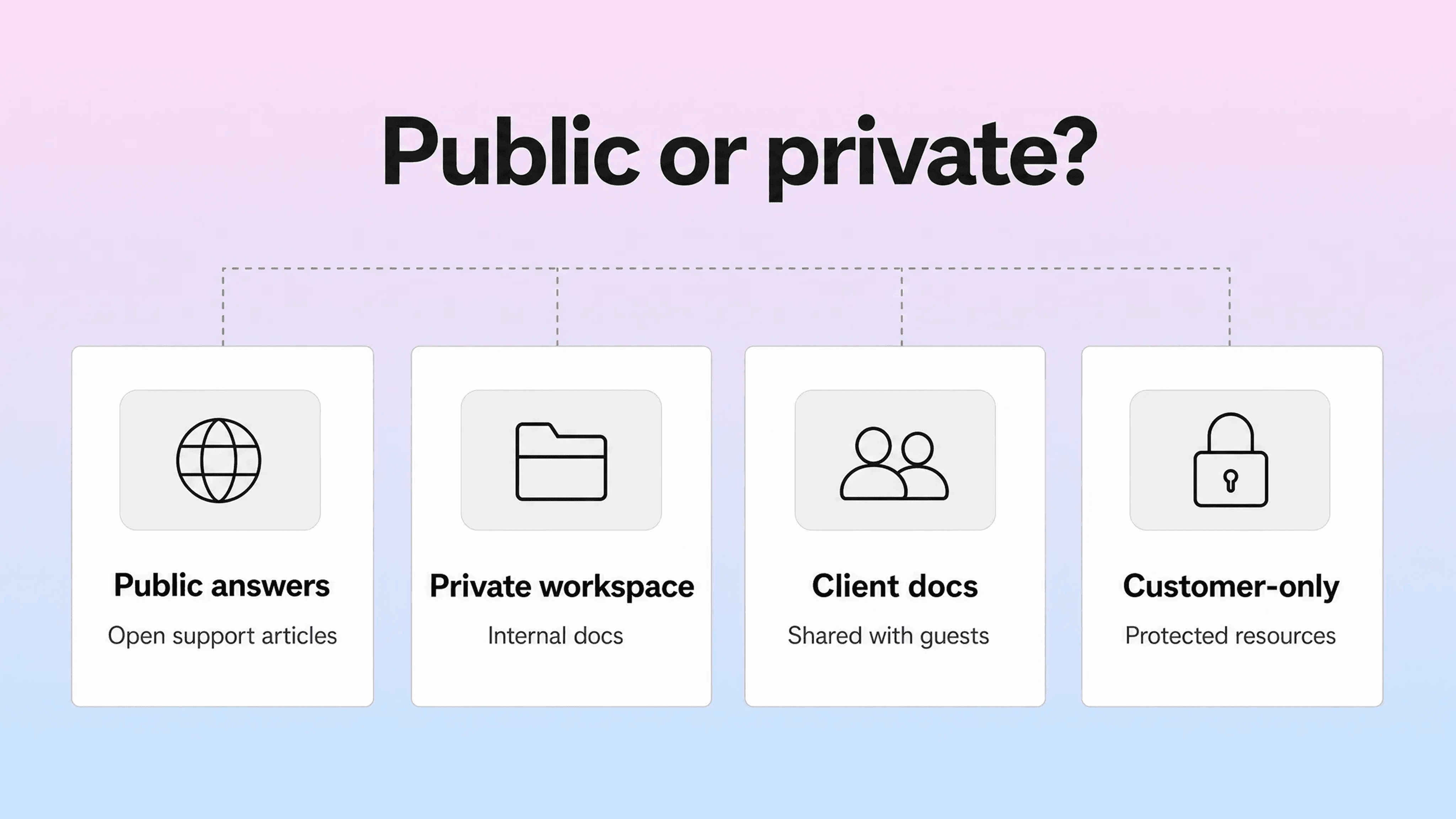
A help center has a different job from a private Notion page. It is not only storing information. It is helping customers find answers quickly, trust what they find, and avoid opening unnecessary support tickets.
That is why password protection is only one part of the decision.
For public support content, password protection may actually make the experience worse. If an article answers a common onboarding, billing, setup, or troubleshooting question, hiding it behind a password can increase support volume. Customers may not know the password. Search engines may not index the article. Support teams may have to send the same explanation manually.
For private support content, protection matters more. Some docs are only for paying customers, enterprise accounts, implementation partners, students, internal teams, or clients under contract. In those cases, the help center needs access control that matches the audience.
The strongest setup is usually one of these:
Keep general support articles public so customers can find them quickly.
Keep sensitive internal docs private inside Notion.
Invite specific clients or partners as guests when the audience is small.
Use a dedicated publishing layer when Notion is the writing layer but the public experience needs stronger search, navigation, branding, analytics, or access control.
Use app-level authentication when content must follow customer roles or subscriptions.
Helpview is built for the middle of that problem: teams already use Notion for docs, but need a more customer-ready help center around those pages. That matters because the limits of raw Notion publishing are rarely only about passwords. Teams also run into custom domains, search behavior, article structure, analytics, navigation, and a public experience that needs to feel more intentional than a shared Notion page. The related Helpview guides on using Notion for documentation, Notion custom domains, and Notion analytics cover those adjacent decisions.
Conclusion
You cannot natively password protect a Notion page today, but you can still protect Notion content by choosing the right access model. Use public links only for content that can safely be public, guest invitations for known outside collaborators, workspace permissions for internal docs, third-party publishing tools for a protected public layer, and a separate website or portal when authentication needs to be stronger. If the content is customer-facing documentation, think beyond the password field: the better long-term setup is often Notion for writing and a dedicated help-center layer for search, structure, branding, analytics, and the right level of access.
Frequently asked questions
Does Notion have native password protection?
No. Notion does not currently offer a native password field for public Notion pages or Notion Sites. You can keep a page private with permissions, but that is different from adding a password to a public URL.
Can you password protect a Notion Site?
What is the best alternative to a Notion password protected page?
Is a Notion public page private if only I have the link?
Should customer help center articles be password protected?
Share article:

2 free months of Pro
Turn Notion pages into help center answers.
Keep writing in Notion and publish a real, searchable Notion help center.

Articles
Keep reading