Tips
Notion SEO: How to Optimize Public Notion Pages for Google

9 Min Read
Notion can publish a page quickly, but search visibility depends on more than making the page public. This guide explains how to optimize public Notion pages for Google by improving indexing, titles, descriptions, URL structure, headings, internal links, domains, sitemaps, speed, and analytics.
Share article:


Is Notion good for SEO?
Notion can work for SEO when the page is public, indexable, focused, and supported by a clear site structure. It is not automatically good for SEO just because Google can crawl some public Notion pages.
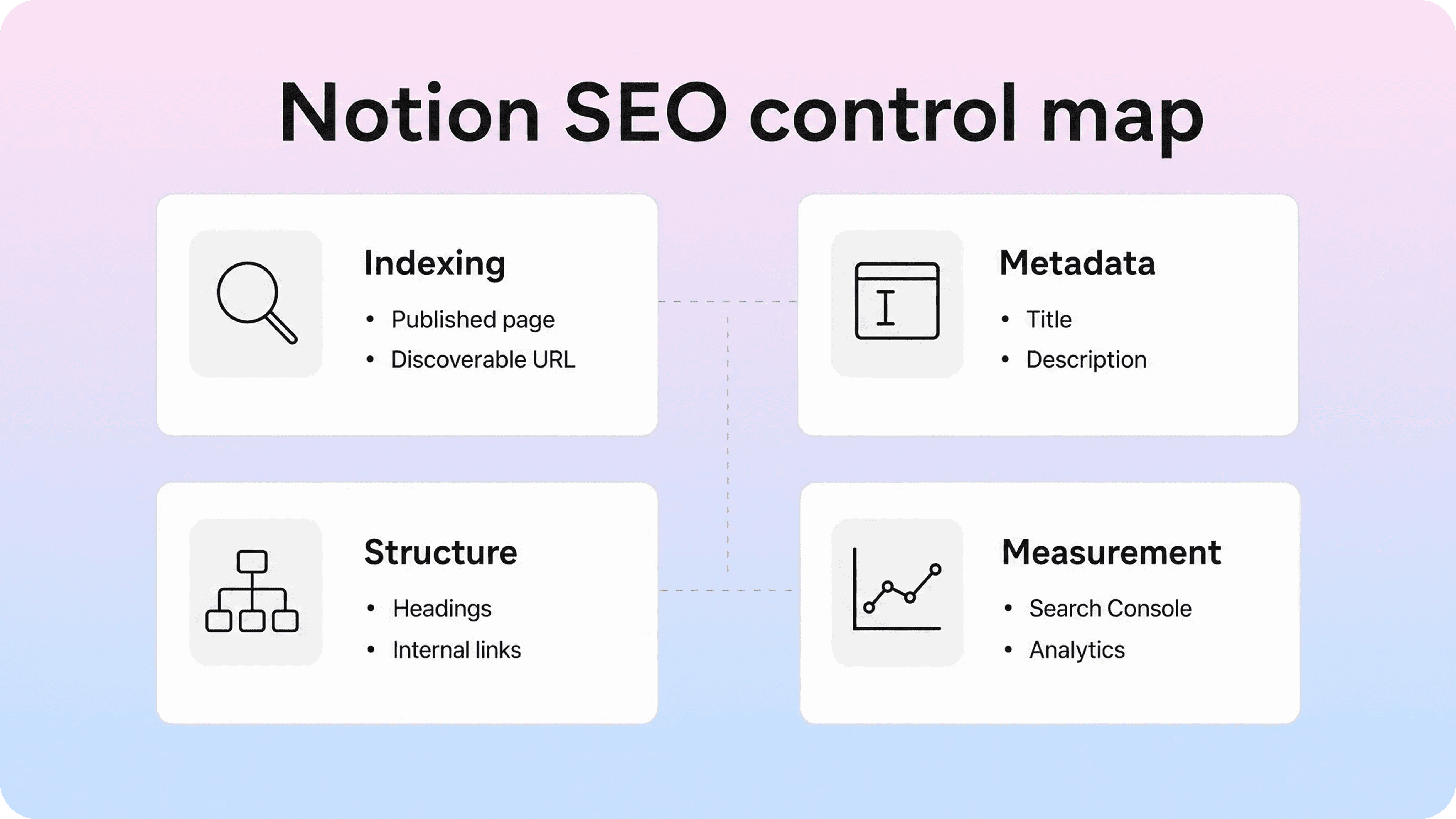
That distinction matters. SEO is not one setting. It is the combination of crawlability, metadata, page structure, internal links, content quality, speed, and trust signals around the page. Notion can help with the writing and publishing layer, but it gives you less control than a full website CMS or a dedicated documentation publishing layer.
For a simple personal page, portfolio, small resource, or early public doc, Notion may be enough. For a customer-facing documentation site, help center, product knowledge base, or SEO-led content library, you usually need more control over navigation, page relationships, structured discovery, analytics, and how each article appears in search.
The best way to think about Notion SEO is this:
Notion is the source where the content is easy to write and update.
Notion Sites is the publishing surface that can make that content visible on the web.
SEO performance depends on how well the published page behaves as a real website page.
That means you should not optimize a Notion page only inside the editor. You should optimize the page as a public search result: what Google can discover, what users see before they click, what the page promises, and where they can go next.
Make the page indexable before optimizing anything else
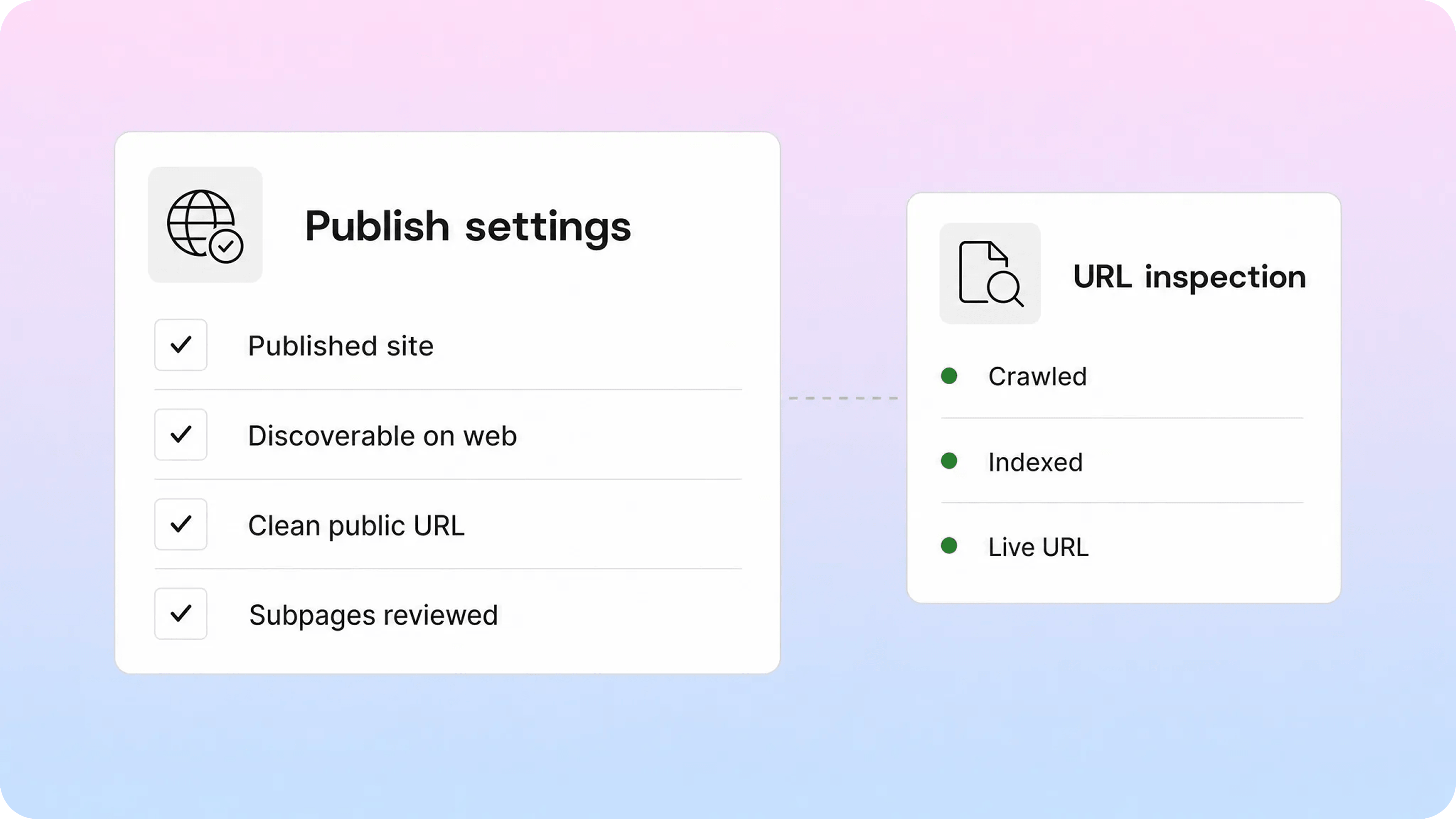
Before changing titles or polishing paragraphs, confirm that the page can be discovered at all. A private Notion page, a shared workspace page, or a page that is only available to people with a link is not the same thing as an indexable public site.
In Notion, publish the page through the Share menu, open the Publish tab, and use the search engine indexing option to make the site discoverable on the web. Notion notes that paid plans unlock additional SEO-related customization, including the ability to edit the link title and description for search engine optimization. Notion also says published Sites can take up to four weeks to be indexed and appear in search results.
That waiting period is normal, but it should not become guesswork. Once the page is live, use Google Search Console to verify the property when possible, inspect the final URL, request indexing for important pages, and monitor whether Google has crawled or excluded the page.
Check the final URL, not the editing URL
Always test the public URL a visitor and Google would see. Do not inspect the private Notion editor URL. If you use a custom domain, inspect the custom-domain URL. If the same content is reachable from several URLs, choose the version you want people to find and use that version consistently in links, submissions, analytics, and documentation.
This is especially important when a page moves from a default Notion URL to a branded domain. Search visibility gets messy when one article is linked in one place as a notion.site URL, somewhere else as a custom-domain URL, and elsewhere as an old copied link. Google can often work through duplication, but the cleaner signal is to use one public version everywhere.
Publish only pages that should be public
Notion warns that publishing a page can also publish its subpages. That is convenient for documentation trees, but risky if the parent page contains drafts, internal notes, sensitive details, or half-finished pages. Before enabling indexing, audit the page and its child pages as if a customer could arrive there from Google without context.
For SEO, thin public pages are not useful just because they are indexable. If a subpage is incomplete, duplicated, outdated, or written for internal readers, keep it unpublished or improve it before treating it as part of the public site.
Set titles, descriptions, and URLs around search intent
A good Notion page title is not just a label for your workspace. It is one of the strongest signals users see in search results, browser tabs, social previews, and internal links.
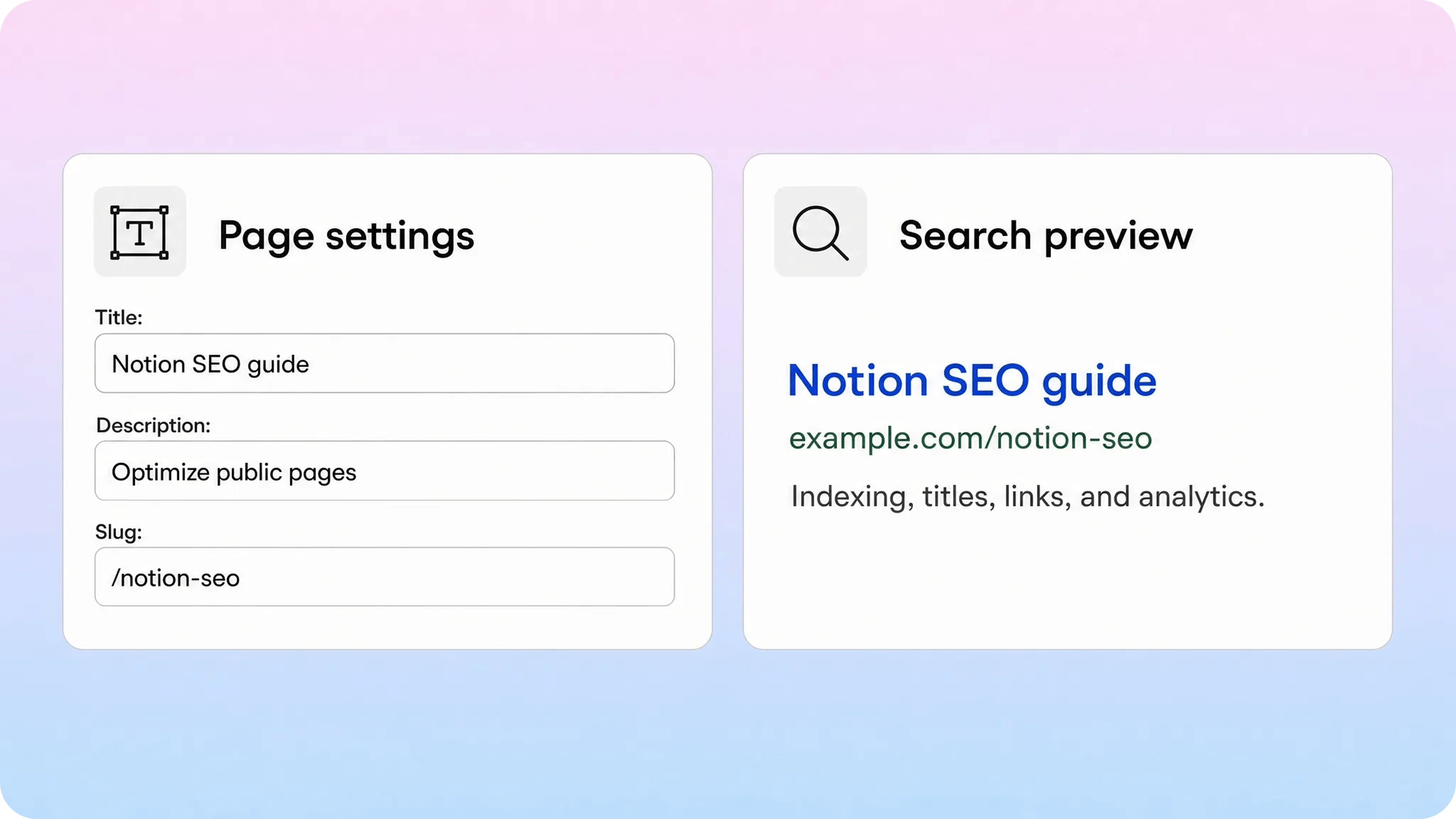
Google's guidance for title links is straightforward: use descriptive, concise title text that accurately reflects the page. Google may use the page title, the visible H1, og:title, headings, prominent on-page text, or anchor text from links when it creates a title link in search. That means your Notion page title, visible heading, and share preview should all point in the same direction.
For a page targeting notion SEO, a title like Notion SEO: how to optimize public pages for Google is stronger than SEO notes, Public page settings, or How to use Notion. It tells the reader what the page covers and keeps the primary keyword near the front without stuffing it into every phrase.
Meta descriptions work differently. Google primarily creates snippets from page content, but it may use the meta description when that description gives users a better summary of the page. Notion says paid users can customize a site's page title and description for share previews and SEO, so use that field to write a short, specific reason to click.
Element | What to optimize | Better Notion SEO habit |
|---|---|---|
Page title | The search result promise | Use the main query naturally and describe the exact page outcome. |
Meta description | The click preview | Summarize the page in one useful sentence instead of listing keywords. |
Slug | The public path | Use short lowercase words separated by hyphens where Notion allows custom slugs. |
H1 | The visible page promise | Keep it aligned with the title so users do not feel a bait and switch. |
Notion's slug rules are simple: paid users can customize the pathname after the domain, slugs can use letters, numbers, and hyphens, and the slug can contain up to 60 characters. For SEO, shorter is usually clearer. Use /notion-seo, /notion-page-seo, or /google-indexing-guide rather than a long sentence copied from the page title.
Avoid treating the meta description as a ranking spell. It should be written for the searcher. If the page is a guide to indexing Notion pages on Google, say that clearly. Do not write a comma-separated list such as notion SEO, notion website SEO, notion sitemap, notion meta description. That gives people less confidence, not more.
Structure the page so Google and readers can understand it
Notion pages are easy to write, but easy writing can turn into loose structure. Search visibility improves when the page has one clear topic, a logical heading hierarchy, and enough internal context for both readers and crawlers to understand why the page exists.
Start with one H1-level page title. Then use H2s for the main questions or tasks inside the topic. Use H3s only when a section needs smaller steps or distinctions. Do not use headings as decorative text. If every line is styled like a heading, Google and readers have a harder time identifying what matters.
For Notion SEO, the structure should mirror the searcher's work:
Can this page be indexed?
Is the title and description clear?
Does the URL make sense?
Does the page answer the query fully?
Can Google find related pages?
Can the team measure what happens after launch?
That flow is better than dumping every SEO tactic into a single long Notion page. It helps the reader diagnose the problem in the same order Google encounters it: discover the page, understand the topic, crawl the links, evaluate the content, and observe how users respond.
Use internal links like a site, not a notebook
Google's link guidance says links help it find new pages and understand relevance, and that every page you care about should have a link from at least one other page on your site. This is where many Notion websites stay too flat.
If one public Notion page links to no other public pages, it behaves like an isolated note. A stronger Notion website SEO setup connects related pages in context:
A setup guide links to troubleshooting pages.
A feature overview links to billing, permissions, and getting-started pages.
A documentation homepage links to the most important category pages.
Each article links back to the category or hub page that explains the broader topic.
Use descriptive anchor text. Link with phrases such as Notion custom domain setup, Notion analytics tracking, or customer documentation structure, not click here or this page. Helpview's own blog has adjacent articles on Notion custom domains, Notion analytics, and Notion Sites for documentation, which are natural supporting links for a Notion SEO article.
Keep the page focused on one search job
A Notion page that targets notion SEO should not drift into a full Notion Sites review, a general documentation strategy essay, and a custom domain tutorial all at once. Those are nearby topics, but they are not the same search intent.
For this keyword lane, stay focused on search visibility. Explain how to make public Notion pages discoverable, how to improve the search result preview, how to create crawl paths, how to avoid duplicate URL confusion, and how to measure search traffic. If a topic deserves its own article, link to it instead of burying a second article inside the page.
Use domains, sitemaps, and links to help discovery
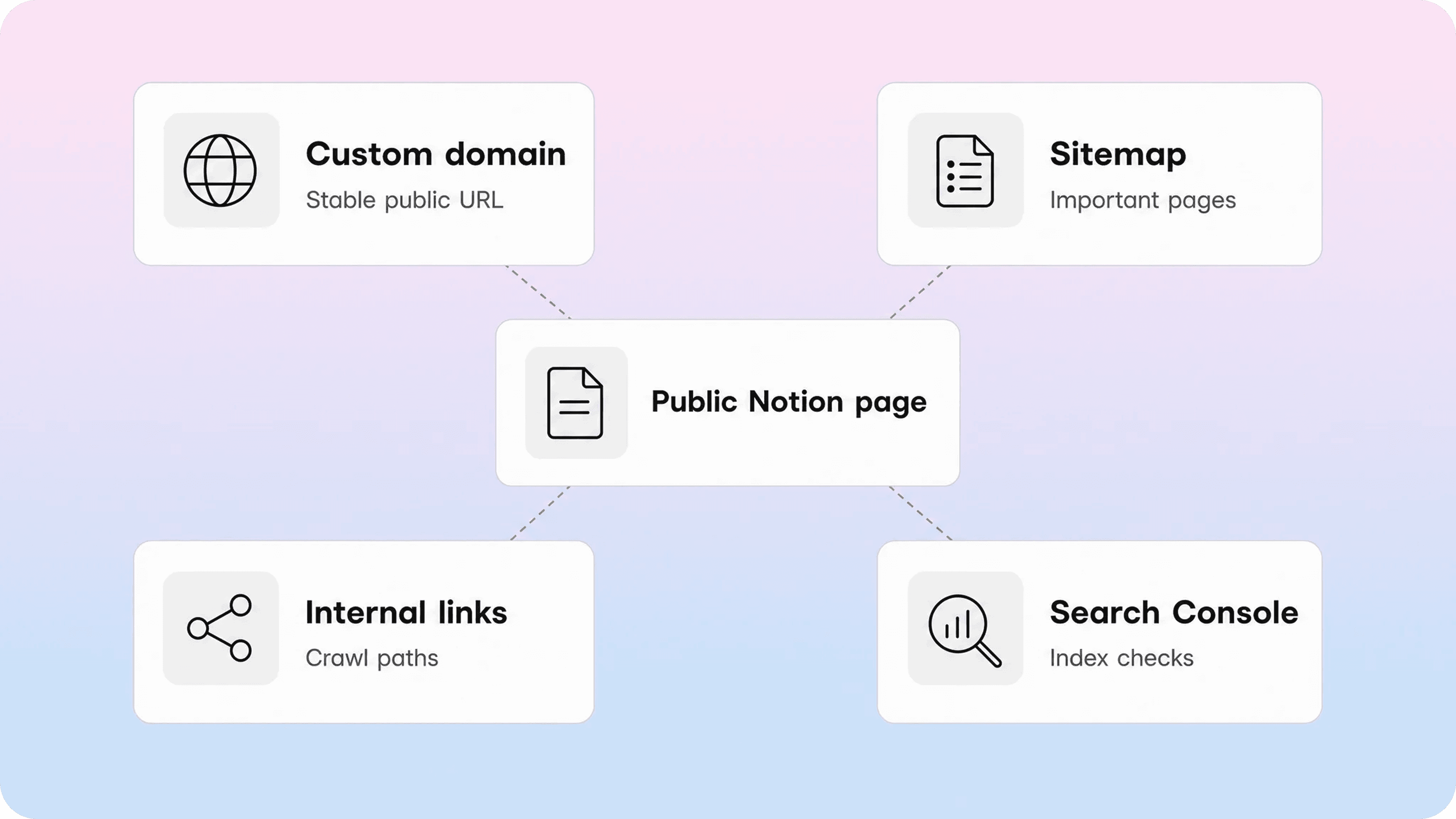
Indexing is easier when Google can discover a clean set of URLs. For a mature website, that usually means a custom domain, a crawlable navigation structure, internal links, and a sitemap that lists the canonical pages you want search engines to consider.
Google describes a sitemap as a file that tells search engines which pages and files you think are important. Google also says submitting a sitemap is a hint, not a guarantee that the URLs will be crawled or indexed. That is useful context for Notion pages: a sitemap can help discovery, but it does not replace strong content, crawlable links, or a clean public URL strategy.
Native Notion publishing is not the same as owning a full CMS. Notion's public help docs explain how to publish Sites, customize slugs, edit title and description on paid plans, connect Google Analytics, and use custom domains through a paid add-on. They do not give page owners the same sitemap, canonical, structured data, or routing controls that a full website stack would usually expose.
That does not mean a Notion page cannot rank. It means you should be realistic about the controls you have.
Use a custom domain when the page is part of a real public site
A custom domain helps users recognize the source, makes URLs easier to share, and keeps your public content under your brand instead of a default Notion URL. Notion's paid plans can optionally connect existing custom domains with Notion Sites through a custom domain add-on, and Notion makes clear that it does not sell domains or replace your domain provider.
For SEO, the domain matters most because it creates a stable home for your content. If you plan to build multiple public pages, documentation categories, or a searchable help experience, choose the domain pattern early. For example:
help.company.com for support docs
docs.company.com for product documentation
guides.company.com for educational resources
www.company.com/resources if the content belongs inside the main marketing site
Then link consistently to that version. Do not split attention between a Notion default URL and a custom-domain URL unless you have a specific reason.
Know when a sitemap becomes a limitation
If you only have one or two public Notion pages, manual discovery through links and Search Console may be enough. If you have dozens of public pages that matter for search, sitemap control becomes more important.
Google recommends letting your CMS generate a sitemap when possible. For small sites, it says a manual sitemap can work, while larger sites should generate sitemaps automatically. A growing Notion-based documentation site can outgrow a setup where important pages depend on manual submission, inconsistent internal links, or whatever discovery Google happens to find.
At that point, the question is not only "can I index a Notion page on Google?" It becomes "can I manage a public content system that Google can discover, crawl, understand, and measure over time?"
That is where a dedicated publishing layer can help. Teams can keep writing in Notion while using a customer-facing layer for cleaner navigation, stronger search, better metadata, related articles, and more predictable public site structure.
Improve speed, content quality, and analytics after launch
Indexing gets the page into the race. It does not make the page competitive. After launch, the work shifts to quality, speed, and measurement.
Start with content quality. The page should answer the query directly, avoid fluff, and give users enough detail to act. A Notion page about indexing should show what to check, what the settings mean, how long indexing can take, and what to do if the page still does not appear. A page about a product setup should include prerequisites, steps, screenshots or examples when useful, and links to related support pages.
Then look at speed and usability. Public Notion pages can become heavy if they contain too many embeds, large images, databases, widgets, third-party blocks, or decorative media. Use PageSpeed Insights or the Core Web Vitals reports in Search Console to check the experience users actually get. Remove anything that slows the page without helping the searcher complete the task.
Finally, measure what search traffic does. Notion's paid Site customization includes a Google Analytics integration where you can add a measurement ID. For SEO work, analytics helps you move past "the page is live" and into better questions:
Which pages receive organic search traffic?
Which queries bring users to the site?
Which pages get impressions but low clicks?
Which docs answer the question well enough that users do not need support?
Which pages attract traffic but send users into dead ends?
For support and documentation teams, this matters because SEO is not only about traffic. A public help page that ranks for the right query can reduce repeated support questions, guide users to the right setup step, and make a product feel easier to trust.
When a Notion page needs more than Notion SEO settings
There is a practical ceiling to optimizing raw Notion pages. If the page is a simple public resource, native Notion Sites settings may be enough. If the page is part of a serious customer-facing support or documentation system, the limits show up quickly.
You may need a stronger publishing layer when:
You need searchable categories, related articles, and article relationships.
You want consistent metadata across many pages.
You need a clean custom-domain experience without confusing URL paths.
You want better analytics around searches, page views, and support deflection.
You need stronger navigation than a flat public Notion page tree.
You want the public experience to feel like a polished help center, not a shared workspace.
That is the natural Helpview use case. Teams can keep Notion as the writing layer, but publish the content as a cleaner public help center with better browsing, search, structure, branding, and customer-facing presentation. It is not about abandoning Notion. It is about putting the right delivery layer around Notion content when search visibility and user experience start to matter.
For SEO, this distinction is useful. The question is not "is Notion good or bad for SEO?" The better question is "how much SEO control does this public content need?" A one-page resource and a full help center do not need the same publishing stack.
Conclusion
Notion SEO is possible, but it works best when you treat the public page like a real website page rather than a shared note. Make the page indexable, choose one clean public URL, write a clear title and description, use a short slug, structure headings around search intent, connect related pages with descriptive links, understand the limits of native sitemap and metadata control, and measure what happens after launch. If the content is becoming part of a serious public docs or support experience, keep Notion for writing and add a publishing layer built for discovery.
Frequently asked questions
Share article:

2 free months of Pro
Turn Notion pages into help center answers.
Keep writing in Notion and publish a real, searchable Notion help center.

Articles
Keep reading