Tips
Notion CMS: how it works and where it breaks

11 Min Read
Using Notion as a CMS can work well when your team wants to manage website, blog, documentation, or help center content in the place where people already write. The key is understanding what Notion can reliably handle as the content layer, what a publishing layer needs to add, and when a dedicated frontend becomes necessary.
Share article:


What people mean by a Notion CMS
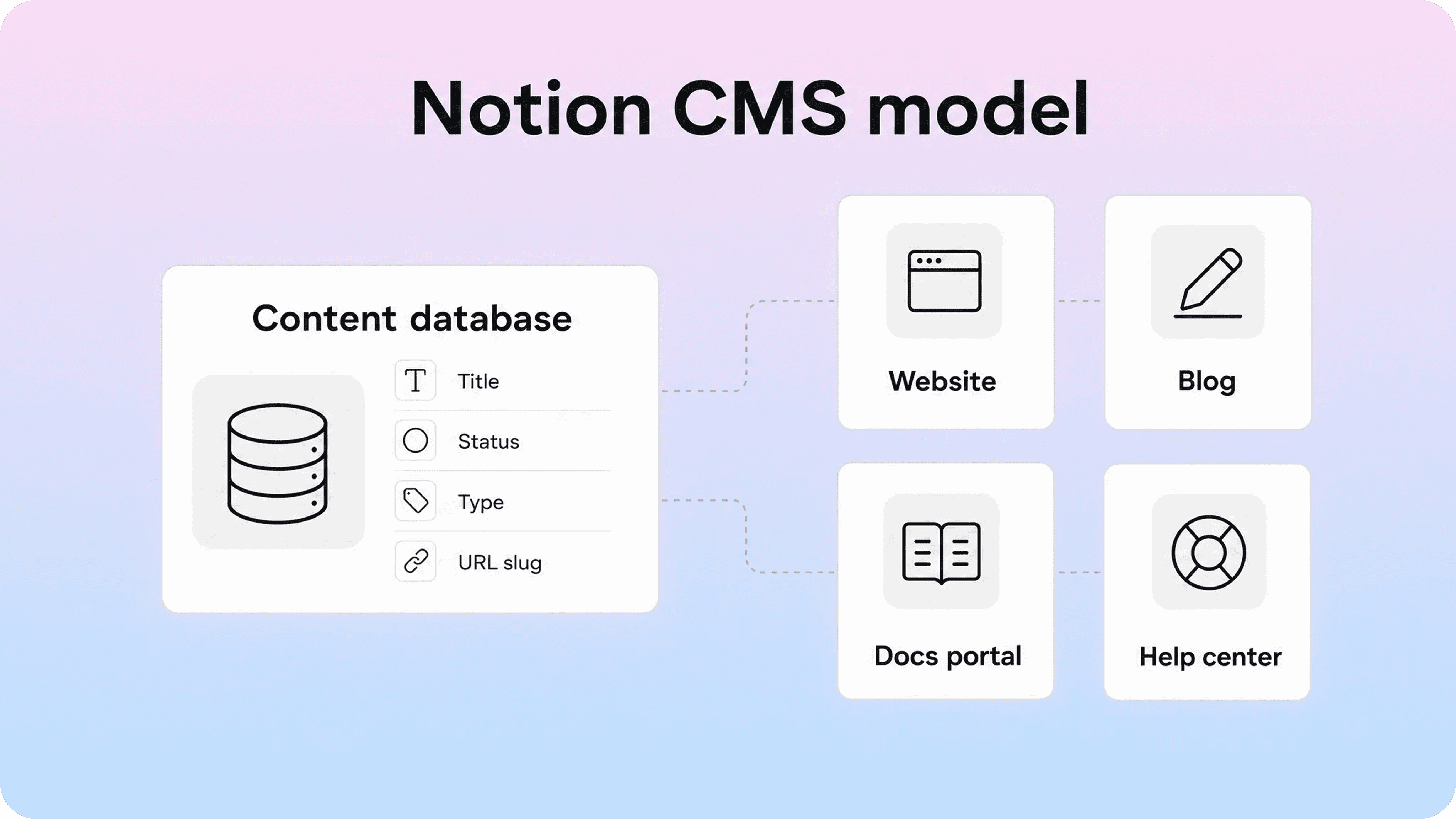
When people talk about a Notion CMS, they usually mean one of three setups.
The first is a simple publishing setup. A team writes pages in Notion, turns them into public pages or a Notion Site, and uses Notion itself as both the editor and the public website surface. This is the lowest-friction version of using Notion as a CMS, and it can be enough for small websites, resource hubs, personal sites, lightweight documentation, or early help content.
The second is a Notion-powered publishing setup. The team still writes and organizes content in Notion, but another tool reads that content and turns it into a more polished site, blog, docs portal, or help center. In this model, Notion is the source of truth for content, while the customer-facing experience is handled somewhere else.
The third is a headless CMS setup. A developer uses the Notion API to read databases, page properties, and page content, then renders that content in a custom frontend built with a framework such as Next.js, Astro, Nuxt, or another web stack. This gives more control, but it also turns Notion into part of an engineering system rather than a no-code publishing shortcut.
The important distinction is that Notion is not a traditional CMS in the WordPress, Webflow, Contentful, or Sanity sense. It does not start with content models, templates, publishing environments, preview flows, redirects, or frontend rendering rules. It starts as a workspace. You can shape that workspace into a CMS, but the quality of the result depends on how deliberately you structure the content and what you use to publish it.
How Notion works as a content-management layer
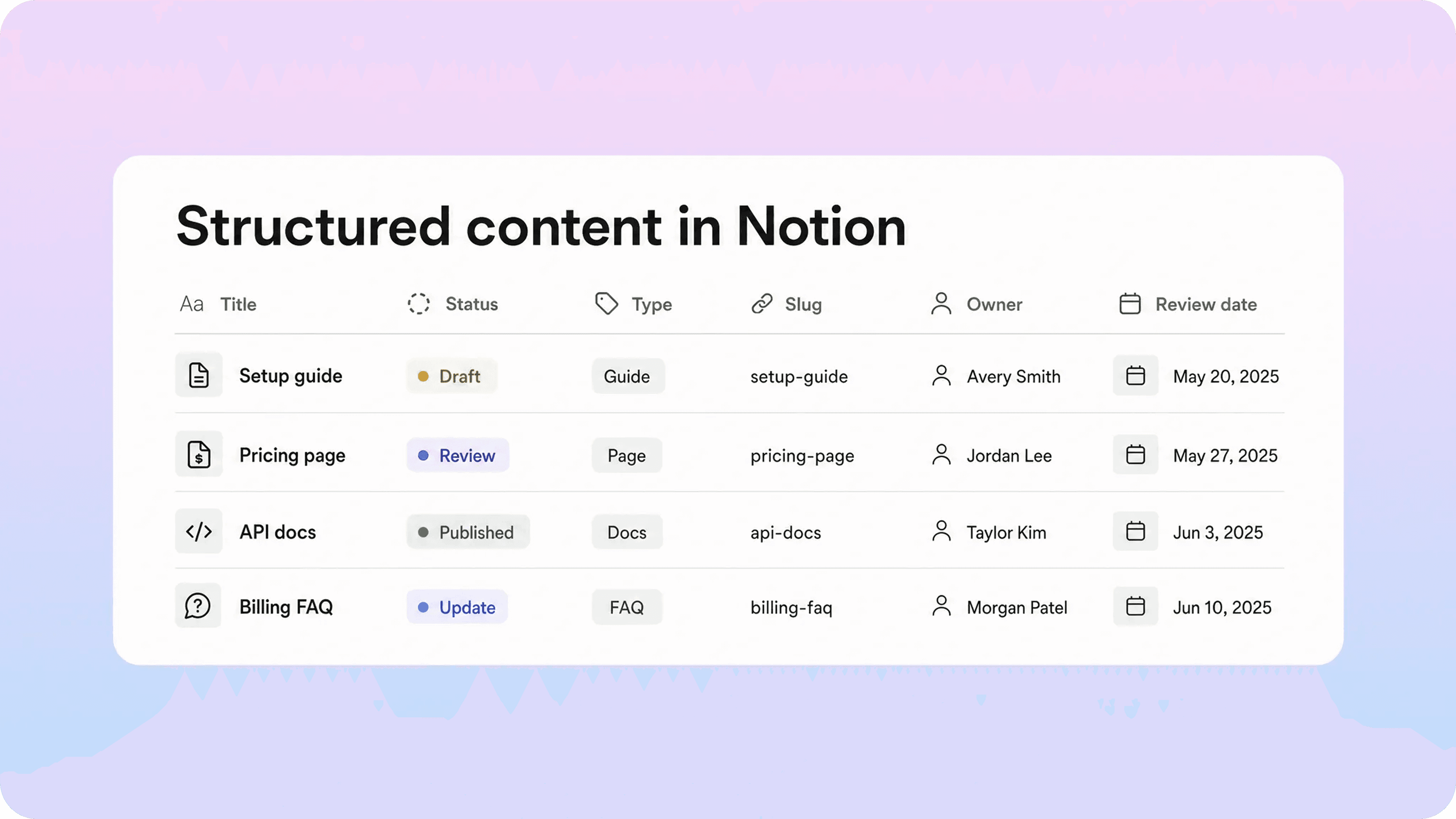
The heart of most Notion CMS setups is a database. Each database row becomes a content item, and each property becomes a field that controls how the content is organized, filtered, published, or rendered.
For a blog, a Notion database might include properties such as title, slug, excerpt, author, category, status, publish date, SEO title, meta description, featured image, and canonical URL. For documentation, it might include article type, product area, audience, owner, last reviewed date, support priority, related articles, and whether the article is public. For a help center, it might also include category, collection, suggested articles, visibility, and review status.
The page body then holds the actual article content. That can include headings, paragraphs, lists, callouts, images, tables, toggles, and other Notion blocks. In a simple Notion Site, those blocks are rendered by Notion. In a custom or third-party setup, the publishing layer needs to read the content and translate it into HTML, markdown, React components, or another format.
This is where Notion becomes useful as a CMS for teams that already work there. Writers do not need to learn a separate admin panel. Support teams can draft help articles next to internal notes. Product teams can review documentation in the same workspace where feature decisions happen. Editors can use Notion views to see what is drafted, what is ready for review, what is live, and what needs updating.
The CMS value comes from structure, not just pages. A loose pile of Notion pages is not much of a CMS. A database with clear properties, filtered views, repeatable templates, review statuses, and publishing rules is much closer to one.
Common Notion CMS use cases
Notion works best as a CMS when the editing workflow matters more than complex publishing requirements. It is especially useful when non-technical teammates need to own content without waiting on developers for every edit.
A Notion website CMS setup can work for simple marketing pages, directories, resource libraries, startup landing pages, changelog pages, public roadmaps, small blogs, and portfolio-style sites. The team manages the content in Notion, then publishes it through Notion Sites, a Notion website builder, or a custom frontend.
For blogs, Notion is attractive because it keeps drafting, feedback, and publishing metadata in one place. A content team can use database views for editorial calendar, draft pipeline, keyword lane, author, and publish date. The frontend or publishing tool can then read only posts marked as ready or published.
For documentation portals, Notion can act as the writing layer behind setup guides, feature explanations, troubleshooting articles, onboarding steps, and release notes. This overlaps with a broader Notion documentation workflow and the question of using Notion docs for customer documentation, but the CMS angle is more structural: the question is not only “can we write docs in Notion?” It is “can we manage structured content in Notion and publish it in a reliable customer-facing format?”
For help centers, Notion can be the place where support and product teams maintain articles, while a dedicated publishing layer handles the parts customers feel directly: search, categories, article navigation, related content, branding, and performance. This is where a Notion CMS for website publishing and a Notion CMS for support content start to look different. A generic website needs pages. A help center needs answers people can find quickly.
The main ways to publish content from Notion
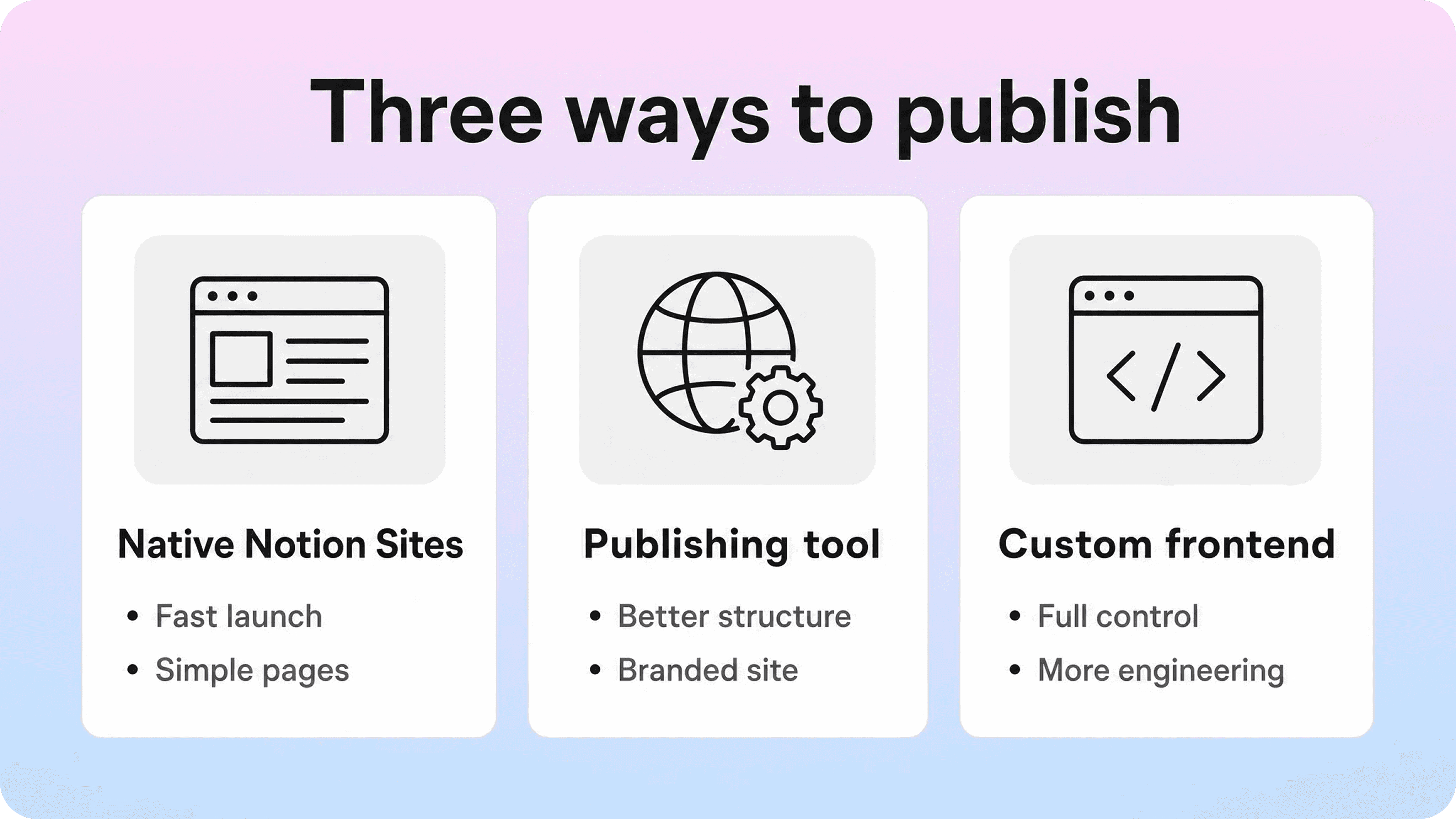
There is no single correct way to use Notion as a CMS. The right setup depends on how much control you need over design, SEO, search, performance, workflows, and development.
Setup | Best for | Main tradeoff |
|---|---|---|
Native Notion Sites | Simple pages, resource hubs, lightweight sites, early documentation | Fast to publish, but limited as a structured CMS or polished help center |
Notion-based publishing tool | Blogs, docs, help centers, branded Notion websites | Keeps Notion as the editor, but the publishing feature set depends on the tool |
Custom frontend using the Notion API | Teams that need full design, routing, caching, or product integration control | Most flexible, but requires engineering, syncing, and maintenance |
Native Notion publishing is the quickest path. You can publish a page or build a simple Notion Site, then optionally configure public search indexing, site settings, analytics, and a custom domain for Notion depending on the plan and setup. This works when the site is small and the structure is simple.
A Notion-based publishing tool sits between Notion and the public site. Tools in this category usually read Notion content and add a more focused website, blog, docs, or help-center experience. This can be a good fit when the team wants to keep writing in Notion but needs a more customer-ready frontend than plain Notion provides.
A custom frontend gives the most control. Developers can fetch Notion content through the API, cache it, transform blocks, generate routes from slugs, render pages in the site design system, and connect the content to analytics, search, authentication, localization, or product data. This is the closest version of a Notion headless CMS, but it should be chosen deliberately because the engineering work does not stop after the first build.
What a Notion database CMS needs to include
A reliable Notion database CMS starts with a content model. That sounds technical, but it simply means deciding which fields each content item needs before it can be published.
For a blog, the minimum useful model is usually title, slug, status, publish date, author, category, excerpt, SEO title, meta description, featured image, and article body. For documentation or help content, the model should usually add product area, audience, visibility, owner, review date, support priority, and related articles. For a website CMS, you may also need template type, page hierarchy, navigation label, canonical URL, and redirect notes.
Status is especially important. If a frontend reads every row in a database without checking status, drafts can leak into the public site. A simple select property with values such as Draft, In review, Ready, Published, and Archived can prevent confusion. The publishing layer should only read or render items that meet the public criteria.
Slugs also need discipline. A slug property gives each content item a stable URL path. Without it, URLs may depend too heavily on page titles or Notion IDs, which makes future edits harder. If you use Notion for SEO-driven pages, keep slugs short, readable, lowercase, and stable once published.
Review fields keep the CMS from becoming stale. Owner, last reviewed date, and next review date help teams avoid the common Notion problem where a page looks polished but nobody knows whether it is still true. For customer-facing content, freshness is part of trust.
How syncing and updates usually work

Sync is the hidden part of using Notion as a CMS. Readers only see the finished page, but the publishing layer has to decide when to fetch content, how to cache it, and what happens when something changes in Notion.
In a simple setup, publishing is manual. A writer updates Notion, then clicks publish, sync, rebuild, or refresh in the connected tool. This is easy to understand and often good enough for small teams, especially when content does not change every hour.
In an API-powered setup, the site may fetch Notion content during a build, on a schedule, or on demand. Static builds can be fast for readers because pages are generated ahead of time. Server-rendered or dynamic pages can reflect changes sooner, but they need careful caching so the public site is not waiting on Notion for every request.
Notion’s API supports reading databases, data sources, page properties, and block children, but page content may require recursive fetching when blocks contain nested children. The API also has request limits, so a serious Notion headless CMS setup should avoid treating Notion like a high-throughput database. Cache content, handle pagination, respect rate limits, and design the sync process so a slow or failed fetch does not break the public website.
Notion webhooks can help a connected application respond when pages or databases change, but they are signals, not a replacement for content retrieval. The receiving system still needs to fetch the current content, update its cache, and decide whether the public site should rebuild or refresh.
For most teams, the practical rule is simple: let Notion be the editorial source, but do not make every public page view depend directly on live Notion API calls.
Where Notion CMS setups start to break
Notion CMS setups usually break when the public experience becomes more important than the internal editing convenience.
Design control is one common limit. Notion pages have a recognizable structure. That can be fine for a simple public resource, but it becomes restrictive when the site needs custom layouts, product-specific components, conversion paths, advanced navigation, or a brand system that does not look like Notion.
Search is another limit. A website, docs portal, or help center often needs search that understands article titles, categories, synonyms, product terms, and zero-result behavior. Plain Notion search and simple site search are not always enough when users are trying to solve problems quickly.
SEO control can also become a problem. A serious website or blog may need precise metadata, canonical handling, structured data, image optimization, sitemap control, redirects, internal linking, performance tuning, and reliable Notion analytics around what readers actually do. Notion Sites and basic Notion website setups can help with some surface-level publishing needs, but they are not always enough for a content program that depends on organic search.
Permissions need careful thought too. Notion is good at workspace permissions and private collaboration, but public publishing is different from customer authentication. If a content experience needs gated access, customer-specific content, role-based visibility, or a private portal, a separate frontend or publishing layer is usually safer.
The biggest break point is scale. A small collection of pages can be managed by good habits. A large content library needs stronger systems: content models, review queues, redirects, analytics, link hygiene, navigation rules, and support feedback loops. Notion can still be the authoring layer, but it should not be forced to solve every delivery problem alone.
When a separate frontend becomes necessary
A separate frontend becomes necessary when the public site needs behavior that Notion cannot provide cleanly on its own.
For a marketing website, that might mean custom page templates, reusable content components, conversion-focused sections, fast page performance, A/B testing, or tight integration with product signup flows. For a blog, it might mean stronger SEO controls, author pages, category pages, newsletter capture, related posts, schema, and better image handling. For documentation, it might mean versioning, sidebar navigation, article relationships, anchors, code examples, and stronger search.
For a help center, the case is even clearer. Customers do not care that the team writes in Notion. They care whether they can find the right answer, understand it, and get back to the product. A dedicated frontend can turn Notion content into a searchable, structured, branded support experience while leaving the internal writing workflow intact.
This is the most practical way to think about Notion as a CMS: keep Notion where it is strong, and add a frontend when readers need more than a published Notion page.
The frontend does not have to be custom code in every case. Some teams need a developer-built headless CMS setup. Others need a purpose-built publishing layer that syncs with Notion and handles the customer-facing structure for them. The right choice depends on whether your main problem is engineering flexibility or publishing quality.
A practical checklist before using Notion as a CMS
Before using Notion as a CMS for a website, blog, documentation portal, or help center, check whether the content model is clear enough to survive beyond the first few pages.
Start with the basics. Does every public item have a title, slug, status, owner, and publish date? Do you know which database is the source of truth? Can someone tell the difference between drafts, live content, outdated content, and archived content? Are public pages separated from internal notes?
Then look at publishing. How does content move from Notion to the public site? Is publishing manual or automatic? What happens if someone changes a slug? What happens if a page is unpublished? Does the publishing layer handle images, nested blocks, tables, callouts, links, and embeds well enough for your content?
Next, evaluate the reader experience. Can visitors browse by topic? Can they search effectively? Are related articles visible? Is the site fast? Does it feel like part of your brand? Does it support the metadata, analytics, and link structure you need?
Finally, be honest about maintenance. A Notion CMS can feel wonderfully simple at the start. It only stays useful if the team owns the structure, keeps properties consistent, reviews old pages, and fixes the publishing layer when the content model changes.
Conclusion
Notion can work well as a CMS when you treat it as a structured content-management layer rather than a magic website engine. Use databases to model content, properties to control publishing, statuses to protect drafts, and a sync or publishing layer to turn Notion pages into the right public experience. For simple sites, native Notion publishing may be enough. For blogs, documentation portals, and help centers that need stronger search, structure, branding, SEO, and performance, Notion is usually strongest as the editing layer behind a dedicated frontend.
Frequently asked questions
Can Notion be used as a CMS?
Yes. Notion can be used as a CMS when you structure content in databases and publish that content through Notion Sites, a Notion-based publishing tool, or a custom frontend connected to the Notion API. It works best when the team values Notion’s writing and collaboration experience, but it needs extra structure for serious website or help-center publishing.
Is Notion a headless CMS?
How do you use Notion as a CMS for a website?
What are the limits of a Notion CMS?
Is Notion good for a help center CMS?
Share article:

2 free months of Pro
Turn Notion pages into help center answers.
Keep writing in Notion and publish a real, searchable Notion help center.

Articles
Keep reading