Tips
7 Best Notion Integrations for Business Workflows

11 Min Read
The best Notion integrations help teams turn Notion from a flexible workspace into a connected business system. This guide compares seven practical Notion tools for publishing, customer support, forms, automation, analytics, reporting, communication, and database syncing, with a focus on workflows that matter to growing teams.
Share article:


How to choose Notion integrations for business workflows
Notion is useful because it can hold many kinds of work in one place: docs, databases, tasks, project notes, customer research, content calendars, support drafts, meeting notes, and operating processes. That flexibility is also why a Notion workspace can become hard to manage once the business around it grows. The question is not just which apps integrate with Notion. The better question is which Notion integrations remove real friction from the way a team works.
A good business integration usually does one of four jobs. It publishes Notion content somewhere more polished. It brings external work into Notion so the team can act on it. It pushes Notion updates into the tools where people already collaborate. Or it keeps databases aligned between Notion and systems that need cleaner syncing than manual copy and paste.
That is why this notion integrations list does not focus on personal dashboards, habit trackers, or template add-ons. Those can be useful, but they do not usually change how a business runs. The tools below are better fits when Notion has become part of a real operating workflow: support, sales, marketing, content, product, operations, reporting, or cross-functional collaboration.
The safest way to choose is to start with the workflow, then pick the integration. If your customers need to read Notion content, use a publishing layer. If support tickets need context from Notion, connect the help desk. If leads and requests enter through forms, use a form builder that writes to a database. If work depends on repeated handoffs, add automation. If teams need metrics, add reporting. If updates are stuck in chat, connect communication. If Notion must stay aligned with another database, use a proper sync tool.
Quick comparison of the best Notion integrations
Tool | Best for | Business workflow | When to choose it |
|---|---|---|---|
Helpview | Publishing | Customer-facing help centers and docs | You write support content in Notion but need a polished help experience |
Zendesk | Customer support | Ticket context and support collaboration | Support tickets need to connect back to Notion docs, projects, or internal notes |
Fillout | Forms | Lead, request, feedback, and intake forms | You need clean submissions that create or update Notion database rows |
Make | Automation | Multi-step workflows across business apps | Notion needs to trigger or receive structured updates from many tools |
ChartBase | Analytics and reporting | Live charts from Notion databases | Notion databases need readable charts without building a BI stack |
Slack | Communication | Team updates, notifications, and message capture | Work discussed in Slack needs to become visible in Notion |
Whalesync | Database syncing | Two-way sync with apps like Airtable, HubSpot, Webflow, and sheets | Notion needs to stay aligned with another structured data source |
1. Helpview for publishing customer-facing help content
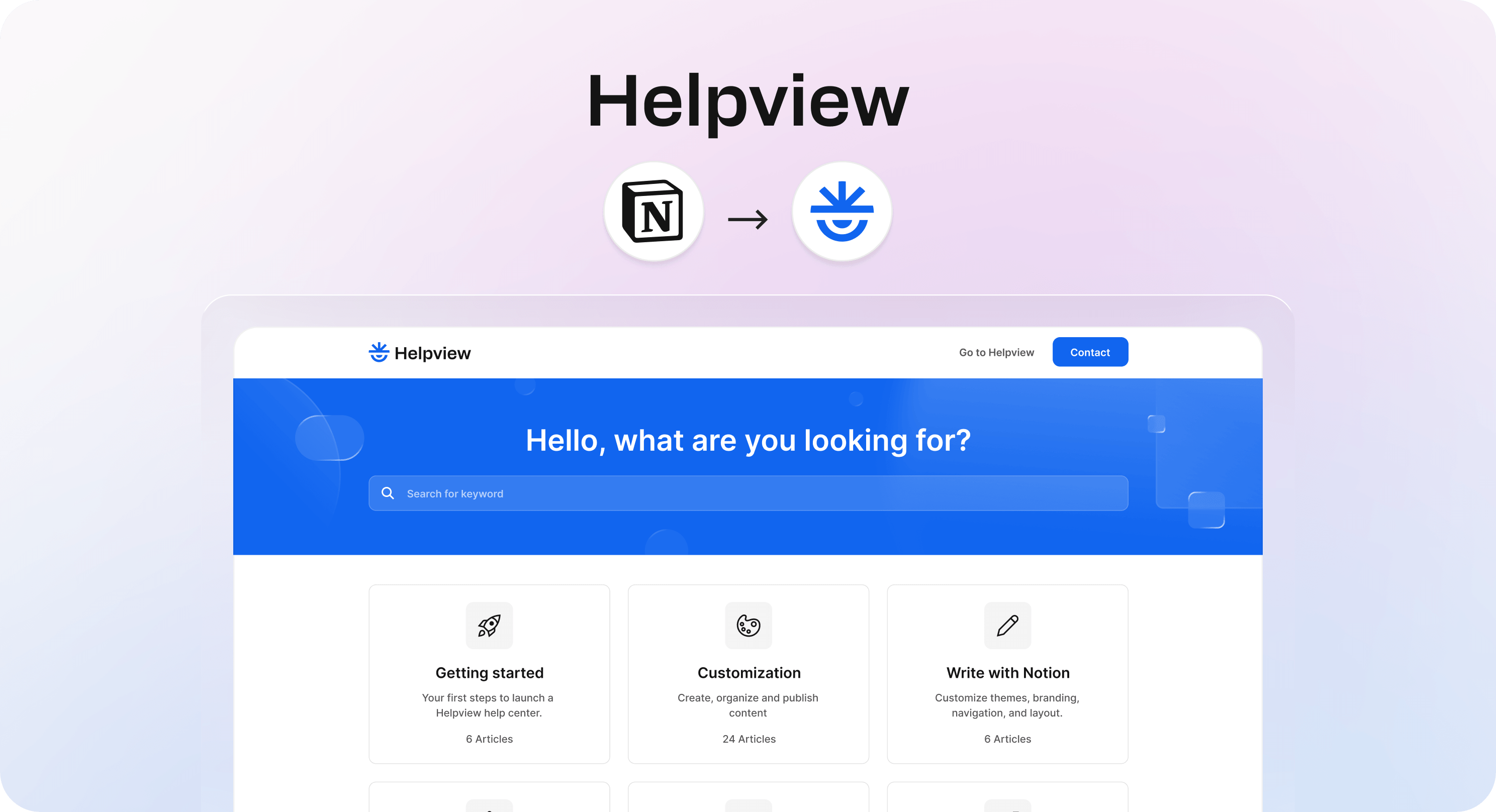
Helpview is the best fit when Notion is already where your team writes support articles, help docs, setup guides, onboarding content, or product answers, but plain Notion is not enough as the customer-facing experience. It lets the team keep writing in Notion while publishing that content as a clearer Notion help center with structure, search, branding, and a help widget.
That matters because customer-facing documentation has a different job from internal notes. A Notion page can hold the answer, but a help center needs to help people find the right answer quickly. Customers need categories, article navigation, related content, search behavior, clean presentation, and a browsing path that makes sense even when they do not know what the page is called.
Helpview fits teams that want Notion to remain the writing and editing layer. Support, product, and customer success teams can draft and maintain content in a familiar workspace, while Helpview handles the public delivery layer. That is especially useful for SaaS companies, ecommerce teams, education businesses, agencies, and service teams that want their knowledge base to look intentional without moving all content into a heavy help center CMS.
Use Helpview when the workflow is publishing support content, not just sharing a page. It is strongest when Notion already contains useful answers and the next problem is customer experience: search, navigation, polish, contact routing, analytics, and keeping the help experience connected to the docs your team actually updates.
It is not the right first choice if you only need one public page, a personal resource library, or a simple internal wiki. In those cases, native Notion sharing or Notion Sites may be enough. But once public docs become part of support, onboarding, and ticket deflection, a dedicated publishing layer becomes much more useful.
Best business use cases:
Publishing a customer help center from Notion.
Turning setup guides and FAQs into searchable self-service content.
Giving support teams a cleaner way to maintain public answers.
Using Notion as the content layer while improving the customer-facing experience.
2. Zendesk for customer support workflows
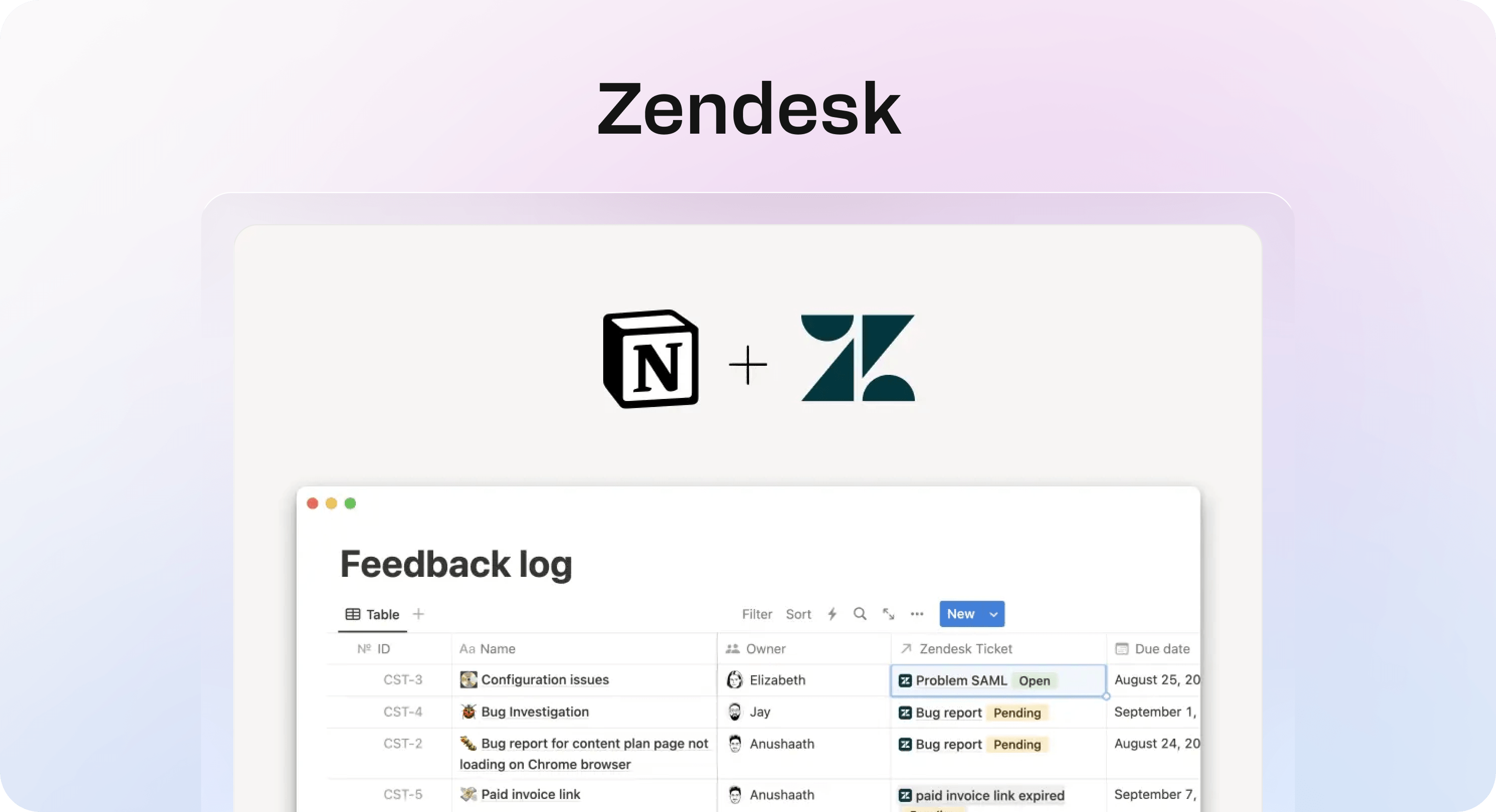
Zendesk's Notion connection is useful when customer support tickets need to connect with the rest of the organization. Support teams often see patterns before anyone else: confusing setup steps, billing questions, product bugs, missing documentation, and feature requests. The problem is that those signals can stay trapped inside the help desk unless they are connected to the team's docs, tasks, and planning system.
The Notion and Zendesk integration lets teams preview live Zendesk tickets in Notion and connect ticket properties to Notion database views. That makes it easier to link support work with product follow-up, documentation improvements, escalation notes, customer research, and internal projects.
This is not the same job as Helpview. Helpview is about publishing Notion content to customers. Zendesk is about connecting customer support activity back to internal work. A strong support stack can use both: Helpview for the public knowledge base, Zendesk for ticket handling, and Notion as the shared operating layer where patterns, projects, and follow-up work are organized.
Zendesk is one of the best Notion integrations for teams that already use Zendesk as the help desk and want better internal visibility. For example, a support lead can connect repeated tickets to a documentation backlog. A product manager can track high-priority customer issues beside roadmap work. A customer success team can keep account notes, escalation context, and support patterns closer to the source.
The main caution is scope. The native connection is strongest for previews and context. If you need full ticket mirroring, advanced reporting, or two-way operational workflows between Zendesk and Notion, you may need an automation or sync layer on top, such as Make, Zapier, Unito, or a custom API workflow.
Best business use cases:
Connecting support tickets to product and documentation work.
Keeping customer issue context visible in Notion projects.
Creating support review databases from ticket links and properties.
Helping non-support teams understand what customers are asking about.
3. Fillout for forms and structured intake
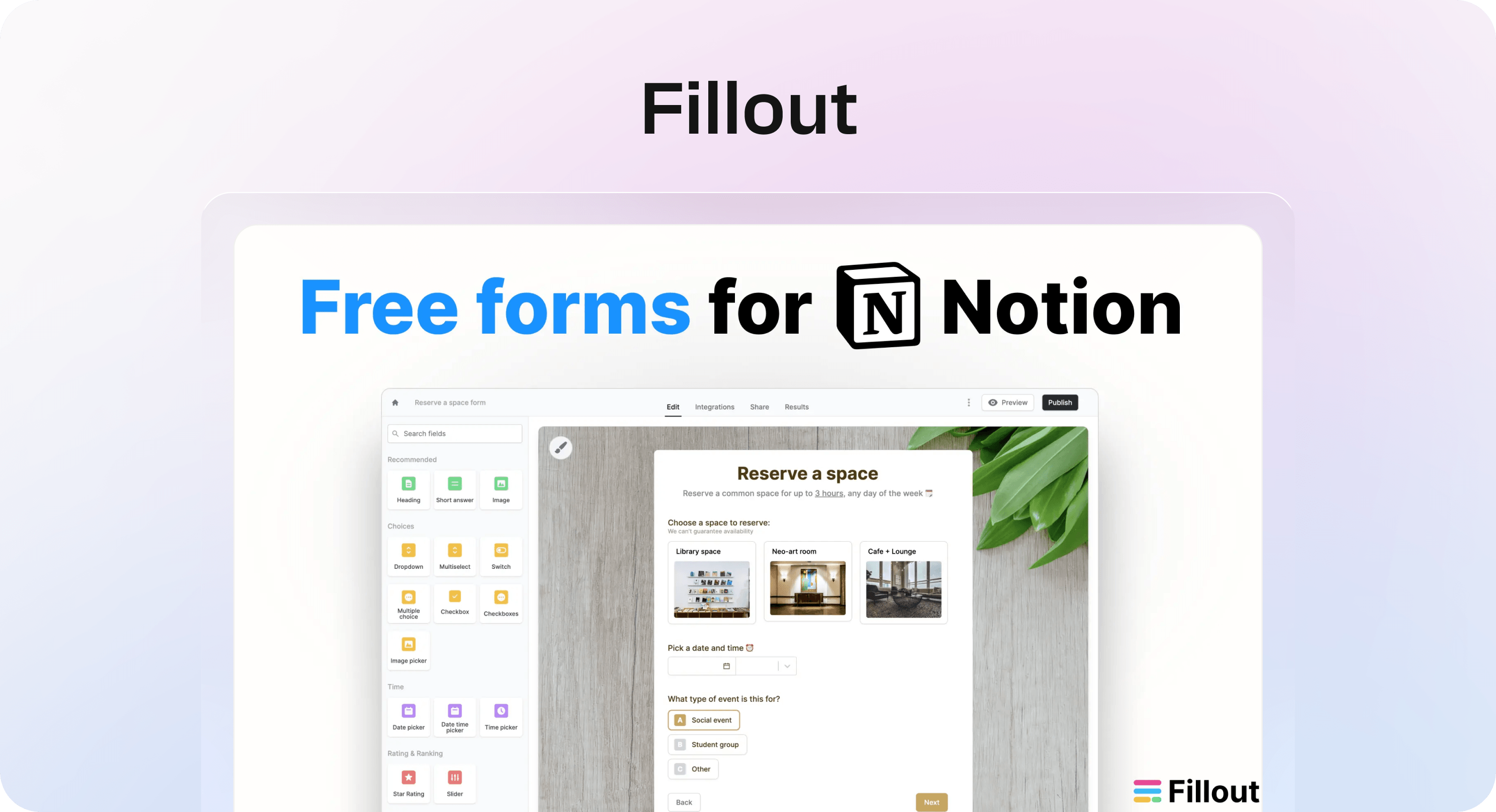
Fillout is a strong Notion integration for teams that need better forms connected to Notion databases. Native Notion forms can work for simple collection, but business intake often needs more control: public forms, conditional logic, branded submission flows, hidden fields, file uploads, update forms, and clean mapping into database properties.
Fillout is built around that workflow. A team can connect a Notion database, create a form from its fields, and send submissions directly into Notion. It can also update existing Notion rows, which is useful for workflows where customers, clients, vendors, or team members need to submit structured information after a record already exists.
This makes Fillout one of the best Notion tools for intake-heavy operations. Sales teams can capture leads into a CRM-style Notion database. Agencies can collect client briefs. Support teams can gather bug reports or escalation details. Product teams can centralize feature feedback. Operations teams can collect vendor requests, onboarding information, event signups, or internal approvals.
The business value is not the form itself. It is the quality of the data that enters Notion. A shared database only works when rows are complete, fields are consistent, and teams do not have to clean up every submission manually. Fillout helps make Notion more reliable as a workflow database because it controls the front door.
Choose Fillout when the workflow starts outside Notion and needs to become structured work inside Notion. If the form is only for your internal team and the data model is simple, native Notion forms may be enough. If the form is customer-facing, client-facing, or part of a recurring process, Fillout usually gives the team more control.
Best business use cases:
Lead capture into a Notion CRM.
Customer feedback and bug report intake.
Client onboarding forms for agencies and service teams.
Internal request forms for operations, finance, HR, or marketing.
4. Make for automation across business systems
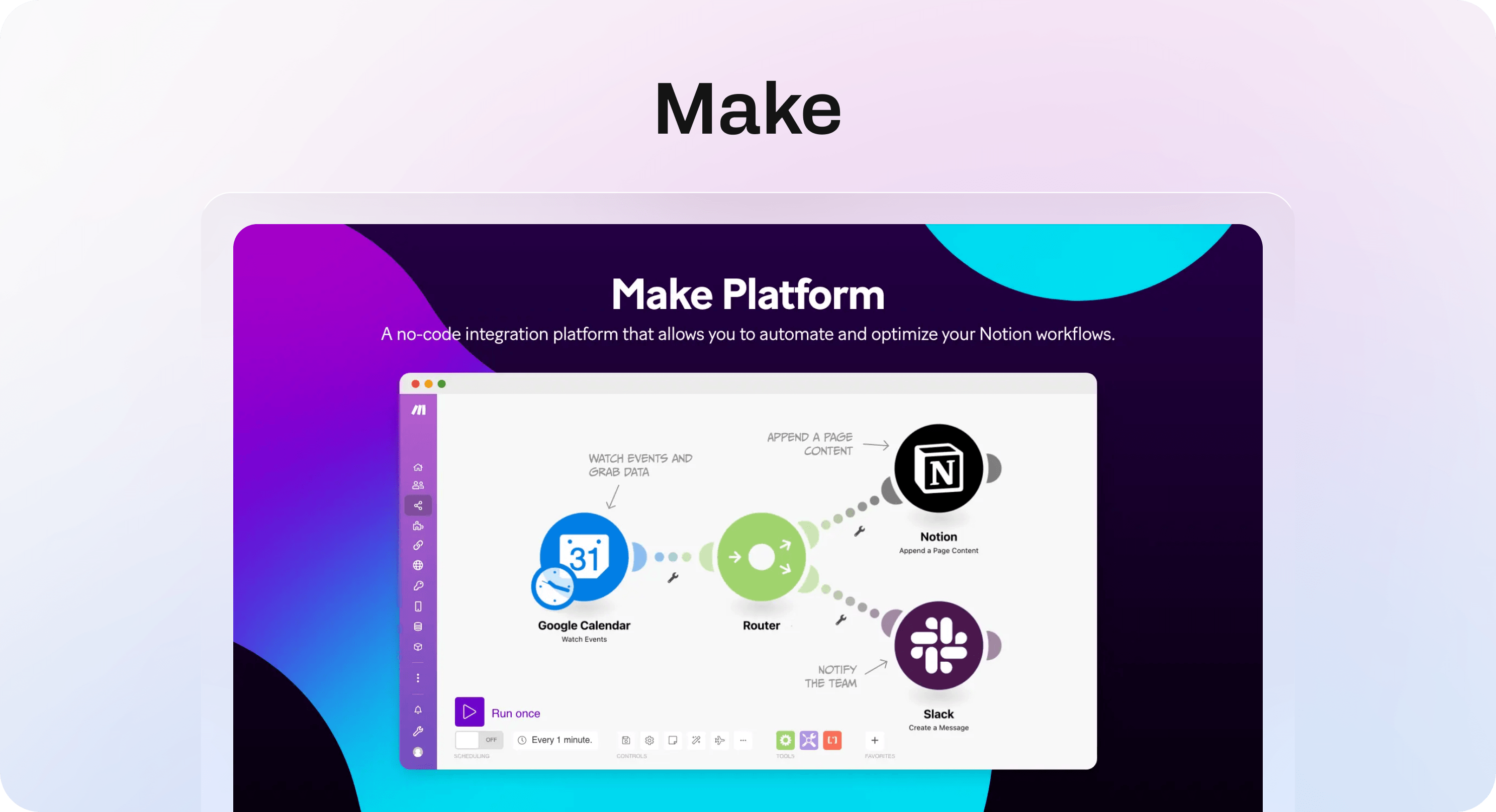
Make is one of the most useful third-party Notion tools when work needs to move between Notion and many other apps. It is a no-code automation platform that can send information between Notion and tools for email, calendars, messaging, marketing, CRM, spreadsheets, and operations.
Use Make when the workflow is more complex than a simple notification. For example, a new row in a Notion database might need to create a calendar event, send a Slack message, update a CRM record, assign a task, generate a folder, and notify a project owner. A status change in Notion might need to trigger a publishing checklist or update a client-facing tracker. A completed form submission might need to create several linked records instead of one flat row.
Make is especially helpful when Notion is the coordination layer, but not the only system involved. Most businesses have work split across tools. Sales might live in a CRM, support in a help desk, finance in spreadsheets, communication in Slack, and documentation in Notion. Automation helps Notion participate in those workflows without asking people to copy the same data across five places.
The key is to automate stable workflows, not messy ones. If a Notion database is still changing every day, wait before building a complex automation around it. Automation works best when database properties, statuses, ownership rules, and handoff steps are already clear. Otherwise, the integration can make confusion move faster.
Make is a good choice for teams that want flexibility and visual workflow control. Zapier is often simpler for lightweight automations, and n8n may appeal to technical teams that want self-hosting or deeper customization. But for many business teams, Make sits in a useful middle ground: visual enough for operators, flexible enough for multi-step processes.
Best business use cases:
Moving Notion database changes into business apps.
Creating multi-step workflows from form submissions or status changes.
Routing work between Notion, Slack, email, calendars, and CRMs.
Reducing manual updates in repeatable operations workflows.
5. ChartBase for analytics and reporting from Notion databases
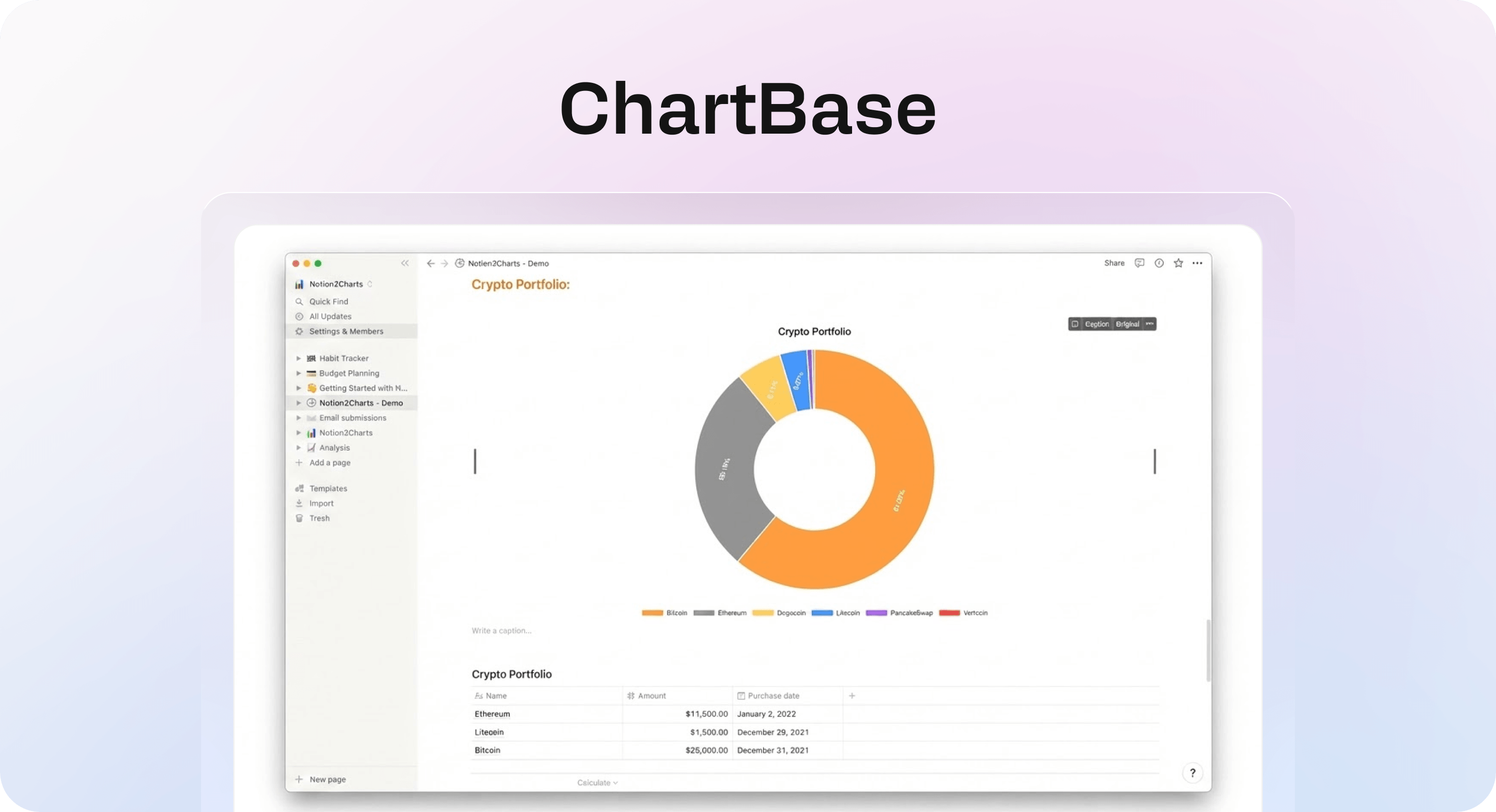
ChartBase helps teams turn Notion databases into live charts that can be embedded back into Notion pages. This is useful because business teams often use Notion databases for work that eventually needs reporting: content pipelines, support issues, product feedback, sales opportunities, onboarding checklists, project tasks, sprint planning, editorial calendars, and operations trackers.
Notion now has native chart and dashboard features, so the first question is whether you need a third-party analytics add-on at all. For many internal databases, native Notion charts are the right starting point. They are already in the workspace and can visualize database information without adding another tool.
ChartBase becomes more interesting when the team wants embedded live charts from Notion databases with a dedicated charting layer. It can help turn database rows into clearer visuals for team updates, reporting pages, status reviews, and lightweight dashboards. That makes it a practical option for teams that want Notion to stay close to reporting without building a full BI setup.
This is not a replacement for serious analytics infrastructure. If you need attribution, product analytics, revenue modeling, warehouse joins, or executive BI dashboards, use the reporting stack built for that job. But many teams do not need that level of complexity for day-to-day Notion workflows. They need to answer simpler questions: how many support issues are open, which content stage is blocked, which team owns the most overdue work, or how many customer requests mention the same theme.
ChartBase is one of the best Notion add-ons when the data already lives in Notion and the team needs it to become easier to read. Pair it with clear database design, consistent statuses, and a regular review cadence. Charts will not fix messy data, but they can make clean data much easier to act on.
Best business use cases:
Turning Notion trackers into live reporting pages.
Visualizing support, content, sales, or product workflow status.
Creating simple dashboards for team reviews.
Making Notion databases easier for non-operators to understand.
6. Slack for communication and team updates
Slack's Notion app is one of the most practical integrations for teams that discuss work in Slack but organize decisions, tasks, and docs in Notion. Without an integration, important context gets split. The conversation happens in Slack, the plan lives in Notion, and someone has to remember to move the right details across.
The Slack integration helps close that gap. Teams can send Slack messages to a Notion database, control Notion notifications in channels or direct messages, reply to Notion comments from Slack, expand Notion links with useful previews, and paste Slack links into Notion to preserve message context.
This is valuable because Slack is often where work first appears, but it is not always where work should live. A customer comment, bug report, launch decision, campaign idea, or internal request might start as a message. If it stays only in chat, it becomes hard to track, assign, search, or revisit. Moving the right messages into Notion helps the team turn conversation into structured work.
Use Slack with Notion when communication is creating operational residue: decisions that are hard to find, requests that get lost, tasks that never become database rows, or comment threads that should be connected to a project. It is especially useful for product teams, support teams, marketing teams, and remote companies where chat is the fastest place to coordinate.
The integration works best with rules. Decide which messages become tasks, which databases receive them, which Notion updates deserve Slack notifications, and which updates would create noise. A noisy integration is easy to ignore. A focused integration becomes part of the team's rhythm.
Best business use cases:
Turning Slack messages into Notion tasks or database items.
Sending Notion updates to the right Slack channels.
Preserving context from chat beside project docs.
Keeping async teams aligned without manual copy and paste.
7. Whalesync for database syncing
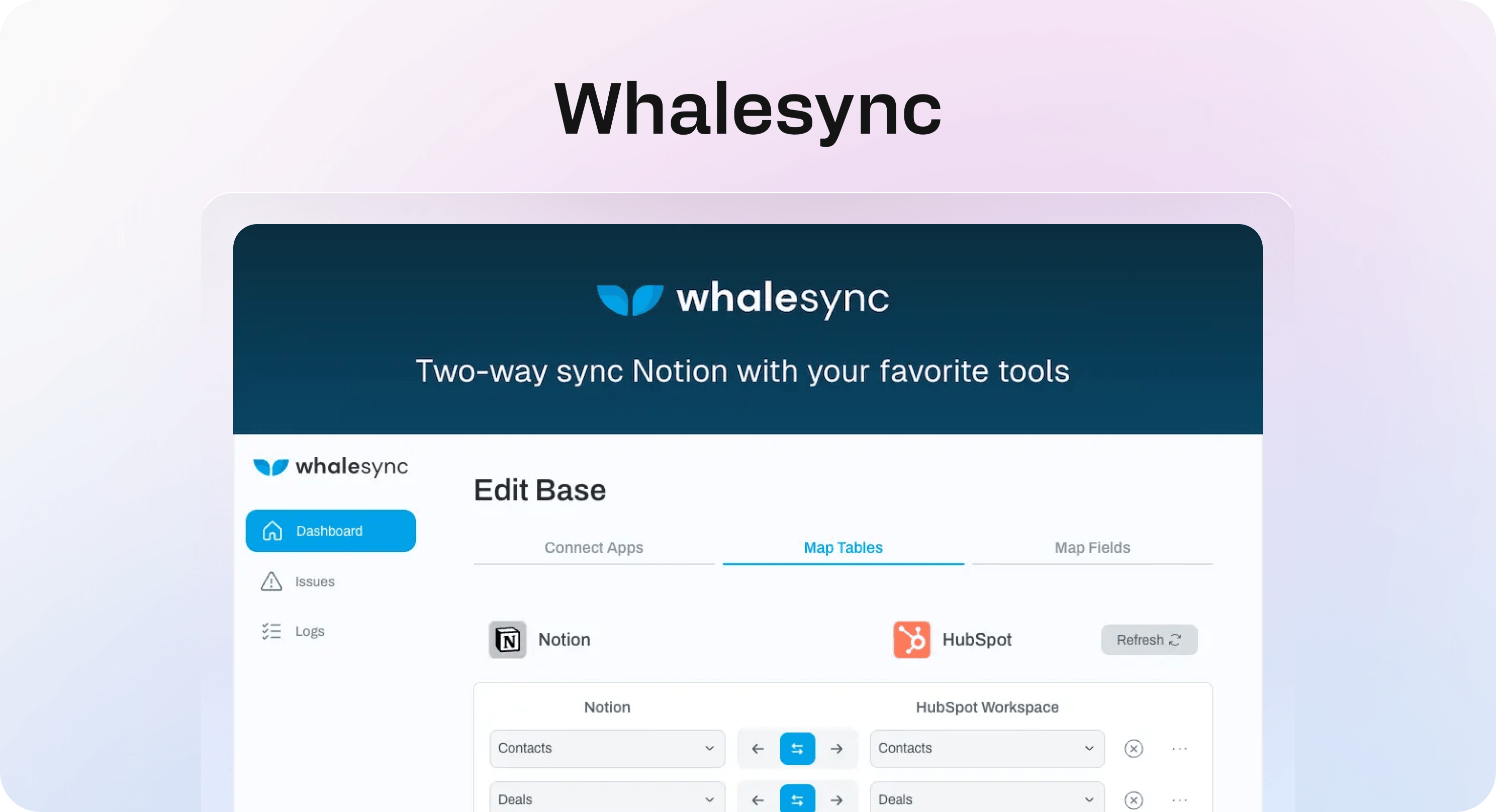
Whalesync is built for teams that need two-way database syncing between Notion and other apps. That is a different problem from automation. Automation usually says, "when this happens, do that." Syncing says, "these records need to stay aligned across systems."
That distinction matters. A one-time automation can create a Notion page from a form submission or send a message when a status changes. But if the same customer, product, content item, lead, or project record lives in Notion and another system, a simple automation can become brittle. Updates can drift. One field changes in the CRM but not in Notion. A Webflow CMS item is updated but the Notion content plan is stale. A spreadsheet becomes the real source of truth by accident.
Whalesync helps by mapping Notion database columns to fields in other tools and keeping changes synchronized. It supports workflows where Notion needs to act as a company source of truth or a working layer connected to apps like Airtable, HubSpot, Webflow, Google Sheets, and other structured systems.
This makes Whalesync one of the strongest apps for Notion when database integrity matters. Use it for operational records, not casual notes. Good examples include content databases, lightweight CRMs, product directories, CMS workflows, partner databases, internal tools, and reporting tables that need to stay consistent across teams.
The biggest setup requirement is discipline. Syncing messy databases creates messy syncs. Before using Whalesync, define the source of truth, clean your fields, remove duplicate records, decide which properties should sync, and document how conflicts should be handled. Once the data model is clear, a sync layer can save a lot of manual maintenance.
Best business use cases:
Syncing Notion with Airtable, HubSpot, Webflow, or Google Sheets.
Keeping operational databases aligned across teams.
Using Notion as a working source of truth.
Reducing duplicate data entry between structured systems.
How to build a practical Notion integration stack
The best Notion integration stack is usually smaller than people expect. Adding every possible connection can make the workspace harder to trust. A better approach is to choose one core workflow, make it stable, then add the next integration only when the team knows what problem it is solving.
For a customer support team, a strong stack might start with Helpview for publishing help content, Zendesk for ticket context, Slack for internal updates, and ChartBase for lightweight reporting on support-related databases. For an agency, the first stack might be Fillout for client intake, Make for project setup automations, Slack for handoffs, and Whalesync if client records need to stay aligned with another system. For a marketing or content team, Helpview may not be the first tool unless the content is support-facing; Make, Fillout, ChartBase, Slack, and Whalesync may matter more.
The order matters. Publishing tools should follow content strategy. Automation should follow stable process. Analytics should follow clean data. Syncing should follow a clear source-of-truth decision. Communication integrations should follow notification rules. Otherwise, the tool adds surface area before the workflow is ready for it.
Use this simple sequence:
Define the business workflow in plain language.
Identify where Notion should be the source, destination, or working layer.
Choose the one integration that removes the biggest manual handoff.
Keep fields, statuses, owners, and permissions simple.
Review the workflow after two weeks and remove noisy automations or notifications.
This is also the best way to absorb broader wording like notion tools, notion add-ons, third-party Notion tools, and apps that integrate with Notion without splitting the topic into separate articles too early. A buyer does not usually care whether a product is called an integration, add-on, tool, or app. They care whether it helps a real workflow work better.
Conclusion
The best Notion integrations are the ones that give Notion a clearer role in the business. Helpview helps publish Notion content for customers. Zendesk connects support tickets with internal work. Fillout turns intake into structured database records. Make automates repeatable handoffs. ChartBase turns Notion databases into readable reporting. Slack connects communication with organized work. Whalesync keeps databases aligned across systems. Start with the workflow that creates the most friction today, then choose the integration that makes Notion easier to trust tomorrow.
Frequently asked questions
What are the best Notion integrations for business workflows?
The best Notion integrations for business workflows are the ones that connect Notion to real operating systems: publishing, support, forms, automation, reporting, communication, and database syncing. For many teams, a practical shortlist includes Helpview, Zendesk, Fillout, Make, ChartBase, Slack, and Whalesync.
What is the difference between Notion integrations, Notion tools, and Notion add-ons?
Should every business use the same Notion integrations list?
Are native Notion features enough, or do teams need third-party Notion tools?
What should teams set up before adding more Notion integrations?
Share article:

2 free months of Pro
Turn Notion pages into help center answers.
Keep writing in Notion and publish a real, searchable Notion help center.

Articles
Keep reading