
Tips
7 best knowledge base examples to learn from

10 Min Read
The best knowledge base examples are easy to search, simple to browse, and clear enough to reduce repeat support questions. Here are 7 examples worth learning from.
Share article:


What makes a knowledge base example worth studying
A knowledge base example is worth studying when it shows how to remove friction from self-service. People should be able to find, understand, and trust the answer without opening a ticket or asking a teammate to translate the docs.
Weak knowledge bases usually fail in predictable ways. The homepage has vague categories. Search returns too many similar articles. Article titles use internal language. Troubleshooting pages explain the feature but not the problem. Internal docs grow in Notion, Slack, support macros, and old onboarding files until nobody knows which answer is current.
Strong knowledge base examples avoid that by making a few practical decisions well:
They organize content around the reader’s job, not the company’s org chart.
They separate broad categories from specific article tasks.
They use article titles that match what people search for.
They give readers a clear path from issue to answer to next step.
They keep recurring answers consistent across support, onboarding, and product education.
They make maintenance part of the system instead of treating it as a cleanup project.
That is the lens to use when studying examples. A polished homepage can help, but polish is not the main point. The better question is: does this library make self-service easier for the person who needs an answer right now?
If you are still defining the basics, start with the difference between a knowledge base, help center, FAQ, and documentation in What is a knowledge base?. This article goes one step further: what good examples actually do once the library exists.
7 knowledge base examples and what to borrow from each one
The examples below are deliberately varied. Some are broad SaaS knowledge base examples. Some are product education libraries. Some are help desk knowledge base examples for account, billing, or troubleshooting questions. Each one makes self-service easier in a different way, which is the useful part to study.
Example 1: Airtable keeps categories close to real product jobs
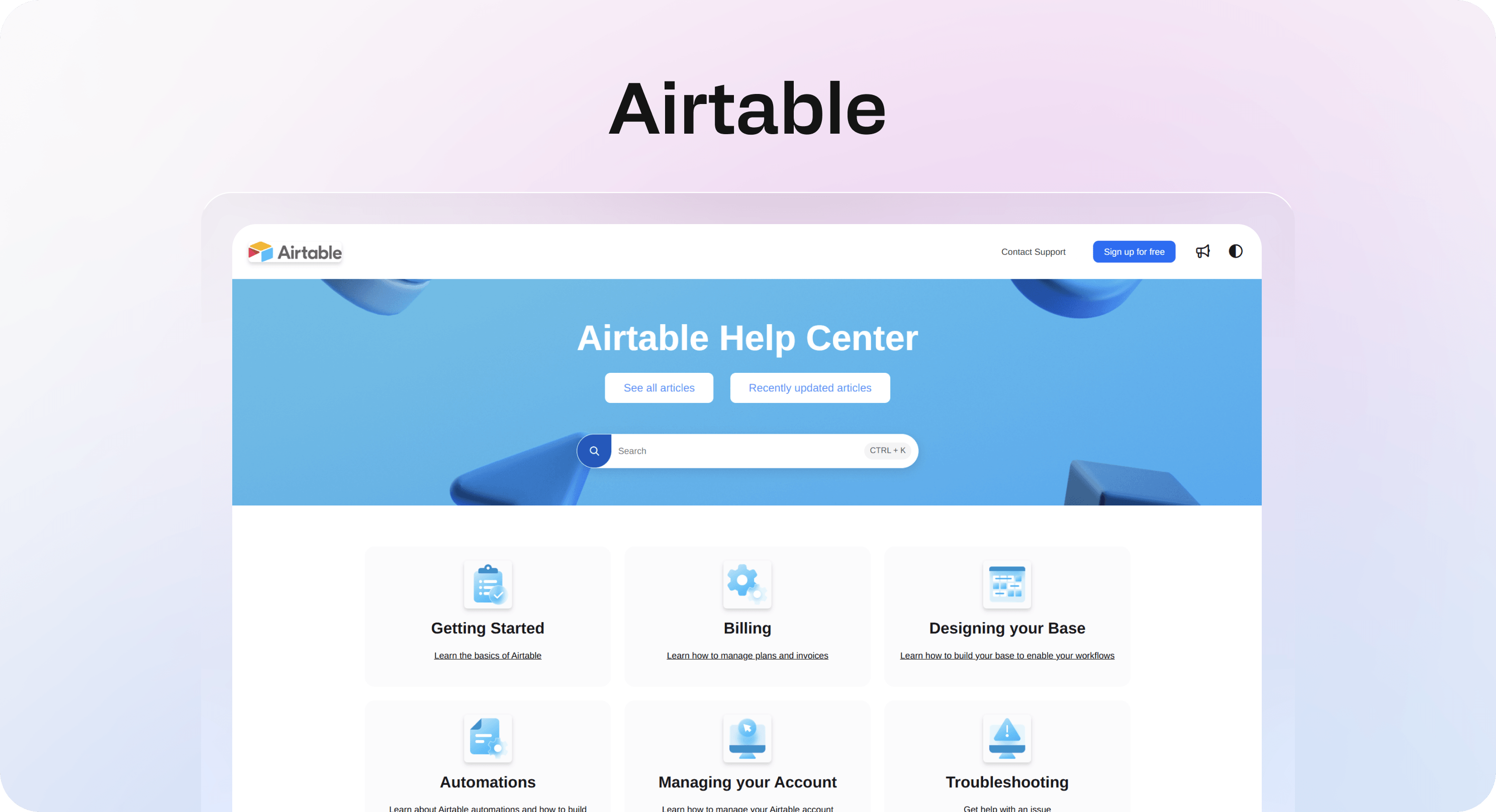
Airtable’s Help Center is a useful knowledge base example because it gives users practical entry points without making the product feel smaller than it is. The main categories include areas like getting started, billing, designing a base, automations, account management, and troubleshooting.
That category mix works because it reflects how users actually get stuck. A new user may need the basics. A builder may need help designing a base. An admin may need billing or account guidance. A more advanced user may need automation support.
What to borrow:
Use categories that match the real jobs users are trying to complete.
Split setup, account, billing, and troubleshooting instead of hiding everything under product features.
Give advanced topics their own space when they create enough support demand.
Airtable is also a good reminder that a knowledge base does not have to choose between simple and powerful. It can serve beginners and advanced users if the paths are separated clearly.
Example 2: Figma separates product learning from administration
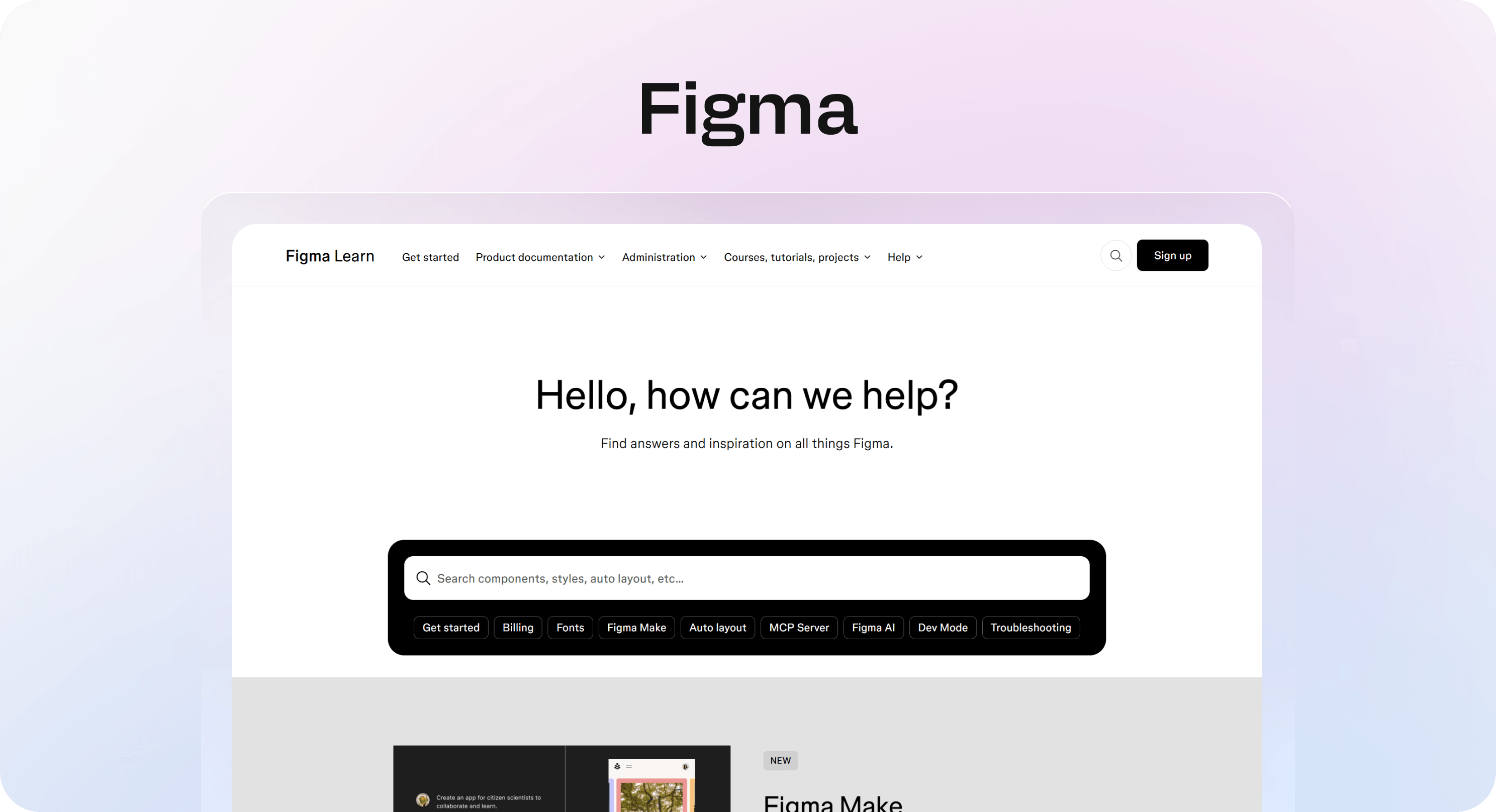
Figma’s Help Center is a strong SaaS knowledge base example because it separates everyday product learning from admin-heavy topics. Users can browse product areas like Figma Design, Dev Mode, FigJam, Slides, and AI, while administrators get separate paths for billing, teams, organizations, enterprise, security, and members.
That matters because different readers arrive with different mental models. A designer trying to learn a feature should not have to sort through enterprise seat management articles. An admin trying to understand billing should not have to browse design tutorials.
What to borrow:
Separate product guidance from administration guidance.
Give admins their own navigation path when permissions, billing, seats, or security create frequent questions.
Use learning content and support content together, but do not let them blur into one messy library.
This is especially useful for B2B SaaS teams. As the product grows, the knowledge base needs to support both users and account owners. Those are not always the same person.
Example 3: Zapier turns troubleshooting into a structured diagnosis path
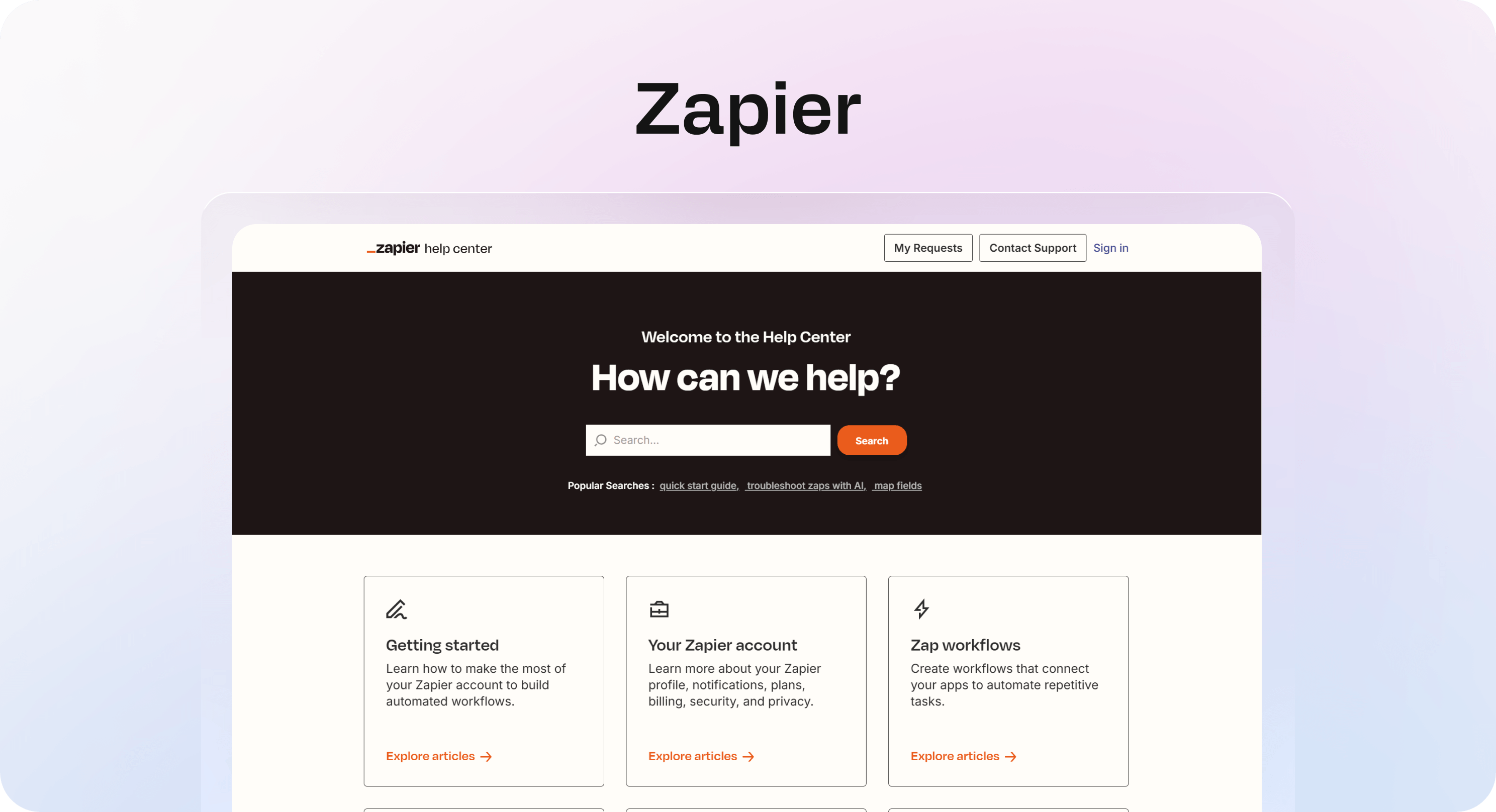
Zapier is a useful help desk knowledge base example because automation errors can be vague, technical, and frustrating. Its article on troubleshooting errors in Zap workflows breaks the problem into recognizable pieces: how to identify an error, what different statuses mean, where to inspect the issue, how HTTP status codes map to causes, and what to do next.
That is exactly what a troubleshooting article should do. It should not simply say “check your settings.” It should help the reader narrow the problem, understand what they are seeing, and choose the next action.
What to borrow:
Start troubleshooting content with the symptom the user can see.
Explain likely causes before jumping into fixes.
Use sections for diagnosis, recovery, and escalation.
Link to narrower articles when one page cannot cover every possible scenario.
For teams building knowledge base article examples, this pattern is worth copying. A troubleshooting article should feel like a guided investigation, not a long answer dump.
Example 4: Webflow uses product education to support complex workflows
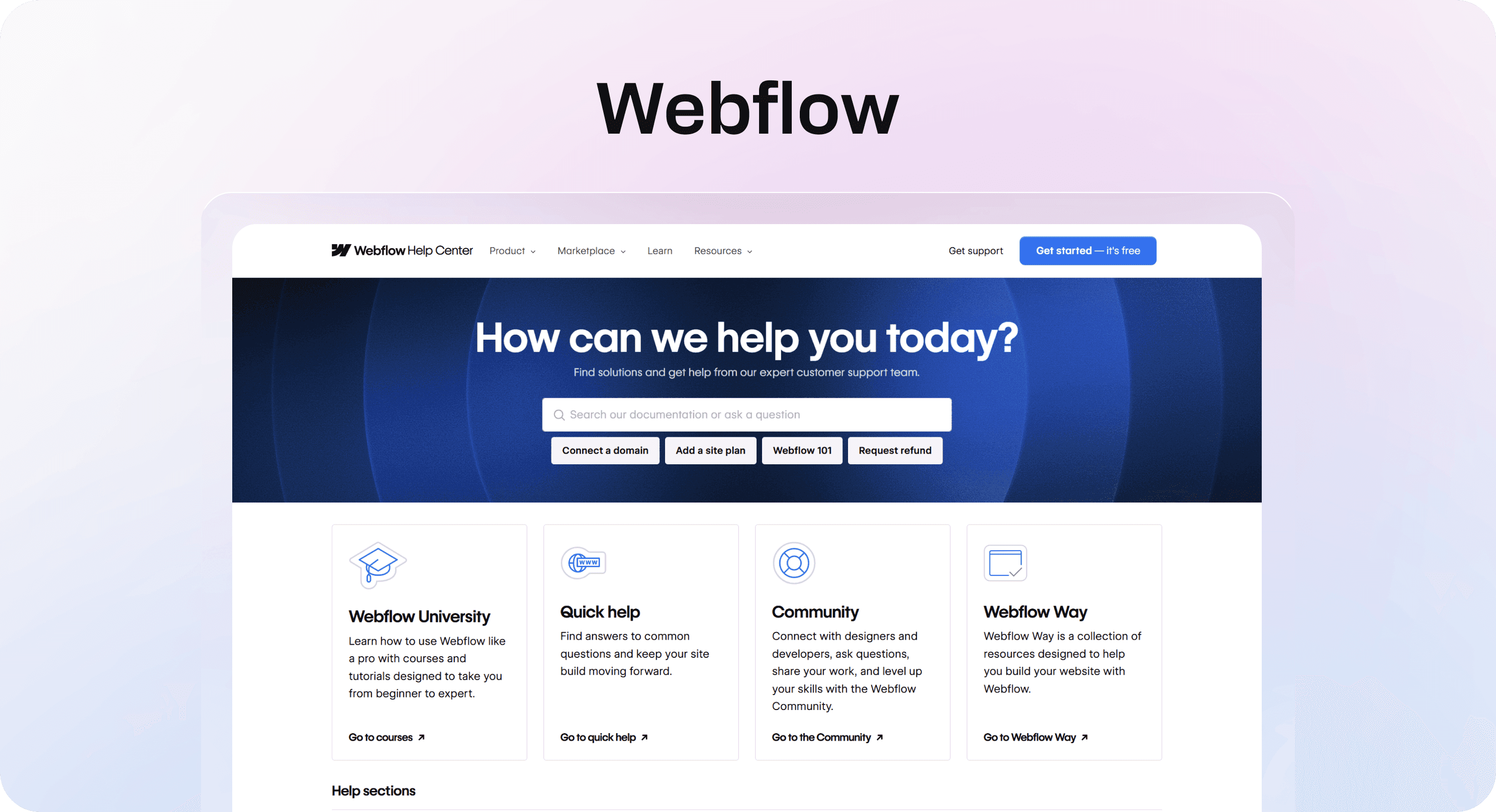
Webflow’s Help Center handles a product that can be broad, visual, and technical at the same time. Its knowledge base separates areas such as getting started, accounts and workspaces, billing, design and accessibility, hosting and domains, CMS and dynamic content, ecommerce, forms, integrations, and more.
That structure works because Webflow users often need to learn concepts before they can complete tasks. An article like Intro to the Webflow CMS does not only list buttons to click. It explains static versus dynamic content, collections, collection items, and the workflow behind CMS pages.
What to borrow:
Use conceptual articles when users need a mental model before steps make sense.
Keep task articles focused, but give complex product areas a clear learning path.
Combine quick help, courses, community, and support when one article format is not enough.
This is useful for products where “how do I do this?” often depends on “how does this system work?”
Example 5: Miro answers common support questions directly on the help center path
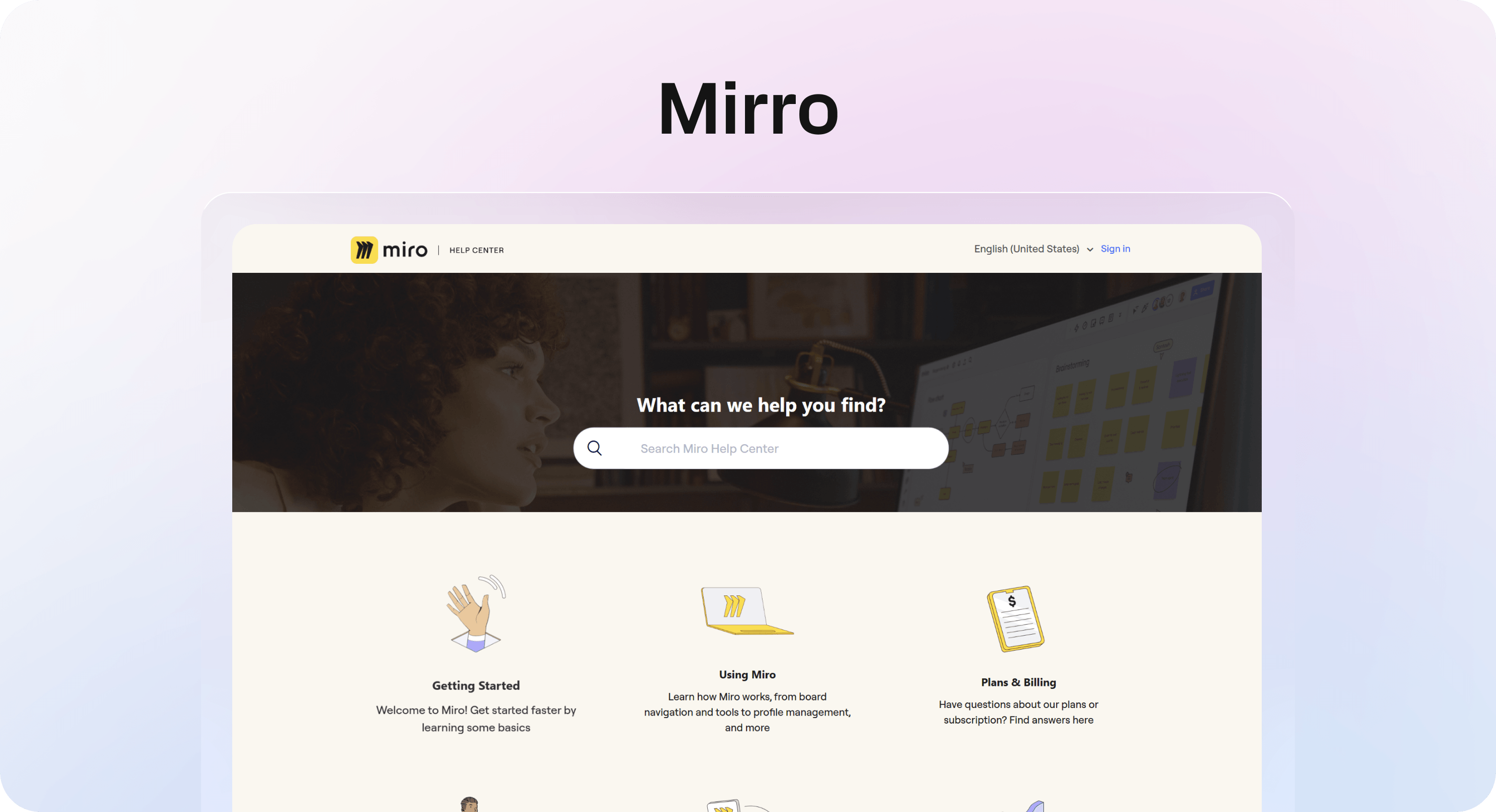
Miro’s Help Center is useful because it surfaces common issues quickly. The homepage points users toward getting started, using Miro, plans and billing, administration, integrations, and enterprise administration. It also gives visible answers to frequent questions such as board loading issues, login problems, unexpected charges, invoice access, and restoring deleted boards.
That is a smart self-service pattern. Some questions are so common that users should not need to drill through several layers of navigation to find them.
What to borrow:
Put high-volume questions close to the surface.
Use FAQ-style answers for recurring issues, then link to deeper articles when needed.
Treat billing, access, and admin problems as first-class support topics, not edge cases.
Miro is also a good knowledge base example for business teams because it recognizes that many “product” questions are actually account, access, or permission questions.
Example 6: Dropbox keeps everyday account and file tasks easy to scan
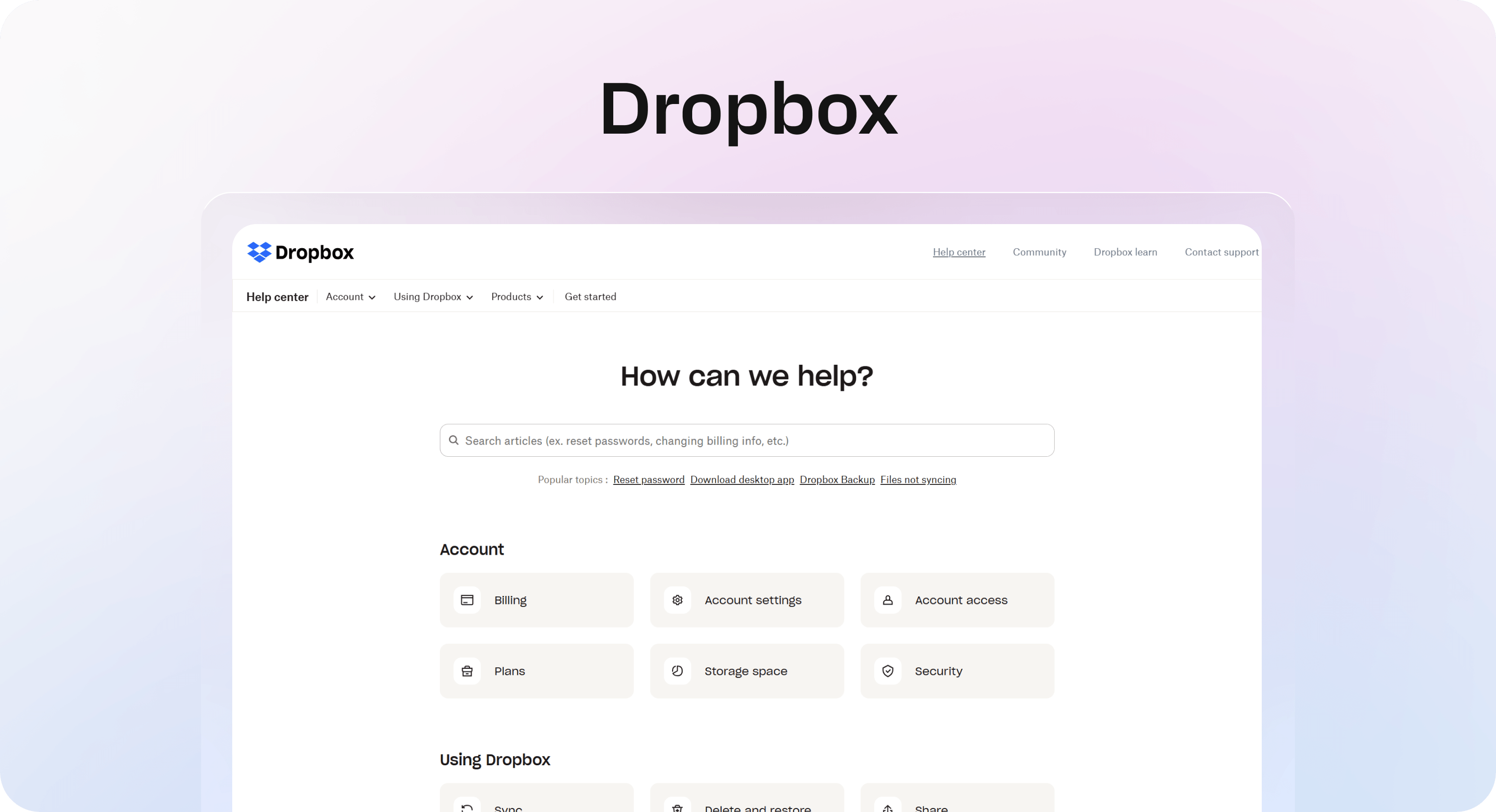
Dropbox Help is a strong example of a broad self-service library because it makes everyday tasks easy to recognize. The homepage separates account topics like billing, account settings, access, plans, storage, and security from usage topics like sync, delete and restore, share, view and edit, create and upload, organize, installs, and integrations.
That kind of plain category naming matters. Dropbox serves many different types of users, but the common support jobs are familiar: reset a password, download the desktop app, fix syncing, share files, update billing, recover content, or understand storage.
What to borrow:
Use plain labels when the task is plain.
Make account, access, billing, and security paths obvious.
Put recurring file or content actions into categories users can recognize instantly.
This is one of the simplest lessons from strong knowledge base examples: do not make people decode your taxonomy before they can get help.
Example 7: Loom groups onboarding around the user’s first recording workflow
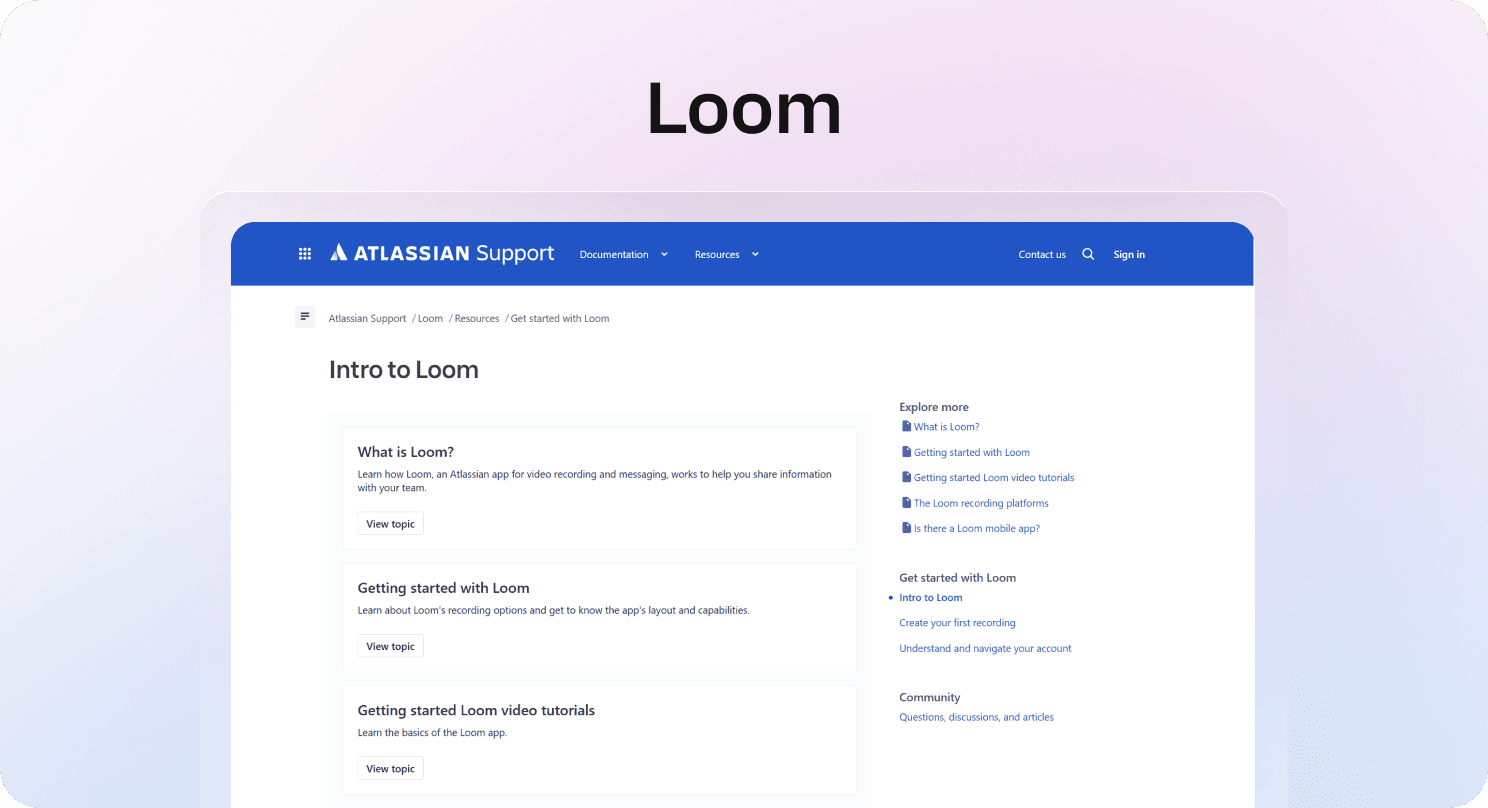
Loom’s getting started documentation is a useful example because it breaks onboarding into practical stages: intro to Loom, creating a first recording, and understanding how to navigate the account.
That sequence mirrors the user journey. First, understand what Loom is. Then create the first recording. Then learn where recordings live, how the account is organized, and how to keep using the product with confidence.
What to borrow:
Structure getting started content around the first successful workflow.
Separate product introduction from the user’s first action.
Include account navigation and content management when they are part of the same user outcome.
For SaaS teams, this is a strong reminder that onboarding content should not be a random list of beginner articles. It should help users reach a first meaningful result.
What these 7 knowledge base examples have in common
These 7 knowledge base examples do not all look alike, but they share the same underlying logic. Once you strip away brand, layout, and platform, the pattern is practical: reduce the amount of work a reader has to do before they can act.
They make search and browse work together
Some users know exactly what they need and go straight to search. Others are not sure what to call the problem yet, so they browse categories. Strong knowledge bases support both behaviors.
Search helps when the user has a clear query like “reset password,” “download invoice,” or “Zap not triggering.” Browse helps when the user knows the area but not the exact article, such as billing, automations, account access, or integrations.
Do not treat one as a substitute for the other. A strong knowledge base needs both a clear category structure and article titles that work well in search.
They separate different reader roles
Many knowledge bases serve more than one audience. SaaS products often have end users, admins, billing owners, developers, and support contacts. Internal knowledge bases may serve new hires, managers, IT, HR, sales, support, and operations.
Strong examples make those roles visible when it matters. Figma’s admin sections, Miro’s administration guidance, and Dropbox’s account and security categories all show the same principle: if different people need different answers, the structure should not pretend everyone is the same reader.
They use article titles that match real questions
A good article title is not clever. It is findable. “How to reset your password” is better than “Account recovery overview.” “Zap is not working” is better than “Workflow execution behavior.” “How to find and download an invoice” is better than “Billing documents.”
This is where many teams can improve quickly. Rename articles around the user’s language, then make the article deliver on that exact promise.
They give troubleshooting content a clear shape
Troubleshooting content needs more structure than ordinary how-to content. The reader is already blocked, so the article has to reduce uncertainty fast.
A strong troubleshooting structure usually includes:
What the problem looks like
Who it affects
Common causes
Step-by-step checks
What to try next
When to contact support
Related issues that might look similar
That structure works for customer support articles and internal IT knowledge base examples. The context changes, but the reader need is the same: help me understand what is wrong and what to do next.
They connect articles instead of creating dead ends
Strong libraries do not make every article carry the whole burden. A billing overview can link to invoice downloads, payment method updates, plan changes, taxes, refunds, and cancellation. A getting started article can link to setup, first workflow, permissions, importing data, and troubleshooting.
That is how a knowledge base becomes a system instead of a set of isolated pages.
If you are building in Notion and publishing with Helpview, internal linking is especially important. Your team can keep writing in a familiar workspace, but the customer-facing layer still needs clear paths between related answers.
Internal knowledge base examples: how the same patterns work inside a company
Internal knowledge base examples are different from public help centers, but the fundamentals are similar. Employees still need search, structure, ownership, and clear article formats. The main difference is the content itself.
Here are a few internal knowledge base examples worth building first.
New hire onboarding library
A new hire library should help employees answer the questions they are too new to know how to ask. It might include company basics, tools, role expectations, first-week tasks, meeting norms, benefits, security setup, and team-specific onboarding checklists.
What makes it strong:
A first-week path, not a pile of links
Clear owners for HR, IT, and team-specific content
Separate manager and employee versions where needed
Links to tool access, policies, and common first tasks
IT and access knowledge base
An IT knowledge base is one of the highest-value internal libraries because access issues repeat constantly. It can include password reset steps, device setup, app access requests, SSO troubleshooting, VPN help, security rules, hardware requests, and escalation paths.
What makes it strong:
Symptom-based troubleshooting titles
Clear permissions and approval requirements
Screenshots or exact menu paths where the interface matters
A contact path for cases employees cannot solve alone
Sales and customer-facing answer library
Sales, support, and customer success teams often need fast access to approved answers. This library can include pricing explanations, product positioning, implementation details, objection handling, security answers, contract language, competitive notes, and customer-ready snippets.
What makes it strong:
Approved wording for sensitive topics
Links back to source material
Clear notes on when the answer should not be used
Ownership by product marketing, support, legal, or leadership where relevant
Operations and policy library
Business knowledge bases often become most valuable around repeat policy questions. Think expenses, procurement, travel, PTO, vendor approvals, incident reporting, meeting norms, data handling, and internal processes.
What makes it strong:
Plain-language answers before policy detail
Examples for common scenarios
Last-reviewed dates for sensitive content
A clear owner for each policy area
The key lesson is that internal knowledge bases should not feel like archives. They should feel like working systems that reduce repeat questions and make company knowledge easier to trust.
Knowledge base article examples worth creating first
A strong library depends on strong articles. If the article formats are inconsistent, even a good homepage will not save the experience.
These are the knowledge base article examples most teams should create first.
Getting started article
Use this for onboarding, setup, and first success moments.
A strong getting started article includes:
Who the article is for
What the reader will accomplish
What they need before starting
The setup steps in order
What success looks like
Links to the next logical articles
Example title: “Get started with your workspace.”
How-to article
Use this for a specific repeat task.
A strong how-to article includes:
A task-focused title
A short explanation of when to use it
Numbered steps in the exact order
Notes or warnings near the relevant step
The expected result
Related articles for the next action
Example title: “Download an invoice.”
Troubleshooting article
Use this when the reader is blocked by a symptom, error, or unexpected behavior.
A strong troubleshooting article includes:
The problem in plain language
Likely causes
Checks or fixes in priority order
What to do if the issue continues
Escalation details when support needs context
Example title: “Why is my automation not running?”
Policy or billing article
Use this for rules, plans, invoices, payments, cancellation, refunds, permissions, or limits.
A strong policy article includes:
A direct answer first
Who the rule applies to
Common examples
Exceptions or limitations
Links to related actions
Example title: “How billing changes when you add more seats.”
FAQ article
Use this for short recurring questions that do not need a full guide.
A strong FAQ article includes:
One question per section
A direct answer first
A link to deeper guidance when needed
No filler or duplicated context
Example title: “Account access FAQ.”
If you want a deeper template system, Knowledge base template: what to include breaks down the article blocks and formats that support teams should standardize first.
How to choose which knowledge base examples to follow
Looking at examples is useful only if it leads to better decisions for your own customers or employees. The goal is not to copy Airtable, Figma, Zapier, Webflow, Miro, Dropbox, or Loom. Their products, support volume, and user needs are different from yours. The goal is to decide which patterns would make self-service easier in your own context.
Use this checklist instead.
Ask whether the example helps users:
Find the right category without knowing internal product names
Search with normal language and get relevant results
Understand who an article is for
Complete one task without reading unrelated context
Troubleshoot a problem from symptom to next step
Move from one related article to another naturally
Know when and how to contact support
Then ask whether your own knowledge base supports the same things.
For customer-facing libraries, look at support tickets, search terms, failed searches, contact reasons, onboarding questions, and article feedback. For internal libraries, look at repeated Slack questions, onboarding confusion, manager escalations, IT tickets, and process mistakes.
The best knowledge base examples for business are not necessarily the biggest ones. They are the ones that remove the most repeated friction for the people you serve.
How to turn inspiration into a stronger knowledge base
Once you have studied a few examples, the next step is to translate the lessons into your own system.
If your team already builds this content in Notion, Notion help center software can help turn those internal pages into a polished support experience without creating a separate writing workflow.
Start with your highest-friction questions. Pick the questions that repeat often and can be answered without a human. These are usually setup, billing, login, permissions, troubleshooting, account changes, integrations, and basic workflows.
Then group them into plain categories. Avoid clever labels. If customers call something “billing,” call it billing. If employees call something “access,” call it access. The category should make the next click feel obvious.
Next, choose a small set of article formats. Most teams can start with getting started, how-to, troubleshooting, policy, and FAQ formats. Standardizing these formats makes writing faster and review easier.
After that, build the linking system. Every article should answer the immediate question, then point to the next likely step. This is what makes a knowledge base feel connected instead of scattered.
Finally, set a review rhythm. A strong knowledge base is not finished when the articles are published. It needs ownership, feedback, search review, content gap review, and updates when the product or policy changes.
If your team already writes support content in Notion, this workflow can stay simple: keep drafting and maintaining the source content there, then publish it as a searchable help center through Helpview.
Conclusion
Strong knowledge base examples are not useful because they give you a layout to copy. They are useful because they show what easier self-service has in common: clear categories, searchable article titles, focused formats, thoughtful troubleshooting, and a structure that matches how people actually ask for help.
Whether you are building a SaaS knowledge base, an internal knowledge base, a help desk library, or a business knowledge base for customers and employees, the same rule applies. Make answers easier to find, easier to trust, and easier to maintain. That is what turns documentation into self-service.
Frequently asked questions
What are good knowledge base examples?
Good knowledge base examples include libraries that make answers easy to search, browse, and use. Airtable, Figma, Zapier, Webflow, Miro, Dropbox, and Loom all show useful patterns across category structure, onboarding, troubleshooting, billing, account help, and product education.
What should I look for in SaaS knowledge base examples?
What are internal knowledge base examples?
What are good knowledge base article examples?
How are help desk knowledge base examples different from product documentation?
Share article:

2 free months of Pro
Turn Notion pages into help center answers.
Keep writing in Notion and publish a real, searchable Notion help center.

Articles
Keep reading