
Tips
How to find content gaps in your help center

10 Min Read
A help center can look complete and still fail when customers need a clear answer. Content gaps are missing, weak, outdated, or hard-to-find articles that stop people from solving a task on their own. The fastest way to find them is to study where customers already get stuck: search terms, zero-result searches, support tickets, contact forms, product updates, and article feedback all show where your help center is not matching real user intent.
Share article:


What content gaps mean in a help center
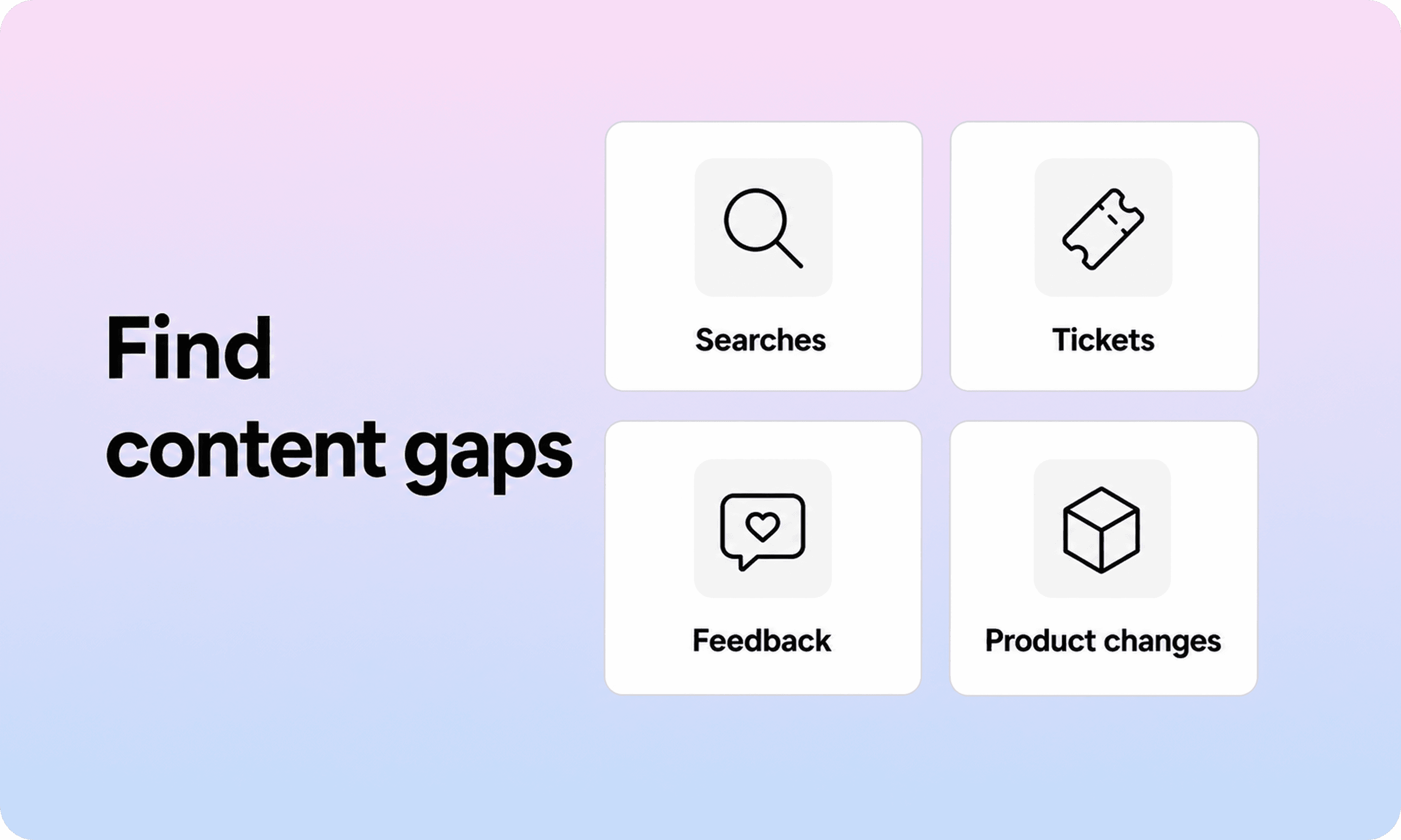
Content gaps are the places where your help center does not answer what customers are trying to do, understand, or fix. A gap can be obvious, like no article for a recurring billing question. It can also be subtle, like an article that explains a feature but never tells the reader what permission they need, what plan it applies to, or what to do if the expected button is missing.
That matters because customers do not judge the help center by how many pages it has. They judge it by whether they can find the right answer fast enough to avoid contacting support.
A useful way to think about content gaps is to separate five types:
Gap type | What it looks like | Example |
|---|---|---|
Missing article | No page exists for a real customer question | Users search “refund” but there is no refund policy article |
Incomplete article | A page exists but skips a key detail | Setup guide does not explain required permissions |
Findability gap | The answer exists but users cannot find it | Article says “receipts” while users search “invoice” |
Freshness gap | The page no longer matches the product | Screenshots or UI labels changed after a release |
Structure gap | Related answers are scattered or duplicated | Three billing pages answer the same question differently |
This is why “identify missing documentation” should not only mean “make a list of new pages.” Some of the highest-value fixes are updates, merges, redirects, title changes, internal links, and search synonym improvements. If the answer exists but customers still miss it, the help center still has a gap.
The goal is not to document everything. It is to remove the gaps that create repeat confusion, weak self-service, and unnecessary support tickets. For the broader self-service baseline, this pairs naturally with Helpview’s guide to help center best practices.
Start with the questions customers already ask
The best content gap audit starts with real customer language. If you begin from your product menu or internal feature list, you will usually create tidy documentation that misses the messy questions users actually type when they are stuck.
Start by collecting the last 30 to 90 days of support demand. You are looking for repeated questions, confusing product moments, and issues where support keeps sending the same explanation manually.
Good sources include:
support tickets and chat transcripts
contact form submissions
help center search queries
zero-result searches
article feedback and “not helpful” responses
onboarding calls or customer success notes
sales questions that become support questions after signup
product release notes and UI changes
Do not overcomplicate the first pass. Export the data if you can, but a shared spreadsheet is enough. Create columns for the customer’s wording, the issue theme, the current article if one exists, the number of repeats, and the likely fix.
For example:
Customer wording | Theme | Current content | Gap | Fix |
|---|---|---|---|---|
“Where do I find invoices?” | Billing | Plan and billing overview | Answer exists but title does not match search intent | Rename or add invoice article |
“Why can’t I invite a teammate?” | Permissions | No article | Missing documentation | Create troubleshooting article |
“Can I cancel monthly?” | Cancellation | Pricing FAQ | Too shallow | Create cancellation and plan-change guide |
This keeps the audit grounded. You are not asking, “What could we write?” You are asking, “Where are customers already looking for an answer and not getting one?”
That small shift is what makes the work practical. It turns documentation planning into support pattern recognition instead of a blank content calendar.
Use help center search data to find gaps faster
Search data is one of the clearest ways to find gaps in help center content because it shows intent before the customer contacts support. People search with the words they naturally use. If the help center cannot respond to those words, you have a content or findability problem.
Pay close attention to four search patterns:
Zero-result searches: customers searched and found nothing.
High-search, low-click terms: results appeared, but people did not trust or open them.
Repeated searches after article views: readers kept searching because the first article did not solve the issue.
Searches that lead to contact: users searched, then opened a ticket or contact form.
Zero-result searches are the easiest place to start, but they are not the only signal. A search can return results and still fail. If users search “cancel plan,” click a broad billing article, then contact support anyway, the gap may be article scope or answer depth rather than a missing page.
When reviewing search terms, group them by intent rather than exact wording. “Invoice,” “receipt,” “billing history,” and “download invoice” may all point to the same need. “Invite user,” “add teammate,” and “permissions” may belong together, but only if the articles answer the same situation.
Then compare each cluster against your current help center:
Is there a page that directly answers this intent?
Does the title use the language customers use?
Does the answer appear near the top?
Does the article include the right plan, role, or prerequisite details?
Does the page link to the next logical action?
If the answer to any of those is no, mark the gap. Some clusters will need a new article. Others need a better title, clearer intro, related links, or a small troubleshooting section inside an existing page.
For teams using Helpview, this is exactly where search insights are useful. If your Notion docs are published as a structured help center, search and zero-result terms can show which customer questions are not covered clearly enough yet.
Review support tickets for repeat explanations
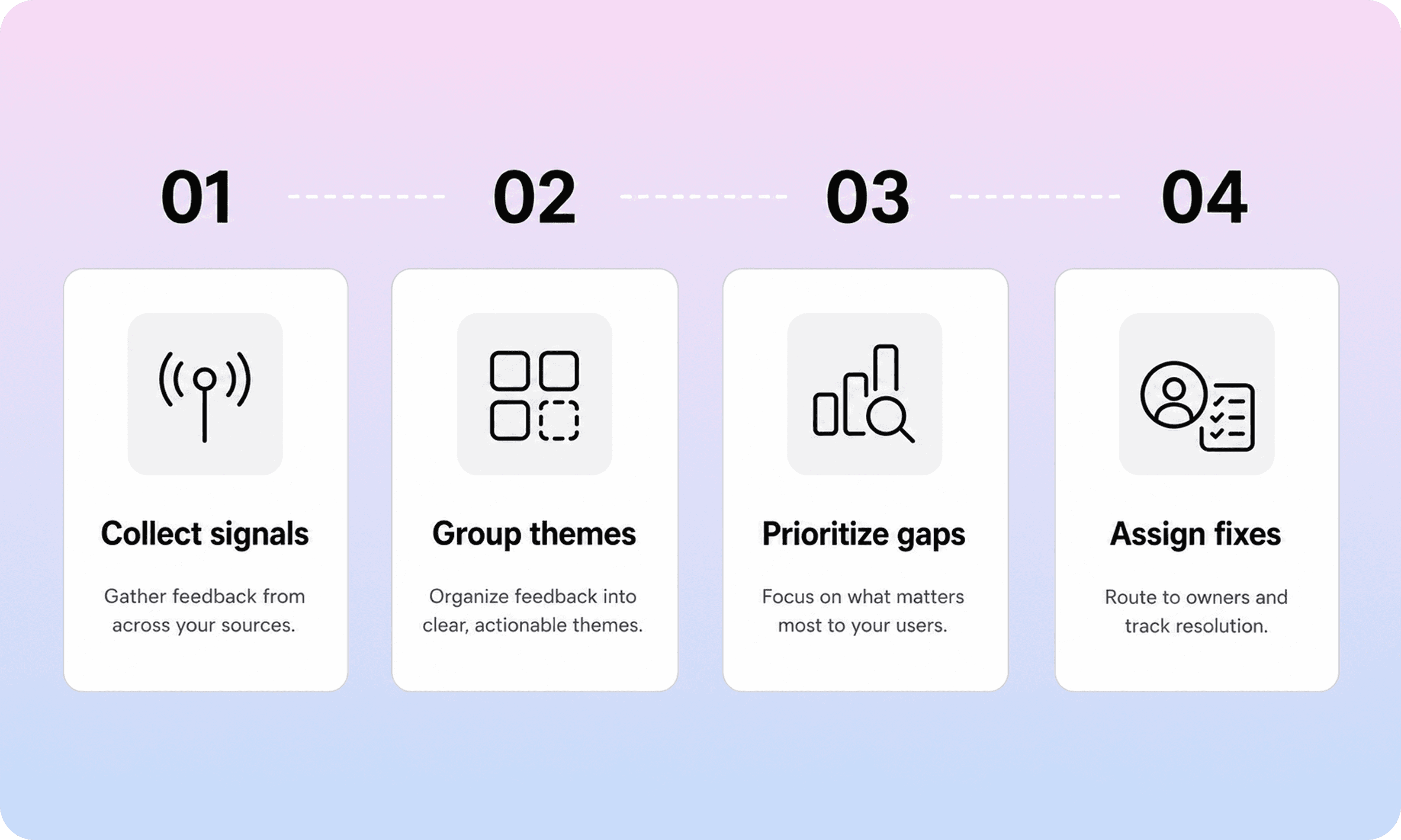
Support tickets reveal a different kind of gap: the questions customers could not answer even after checking the help center, the product UI, or their own assumptions.
You do not need to review every ticket forever. Pick a practical window, such as the last month for a busy support team or the last quarter for a smaller team. Then tag repeat issues by customer intent.
Look for tickets where support keeps writing the same answer:
“Here is where to find your invoice.”
“Only admins can change this setting.”
“That error usually means the integration token expired.”
“You need to cancel before the renewal date.”
“This feature is only available on the Pro plan.”
Those repeated explanations are documentation candidates. The customer asked support because the answer was missing, too vague, not findable, or not trusted.
A simple review template helps:
Ticket theme | Volume | Current article | Problem | Content action |
|---|---|---|---|---|
Login code not received | High | Password reset article | Does not cover code delivery issues | Add troubleshooting article |
Invite limits | Medium | Team settings guide | Plan limits missing | Update article and add plan table |
Export failed | Low but urgent | No article | Missing error explanation | Create article if issue repeats |
Volume matters, but do not let it be the only factor. Some gaps are low-volume but high-risk. Billing, security, cancellation, data export, access, and account recovery questions deserve more urgency because they affect trust and customer confidence.
The strongest opportunities are usually the questions that are:
common enough to repeat
easy to explain with a stable answer
frustrating enough to create tickets
tied to a clear customer task
safe to answer publicly
That last point matters. Not every support reply should become public documentation. Account-specific, legal, sensitive, or highly variable cases may need better support macros instead of a public help article. But if the same general explanation keeps appearing in tickets, the help center should probably carry more of that load.
Check article feedback and failed next steps
Article feedback helps you find gaps inside pages that already exist. A reader may have found the right article but still left without enough clarity.
Start with negative article feedback, low helpfulness scores, and comments. Then look beyond the score. A “not helpful” vote can mean several different things:
the article answered the wrong version of the problem
the steps were outdated
the user lacked the right permissions
the article skipped an edge case
the next step was unclear
the user needed support but did not know what to include
The most useful feedback usually points to missing context. For example, a setup article may be technically correct but still fail because it does not explain what plan is required. A troubleshooting article may show the most common fix but skip the error message customers actually see. A billing article may explain where invoices live but not whether receipts are emailed automatically.
Look for failed next steps too. If readers open an article and then search again, visit another unrelated article, or contact support, the first page may not be completing the job.
Useful questions to ask during review:
What did the reader expect this page to answer?
Where does the article stop short?
Is the first useful answer visible near the top?
Does the article explain who the guidance applies to?
Does it tell the reader what to try next if the main path fails?
Does it link to the next article a reader would naturally need?
This is where missing documentation often hides inside existing documentation. You may not need a new page. You may need a clearer troubleshooting section, a better prerequisite note, a small “If you do not see this option” block, or a stronger “Still stuck?” section.
A good help article should reduce uncertainty. If readers leave with new questions, those questions are content gaps.
Compare your help center against the product journey
Search and support data tell you where customers are already asking for help. A product-journey review helps you catch gaps before they become tickets.
Walk through the product like a new customer, an admin, and a returning user. For each major moment, ask whether the help center has a clear answer.
Common journey moments include:
creating an account
setting up the first workspace or project
inviting teammates
changing roles and permissions
connecting integrations
using core workflows for the first time
fixing common error states
managing billing, plans, invoices, and cancellation
exporting data
contacting support with the right details
For each moment, check whether the help center has the right content type:
Product moment | Content needed |
|---|---|
First setup | Getting-started guide or checklist |
Repeated task | How-to article |
Error state | Troubleshooting article |
Role or plan confusion | Permissions or billing explainer |
Product limitation | Clear policy or expectations page |
Complex workflow | Step-by-step guide with next actions |
This review is especially useful after product changes. Every release can create small content gaps: a renamed setting, a new permission level, a changed billing flow, a retired feature, or a new empty state. If those changes are not reflected in the help center, customers will notice before your team does.
The product journey also helps you spot structural gaps. Maybe each article is fine on its own, but users do not have a clear path from setup to first success. Maybe troubleshooting articles exist, but they are not linked from the relevant how-to guides. Maybe billing content is split across too many small pages with overlapping answers.
The fix may be a new article, but it may also be a category cleanup, related-article module, better search wording, or clearer navigation.
Prioritize content gaps before writing anything
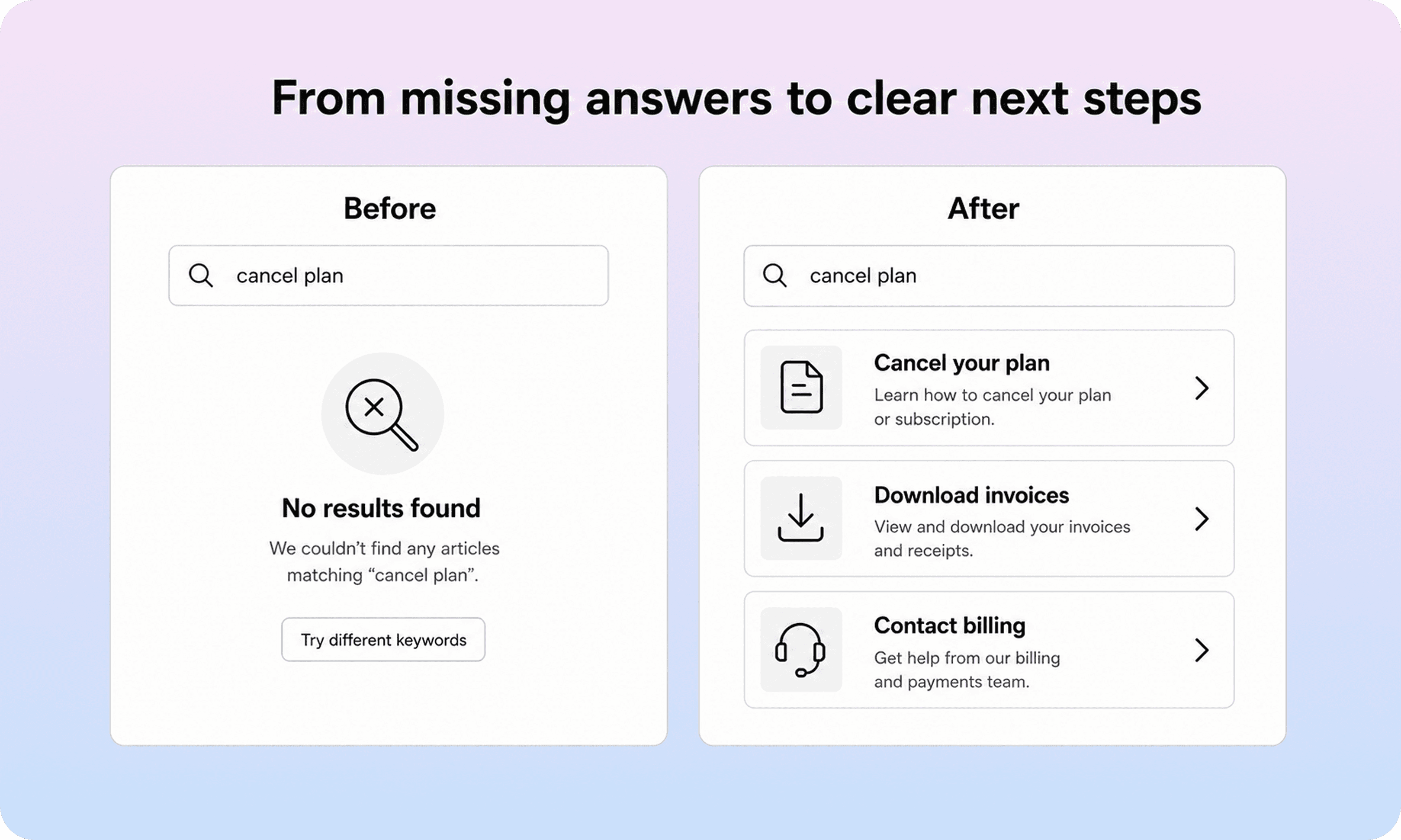
A gap list can grow quickly. If you try to fix every item at once, the work becomes another backlog that nobody trusts. Prioritization keeps the audit useful.
Score each gap against four factors:
Frequency: how often customers hit this issue.
Impact: how much frustration, delay, churn risk, or support effort it creates.
Confidence: how clear the evidence is.
Fix effort: how hard it is to create or update the content.
A simple priority model is enough:
Priority | When to fix | Examples |
|---|---|---|
High | This week | High-volume tickets, zero-result searches, billing confusion, account access issues |
Medium | This month | Repeated questions, weak articles, missing edge cases, setup friction |
Low | Later or monitor | Rare questions, unclear evidence, edge cases that may not repeat |
Start with high-frequency, high-impact gaps that can be solved with clear public documentation. These usually create the fastest support benefit.
Then look for quick wins:
rename an article to match customer wording
add synonyms or common terms
add missing prerequisites
move the answer higher on the page
link related articles together
merge duplicate pages
add a short troubleshooting block
update stale screenshots or UI labels
New articles are valuable, but they are not always the fastest fix. If a strong article is hidden under the wrong name, writing a second article can make the help center messier. If three pages partly answer the same question, merging them may reduce confusion more than adding another page.
For each prioritized gap, assign a content action:
create a new article
update an existing article
rename or restructure a page
merge duplicates
archive outdated content
improve internal links
add search synonyms or metadata
create a support macro instead of public docs
That last option is important. Some issues are better handled by support because they require account-specific judgment. A good content gap process should improve both the help center and support operations, not force every answer into public documentation.
Turn gaps into a documentation backlog
Once the priority list is clear, turn it into a small documentation backlog. This is where many audits fail. Teams identify missing documentation, then leave the findings in a spreadsheet without ownership, due dates, or content type decisions.
Each backlog item should include:
customer question or search intent
evidence source
priority level
current article, if one exists
recommended content action
article owner
reviewer or source of truth
target publish date
success signal
For example:
Backlog item | Evidence | Action | Owner | Success signal |
|---|---|---|---|---|
Add invoice download article | 46 searches, 18 tickets | Create article | Support lead | Fewer invoice tickets |
Update invite teammate article | Negative feedback and permission tickets | Add role requirements and error states | Product owner | Higher helpfulness score |
Rename receipts article | Search mismatch | Retitle and add synonyms | Docs owner | More search clicks for invoice terms |
Keep the backlog short enough to act on. A practical first batch might include 5 to 10 fixes, not 60. You can always run another review next month.
The best backlog items are specific. “Improve billing docs” is too vague. “Create an article for downloading invoices and link it from billing settings, plan changes, and contact form suggestions” is actionable.
Each fix should also have a success signal. That could be fewer tickets, fewer zero-result searches, higher article helpfulness, better click-through from search, or fewer users contacting support after reading the article. Without a success signal, the team may publish the page and never know whether the gap actually closed.
This is also where a clear documentation workflow helps. The article needs an owner, a source of truth, a reviewer, and a maintenance trigger. Otherwise the same gap may come back after the next product change.
Build a repeatable gap review cadence
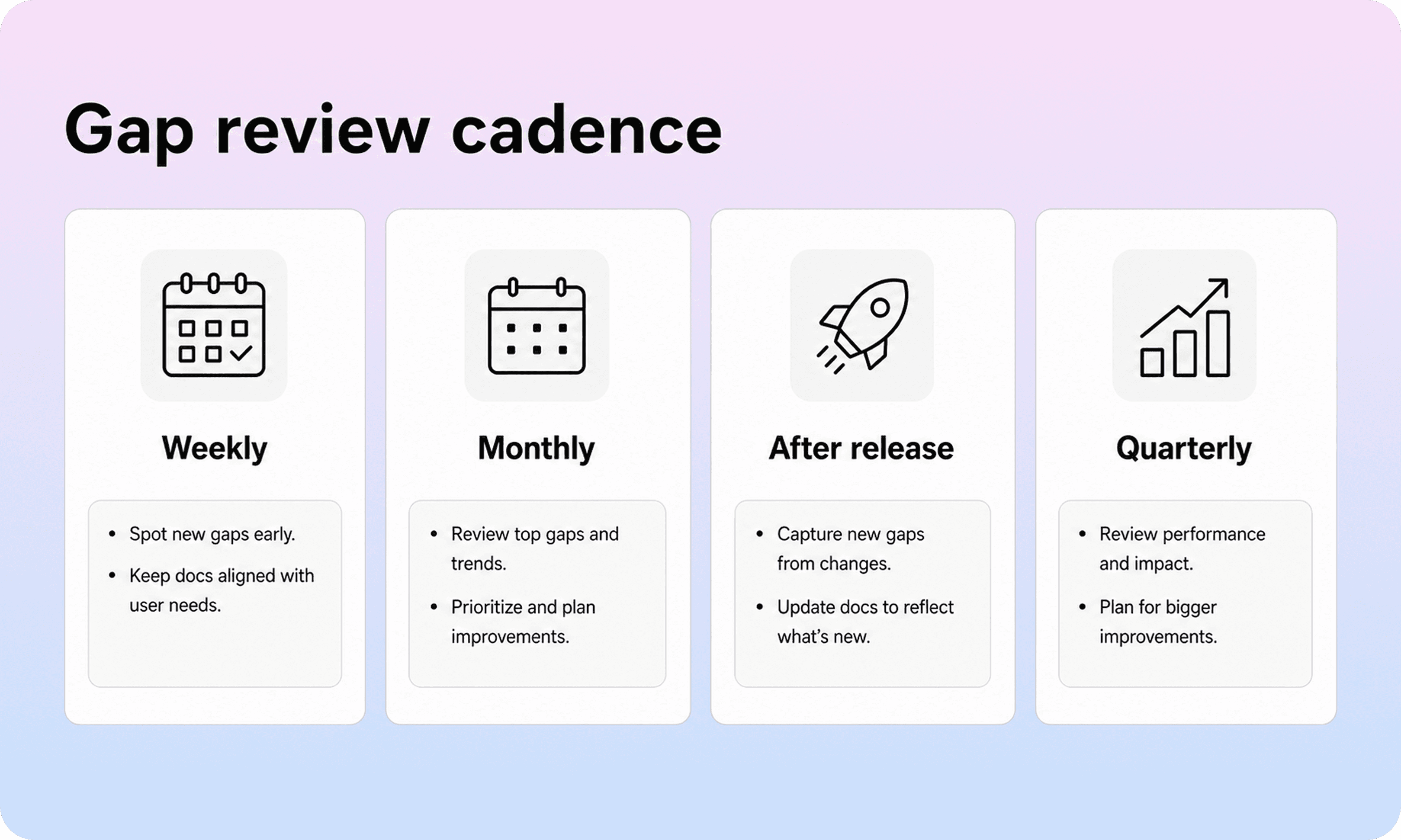
Finding content gaps once is useful. Finding them regularly is what keeps the help center trustworthy.
The cadence does not need to be heavy. Most teams can use a simple rhythm:
Weekly: check urgent zero-result searches, repeated tickets, and negative article feedback.
Monthly: group patterns, prioritize content gaps, and pick the next batch of fixes.
After each release: review changed UI, permissions, pricing, settings, errors, and onboarding flows.
Quarterly: review top articles, stale content, duplicate pages, and category structure.
This keeps the help center connected to real customer behavior without turning every support signal into an emergency.
A lightweight monthly review can follow this agenda:
Review the top search terms and zero-result searches.
Review repeat ticket themes from the last month.
Review negative article feedback and low-performing pages.
Check recent product changes against published docs.
Pick 5 to 10 gap fixes for the next cycle.
Assign owners and reviewers.
Record the expected success signal for each fix.
The review should produce decisions, not just observations. If the team leaves with a list of “interesting gaps” but no owner, nothing changes.
For Notion-first teams, this workflow is easier when the working docs and customer-facing help center stay connected. You can keep writing and updating in Notion, then use Helpview’s help center features to publish a clearer help center, surface search behavior, and improve the content over time.
The important part is consistency. A smaller help center that is reviewed every month will usually outperform a larger help center that only gets attention when support is overwhelmed.
Common mistakes when identifying missing documentation
Content gap work can become noisy if the team treats every signal the same. Avoid these common mistakes.
Treating every search term as a new article
Search terms are evidence, not automatic article titles. Group related terms by intent before writing. Otherwise you may create multiple thin pages that compete with each other.
Ignoring findability gaps
If an answer exists but users cannot find it, the fix may be title language, metadata, synonyms, category placement, or internal links. Do not create duplicate documentation just because search is weak.
Prioritizing volume without impact
High-volume questions matter, but some low-volume gaps are more urgent because they involve billing, access, security, cancellation, or data loss. Use impact as well as frequency.
Writing before checking existing content
Always check whether a page already covers the topic. Sometimes the right move is to update, merge, or redirect existing content, not add another article.
Skipping ownership
A gap without an owner is just an observation. Every content action needs someone responsible for drafting, reviewing, publishing, and maintaining it.
Forgetting the support fallback
Some issues cannot be fully solved in public documentation. In those cases, the article should still help the customer prepare a better support request by explaining what details to include.
Conclusion
Content gaps are not just empty spots in a documentation plan. They are moments where customers expected the help center to help and it did not. The best way to find them is to follow real signals: what people search, what they ask support, where they give negative feedback, and what changed in the product.
Once those signals are grouped, prioritized, and assigned, missing documentation becomes manageable. You can create the few articles that matter, improve the pages that almost work, and keep the help center aligned with how customers actually look for answers.
A useful help center is not the one with the most pages. It is the one where the most important answers are clear, current, and easy to find.
Frequently asked questions
What are content gaps in a help center?
Content gaps are missing, incomplete, outdated, duplicated, or hard-to-find answers in a help center. They show up when customers search for something and cannot find a useful answer, or when support keeps explaining the same issue manually.
How do you identify missing documentation?
What is the fastest way to find gaps in help center content?
Should every content gap become a new article?
How often should a team review help center content gaps?
Share article:

2 free months of Pro
Turn Notion pages into help center answers.
Keep writing in Notion and publish a real, searchable Notion help center.

Articles
Keep reading