Tips
Help center best practices: the 2026 playbook to deflect tickets

9 Min Read
A modern help center reduces repetitive tickets when answers are easy to find, easy to scan, and placed where questions happen. That sounds basic, but many help centers still fail in the same ways: vague categories, titles that mirror internal language, articles that take too long to get to the point, and support as the only reliable fallback. The best help centers do not try to document everything at once. They focus on the questions customers ask most, structure content around real tasks, and keep improving the content people actually search for. That is what turns a help center into a working part of support instead of a neglected archive.
Share article:

TL;DR
Start with real ticket themes and repeated searches, not a blank content plan.
Use task-based categories and article titles that match customer language.
Write fix-first articles with the answer near the top and the next step clearly explained.
Use screenshots only when they remove doubt.
Review search terms, repeat tickets, and stale content regularly so the help center stays useful.
What is a help center, really?
A help center is the answer layer of your product. It is where customers go to solve common problems, complete routine tasks, and confirm what to do next without waiting for support.
That is what makes it different from both documentation and a basic FAQ. Documentation often goes deeper and works well for power users. FAQs are usually too shallow to keep pace with a changing product. A help center sits in the middle. It is task-first, practical, and built to help someone get unstuck quickly.
A simple test is this: can a stressed customer solve the issue in under a minute on their phone? If not, the content may exist, but the help center is not doing its job yet.
what makes a good help center?
A good help center feels obvious. Not flashy. Not clever. Just clear.
When someone lands on it, they should know where to search, where to browse, and whether they are looking at the right answer. The best help centers reduce hesitation. They make next steps visible, remove guesswork, and guide the customer to done without forcing them through unnecessary reading.
A good help center usually gets four things right:
findability
structure
article clarity
escalation when self-service is not enough
That is what separates a useful support destination from a content library that looks complete but fails under pressure.
If you want to see what those standards look like in the wild, browse our breakdown of the best help center examples, which looks at how leading teams structure support around clarity and findability. And if you are still choosing the right platform, our guide to the best help center software compares seven tools for different support and publishing setups.
1) Findability beats completeness
Most teams think they need more articles. Most customers just need the right article, fast.
That is why findability matters more than volume. A strong help center uses titles that match customer wording, intros that confirm intent quickly, and search language that mirrors what people actually type when something goes wrong.
If users search for “invoice” and your article is titled “receipts and billing documentation,” they may miss the answer even if the content is technically there. Good findability starts with simple language and clear problem matching.

2) Structure that makes sense at speed
Navigation is the fallback when search fails. If the structure is confusing, customers bounce.
Good structure usually means:
categories based on user tasks or problems
a small number of top-level sections
predictable subcategories only when needed
article titles that describe one clear task, issue, or question
The goal is not to create a perfectly modeled information system. It is to make browsing feel easy under pressure. If a customer has to think too much about where something belongs, the structure is too clever.
3) Articles written like a support rep, not a manual
Great help writing removes uncertainty.
That means the article should confirm the issue quickly, show the fix clearly, and avoid long setup paragraphs before the answer appears. Readers are not browsing. They are trying to move on.
A strong article usually:
starts with the task or problem in plain language
gives the most likely fix near the top
uses short, numbered steps
includes screenshots only where they help
explains what to do next if the first fix fails
The tone matters, but clarity matters more. The best help content sounds calm, direct, and useful.
4) An escalation path that doesn’t punish the customer
A help center is not there to block support. It is there to filter simple issues and improve the quality of the rest.
That means escalation should be easy to find when self-service does not solve the problem. It should also be specific. Tell people what to include, where the request goes, and what happens next. A generic “contact us” link is rarely enough.
Good escalation makes support more efficient because customers arrive with the right context. Bad escalation makes them repeat themselves and increases frustration.
5) It improves every week
The best help centers are maintained like living systems.
That does not mean constant rewriting. It means having a simple review habit:
check zero-result searches
review top ticket themes
update articles after product changes
merge or remove duplicates
improve what still causes follow-up questions
That rhythm matters more than publishing lots of new pages. A smaller help center that stays current will usually outperform a larger one that slowly drifts out of sync.
Zendesk has a practical breakdown of what to watch when improving self service, especially around search and content gaps, in their guide to measuring and optimizing self service channels.
how to build a help center in 5 practical steps
Building a useful help center does not require a giant documentation project. It requires a clean first version and a willingness to improve it based on real usage.
The most practical way to start is:
review your last 30 to 90 days of support questions
pick the top issues worth solving in self-service
create a small, task-based structure
write the first set of high-value articles
set a light review cadence
The key is momentum. Start with the problems customers hit most often, not with a full map of every edge case.
1) Mine your tickets and search terms before you write anything
Do not begin with a blank page. Begin with what customers already ask.
Your best starting material is usually found in:
support tickets
chat logs
internal help center searches
zero-result search queries
onboarding questions
That gives you the wording, urgency, and patterns needed to build something useful quickly.
You’re not building documentation. You’re building ticket deflection. To turn those priorities into a repeatable workflow, start with our guide on how to reduce support tickets with a help center.
2) Pick the 10 questions worth killing first
Not every issue deserves the same priority.
Focus first on questions that are:
common
expensive for support to answer
realistic to solve with a clear article
likely to repeat unless the content improves
That is how you build a help center that reduces noise instead of just expanding coverage.
3) Ship an MVP structure people can scan
Keep the first structure boring on purpose.
A simple help center usually needs:
4 to 6 top-level categories
clear titles based on user language
a search bar that feels central
a few obvious entry points such as “getting started,” “billing,” or “troubleshooting”
You can always refine the structure later. What matters first is making the most common tasks easy to find.
4) Write the first 10 articles like you are replying in chat
Your first articles should sound like the best version of a support reply.
Each one should:
start with the answer or fix quickly
use exact UI labels
stay focused on one task
include a screenshot only when it removes doubt
end with a clear next step if more help is needed
That approach keeps the writing practical and makes the content easier to maintain later.
Week | Focus | What you ship | Success signal |
|---|---|---|---|
1 | Audit + scope | Top 10 issues list + category draft | Clear priority order |
2 | Write deflectors | 8 to 12 fix first articles | Fewer repeat tickets |
3 | Make it findable | Rename titles, add synonyms, tighten intros | Search finds answers |
4 | Embed and iterate | In app entry points + weekly review cadence | Contact rate drops |
5) Pick a cadence, not a deadline
A help center is never “done,” so avoid treating launch as the finish line.
A better habit is a short weekly or biweekly review where you look at:
zero-result searches
top ticket themes
articles affected by product changes
pages that still create repeat confusion
That small rhythm is usually enough to keep content accurate without making maintenance feel like a separate project.
If you want a solid baseline for setup and launch steps, Zendesk’s guide on building a thriving help center is a useful cross check.
How often should you update help center content?
Review your most important help center content on a simple cadence. Update articles right after product or UI changes, review high-traffic and high-impact articles monthly, and check evergreen content every quarter. A wider help center audit once or twice a year is usually enough if you are already watching search terms, repeat tickets, and stale pages along the way.
How to structure help center best practices so people can actually find answers
Most advice about help center structure sounds correct but stays too vague. “Organize content clearly” does not help much when you are deciding what the categories should actually be.
The real goal of structure is simple: help someone find the right answer in seconds, not minutes. Search should do most of the work, but the underlying structure still matters because it shapes titles, category labels, navigation, and related content paths.
1) Use categories that match customer tasks
The best categories reflect what the customer is trying to do, not how your internal team thinks about the product.
That usually means categories like:
getting started
billing and invoices
account and security
troubleshooting
integrations
If a category title would never be typed into search, it’s probably internal, not customer friendly. If you want the search side of this in more detail, see our guide to SEO for help centers.

2) Keep the hierarchy shallow and predictable
Deep nesting feels tidy to the team and annoying to the customer.
A good rule of thumb is:
keep top-level categories limited
avoid more than one or two sublevels
group content by the moment or task, not by internal ownership
make niche content the exception, not the norm
If someone has to click too many times to reach a common answer, the structure is working against you.
3) Make search win by design
Search is where most self-service journeys begin. Your structure should support that.
That means:
verb-first titles such as “Reset password” or “Change billing details”
first paragraphs that include common synonyms
one clear topic per article
consistent naming across the whole help center
Search performs better when your naming is stable and your article scope is clear.
4) Add entry points where questions happen
SStructure does not stop at the sidebar. It also includes how customers land on answers from outside the help center homepage.
Your most useful articles should be reachable through:
in-app help widgets
suggested articles in support forms
onboarding emails
error messages and friction-heavy screens
That is where a lot of practical deflection happens, because the answer appears before the customer gives up.
5) Use a tiny set of rules so it stays tidy as you scale
The structure breaks when everyone invents their own patterns. Set standards:
Titles start with a verb
One problem per article
Troubleshooting always includes: symptoms, cause, fix, what to send support
Every new article must link back to a category and be discoverable via search
Mini template: the 10 second findability test
Can I guess the category in one try?
If I search the obvious word, does the article appear in the top 3?
Does the intro confirm I’m in the right place?
Can I see the solution without scrolling forever?
The content playbook: write articles that deflect tickets
Deflection is not magic. It’s just writing answers in the same shape your customers ask questions.
Most help articles fail because they read like internal documentation: long intros, vague steps, and the solution buried under a “Let’s start with the basics” warm up. A ticket deflecting article does the opposite. It gets to the fix fast, then earns trust with clear steps and proof.
1) Lead with the fix, not the backstory
Your first screen should answer:
What to do
Where to click
What success looks like
If the customer has to scroll to find the actual steps, they’ll bail and contact support.
Quick example opening:
Best: “To update billing details, go to Settings → Billing → Payment method, then click Update.”
Not great: “Billing is an important part of managing your account…”
2) Use the support reply structure
One problem per article. Every time.
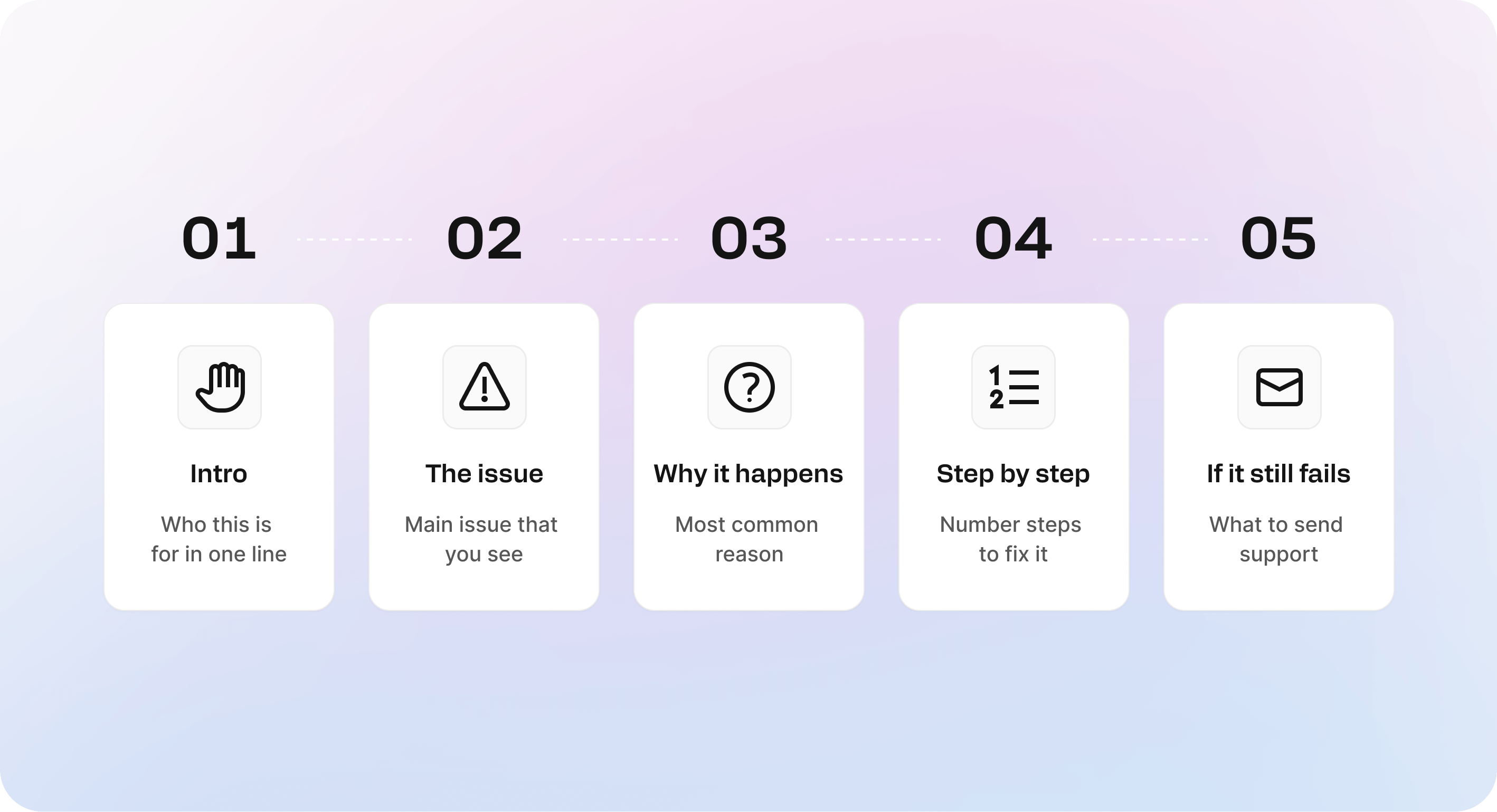
A reliable structure:
Intro: who this is for in one line
The issue: what you see
Why it happens: most common reason
Step by step: numbered steps to fix it
If it still fails: what to send support
This works for self service support because it mirrors real support conversations: diagnose, fix, confirm, escalate.
3) Make screenshots do real work
Screenshots are not decoration. They remove ambiguity and reduce follow up questions.
Use them when:
the UI label is easy to confuse
a step is hidden behind a menu
the user needs to confirm they’re on the right screen
Avoid screenshots that show an entire dashboard with a tiny arrow. Zoom in. Crop. Highlight only what matters.
4) Write for search queries, not for Google
Yes, SEO matters. But your biggest ranking boost often comes from matching customer language, which also improves search inside the help center.
Steal words from:
ticket subject lines
chat transcripts
refund reasons
no results searches
If customers type invoice, your article must contain invoice in the title or first line. If customers say refund, don’t hide it behind billing adjustments.
5) Build pre ticket content for the top repeat issues
Your highest leverage articles are the ones customers read right before they contact you:
payment failed
can’t log in
cancel plan
refund request
change email
invite teammate
Write these as crisp troubleshooting guides with a clear path to support.
Mini template: ticket deflecting troubleshooting article
Problem: What the user sees in plain language
Fast fix: The most common fix in 1 to 3 steps
Step by step: Numbered steps with exact UI labels
If you see X: 2 to 3 common variants and what they mean
Still stuck?: What to send support (screenshot, error code, account email, time)
Self service options that actually move the needle
Self service is not a page on your website. It’s a set of moments where you intercept confusion before it becomes a ticket. The trick is to stop treating the help center like a destination and start treating it like infrastructure.
The highest leverage self service options are the ones that show up in context, right where users get stuck.
1) Put answers on friction pages, not in a footer
Pick the 3 to 5 screens that generate the most “help me” energy:
Billing and upgrade
Checkout and payment
Login and password reset
Invite team and permissions
Integrations setup
Export or critical workflow steps
Then add one lightweight entry point:
a help widget icon
a “Need help?” link that opens suggested articles
a short inline block with the top fix and a link to the full article
If you’re using Helpview as your Notion help center, the widget approach is the cleanest because you can publish from Notion and surface the same articles inside your product without building a second support UI.
2) Suggest articles before the ticket is submitted
This is where deflection happens. Not after the ticket. Before.
Inside your contact form, show:
3 suggested articles based on what the user types
a short most common fixes list for that category
the option to continue to contact support if none match
The goal is not to block support. It’s to give the user a last second “oh, that’s my issue” escape hatch.
Quick example pattern:
User types: payment failed
Suggestions: Fix payment failure, Update billing details, Check card verification
If they still submit, you’ve at least guided them to include the right details

3) Build a smart path from emails and UI states
A surprising amount of support demand is created by vague system messages. Your self service layer should plug those leaks.
Upgrade:
transactional emails: add one help link that matches the event
error banners: link to a specific troubleshooting article, not the help center homepage
empty states: link to how to get started guides
One link. The right link. Every time.
4) Use micro prompts and feedback loops
The best self service options quietly teach customers how to self serve.
Add:
Was this helpful buttons on every article
a short Still stuck block with what to do next
a one question micro survey after certain help center exits
This creates a map of what’s working, what’s confusing, and what you should write next.
Mini template: Still stuck block
Try this quick check: [one common fix]
If it still fails, contact support and include: account email, screenshot, error code, time
We’ll reply faster with the right details up front
What is a Tier 1 help desk issue and how your help center should handle it
Tier 1 is the front line. It’s the stuff that’s common, predictable, and fixable without deep investigation. If your support team answers it more than twice a week, it belongs in your help center, not in someone’s inbox.
A clean Tier 1 setup is one of the fastest ways to reduce repetitive tickets, because it covers the exact moments customers hit first: access, billing, and basic how do I.
Tier 1 definition: password resets, billing basics, common errors, simple how tos
Tier 1 issues usually share three traits:
The customer can fix it with a few steps
The answer rarely changes week to week
The support reply is mostly copy paste
Typical Tier 1 topics:
Password reset, login issues, 2FA problems
Updating billing details, invoices, failed payments
Permission and invites: Why can’t my teammate access this?
Common error messages and quick checks
Simple how tos: export, cancel, change email, update settings
If your help center can’t handle these, it won’t deflect much, because these are your highest volume, highest urgency tickets.
Turn Tier 1 into templates: repeatable troubleshooting checklists
The secret to Tier 1 content is standardization. Don’t reinvent the structure for each article. Use templates so every answer feels familiar and skimmable.
Turn Tier 1 into repeatable patterns:
Fix first: the top solution in the first screen
Steps next: numbered actions with exact UI labels
If you see X: common variants and what they mean
Still stuck: what to try next, then escalation details
This is where help desk best practices becomes real: consistent troubleshooting checklists reduce follow up questions because customers know what information matters.
Quick example template for common errors:
What you’re seeing
Why it happens (one sentence, no blame)
Quick fix (1 to 3 steps)
Deeper fix (if quick fix fails)
What to send support (screenshot, error code, time)
If you publish from Notion, keeping these templates inside your article database makes it easy to scale: duplicate the template, swap the specifics, publish.
Escalate Tier 2 and Tier 3 with context: logs, screenshots, account details
Tier 1 should not pretend to solve everything. The best help centers know when to hand off, and they do it with context so the escalation is fast.
When something is Tier 2 or Tier 3, your article should guide the customer to provide:
Account email or workspace ID
Exact error message and where it appears
Screenshot or short screen recording
Steps to reproduce
Timestamp and timezone
For devtools: request ID, logs, and relevant headers if safe to share
This protects your team from “it doesn’t work” tickets and shortens time to resolution. Customers feel taken seriously, and your support inbox becomes cleaner: fewer repeats, better first messages, faster closes.
Mini template: escalation prompt you can paste at the end of Tier 1 articles
If this didn’t fix it, contact support and include:
what you tried
a screenshot of the error
your account email
the time it happened
We’ll be able to help much faster with those details.
Quick checklist: help center best practices checklist for self service support
This is the do the obvious things, consistently checklist. It’s not glamorous. It works.
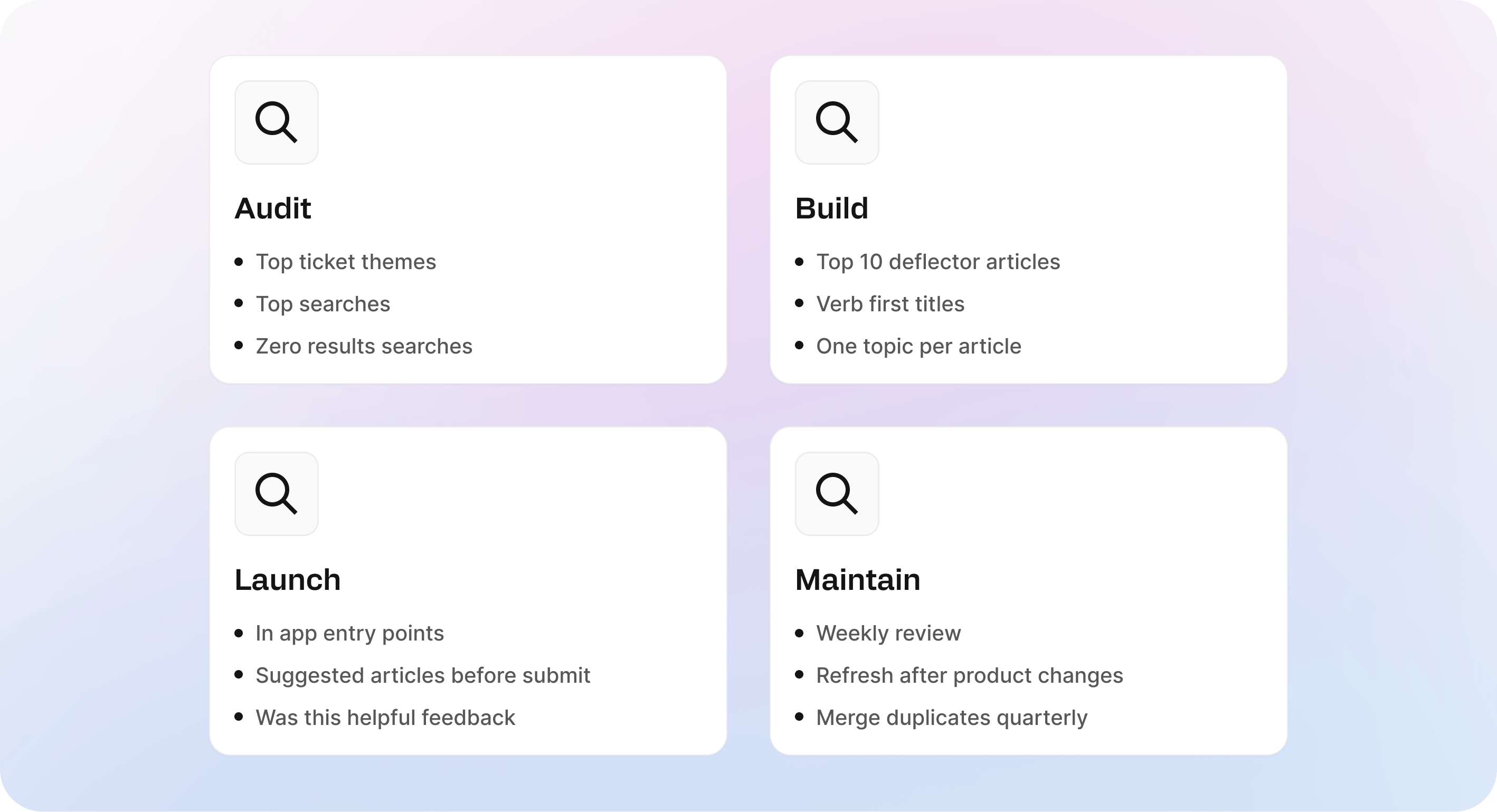
Audit: top tickets, top searches, zero result searches
Pull 30 to 90 days of ticket reasons and tag them into themes
Grab your top searches and highlight the queries that lead to contact
List your top zero result searches and translate them into article titles people would actually type
Identify the 5 highest cost issues (billing, access, checkout, critical workflows)
Pick a baseline metric to beat: contact rate, resolution time, or repeat ticket volume
Mini template: audit note you can paste into a doc
Top 10 ticket themes:
Top 10 searches:
Top 10 zero result searches:
High cost issues:
First 10 articles to write:
Build: top 10 deflector articles, clean structure, strong search titles
Write the first 10 fix first articles for the most repeated problems
Keep structure shallow: 4 to 8 categories, max 2 levels deep
Rename articles to verb first titles: Reset password, Fix payment failure, Download invoice
Add a one sentence intro that repeats the exact search phrase and confirms intent
Include one screenshot only where it reduces ambiguity, not as decoration
Add a Still stuck block with what to try next and what details to send support
Launch: widget in app, pre ticket suggestions, feedback buttons
Add a help widget on the top friction pages, not just the homepage
Add suggested articles inside your contact form before submit
Link the right articles from transactional emails and error states
Add Was this helpful to every article
Make escalation easy for genuine edge cases, not hidden behind a maze
Maintain: weekly review cadence, ownership, refresh after product changes
Set a weekly 30 minute review: top searches, zero result searches, and the top ticket themes you want to deflect
Assign an owner for each category so updates don’t depend on who has time
Refresh any article that mentions UI labels after product changes
Merge duplicates quarterly and delete content nobody uses
Keep a running next articles list sourced from real tickets and searches
If you do only one thing: treat your help center like a product surface. Ship small improvements weekly, and the deflection compounds.
Frequently asked questions
What makes a good help center?
A good help center makes answers easy to find, easy to scan, and easy to trust. It should use clear categories, article titles that match customer language, and content that solves one problem quickly instead of explaining too much before the fix. A strong help center also stays current, so customers do not land on outdated answers and still end up contacting support.
How should a help center be structured?
What should a help center include?
How often should you update help center content?
What is the difference between a help center and a knowledge base?
Share article:

2 free months of Pro
Turn Notion pages into help center answers.
Keep writing in Notion and publish a real, searchable Notion help center.

Articles
Keep reading