Tips
How to Translate a Notion Page and Build a Multilingual Site

8 Min Read
Translating a Notion page is simple when you only need one document in another language, but a multilingual Notion website needs a repeatable system for translated pages, navigation, updates, SEO, and support content.
Share article:


Start with the page, not the tool

Before choosing a translation method, decide what the translated Notion page is supposed to do.
A private internal note has a different quality bar than a public help article. A client-facing onboarding page needs different checks than a lightweight template. A multilingual website needs stronger structure than a one-off translated page because the translation has to stay useful after the original page changes.
Start with four questions:
Who will read the translated page?
Is the page private, guest-shared, or public?
Does the translation need to stay synchronized with the source page?
Will this become part of a larger multilingual Notion website or help center?
If you only need to translate a single internal note, a fast manual workflow may be enough. Duplicate the page, translate the copy, review it, and share it with the right people. If the page is public, treat it like publishing work. The translated page needs a clear title, readable structure, localized examples, working links, and a route back to the original language or related content.
This is where many teams go too quickly. They ask how to translate Notion pages, then immediately paste text into a tool. The better starting point is content structure. If the original page is messy, the translated version will usually be messy too. Clean up the source before translating: remove stale sections, simplify headings, check links, and decide which blocks should stay language-neutral.
For public pages, also check what Notion will publish. Notion says any page can be published as a Notion Site, and edits made in Notion update the live site automatically. That is useful, but it also means a translated page inherits the same publishing responsibility as the original. If the page has subpages, databases, or linked content, make sure the language boundary is intentional before you share it.
Manual translation works best for one-off pages
Manual translation is the most controlled way to translate a Notion page. It is slower than automation, but it gives you the best chance of keeping tone, meaning, examples, formatting, and product wording accurate.
Use this workflow when accuracy matters more than speed:
Duplicate the original Notion page.
Rename the duplicate with the target language, such as Getting started - Spanish or Primeros pasos.
Translate the page title, headings, body text, captions, callouts, database view names, button labels, and any visible UI copy.
Keep structural blocks in the same order unless the target language needs a different flow.
Review internal links and replace them with same-language links where those pages exist.
Ask a fluent reviewer to check meaning, tone, product terms, and local examples.
Publish or share only after the translated version is reviewed.
Duplicating the page first matters. Translating directly over the original page risks losing the source text, breaking references, or mixing languages inside one public page. A duplicate also gives you a stable place to compare the translated version against the original.
Manual translation is especially useful for high-value pages: setup guides, pricing explanations, onboarding docs, legal-adjacent support pages, migration instructions, and help articles that affect customer trust. These pages often contain product terms that should not be translated literally. They may also contain screenshots, button names, plan names, or examples that need local judgment.
The weakness is maintenance. If the original page changes next week, someone has to know that the translated page needs an update too. A manual workflow without an update tracker eventually creates drift. The English article says one thing, the Spanish version says another, and nobody notices until a customer follows the wrong step.
For a single page, you can manage this with a small checklist. Add a status property if the page lives in a database: source language, target language, owner, last source update, last translation review, and translation status. Even if you do not automate anything, those properties make it easier to see which translations need attention.
Use AI and automation carefully
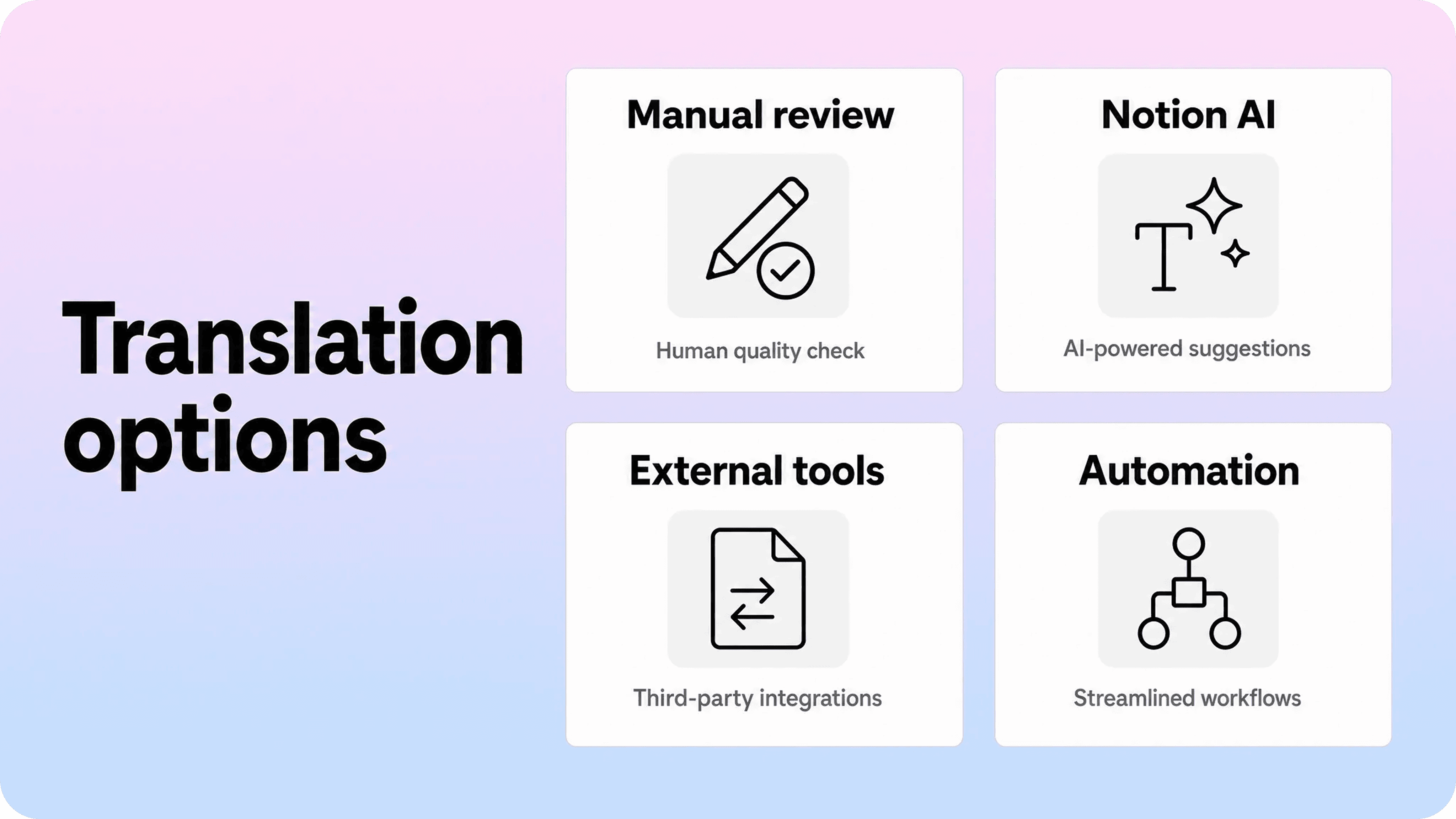
AI translation can speed up a Notion translation workflow, especially when the source page is clean and the translation will still be reviewed by a person.
Notion’s own AI documentation says Notion Agent can transform existing content and translate text into another language inside Notion. That is convenient because the work happens where the page already lives. You can highlight text, ask for a translation, and continue editing without bouncing through several tools.
External tools can also help. DeepL and Google Translate are common for text or document translation. Automation platforms such as Zapier or Make can connect Notion changes to translation steps. Dedicated localization tools can help larger teams manage strings, review workflows, and multiple language versions. Browser extensions and Notion-specific translation tools may help with page copying or format preservation, but they still need review before publishing.
The key is to separate translation speed from publishing quality. Automated translation is useful for drafts. It is not a complete multilingual content system by itself.
Use AI translation when:
The page is low-risk or early-stage.
A human can review before publication.
The source page is well structured.
Product terminology is already clear.
You need a first draft quickly.
Be more careful when:
The page includes legal, billing, security, medical, financial, or compliance details.
The article contains product-specific instructions.
The language affects customer support promises.
The page will rank in search or represent the brand publicly.
The target language needs regional adaptation rather than direct translation.
The best prompt is specific. Instead of asking an AI tool to “translate this page,” tell it the target language, audience, tone, terms that should stay unchanged, product names that should not be translated, and whether to localize examples. Then review the output against the source, not just for grammar.
For public Notion pages, also check layout after translation. Some languages become longer than English. Headings may wrap differently. Button labels may feel awkward. Tables can become cramped. Long callouts may dominate the page. Translation is not only a text task; it is a page design task too.
Choose the right multilingual Notion setup
There are three practical ways to manage multiple languages in Notion: duplicate pages manually, use a database-driven translation workflow, or publish through a dedicated public layer that supports a better multilingual experience.
Setup | Best for | Strength | Watch out for |
|---|---|---|---|
Separate duplicated pages | A few translated pages | Simple and easy to start | Hard to track updates as pages grow |
Translation database | Growing docs or resource libraries | Clear status, owners, and review workflow | Still needs manual linking and publishing discipline |
Public help-center layer | Customer-facing multilingual support | Better navigation, search, categories, and language routing | Requires a publishing layer beyond raw Notion pages |
Duplicated pages are fine when the library is small. For example, a company might have one English onboarding page and one Spanish copy. Each page can link to the other at the top: English and Español. This is enough for a simple resource, especially if only one person maintains it.
Once the site grows, separate pages become harder to manage. You need a source-of-truth page, a translated page for each language, and a way to know whether each translation is current. A Notion database helps because every article can have properties for source language, target language, URL slug, owner, translation status, review date, and related language versions.
For a multilingual Notion website, create one row per language version rather than hiding every translation inside one giant page. That makes it easier to filter by language, assign reviewers, build public article lists, and track which pages are ready to publish.
A simple database might include:
Source page
Language
Translated page
Translation status
Reviewer
Last source update
Last translation update
Public URL
Related language pages
This structure prevents a common problem: publishing a translated page once, then forgetting it exists. If each version has an owner and status, the workflow becomes visible. If the original changes, the translated pages can be marked for review.
For customer support content, a database workflow is only half the answer. The public experience still needs to make sense to readers. They should not have to decode an internal Notion database, guess which page is current, or return to a manual index every time they want another language. A dedicated help center layer can keep Notion as the editing system while giving the public site cleaner categories, search, related articles, and language switching.
Build language navigation intentionally
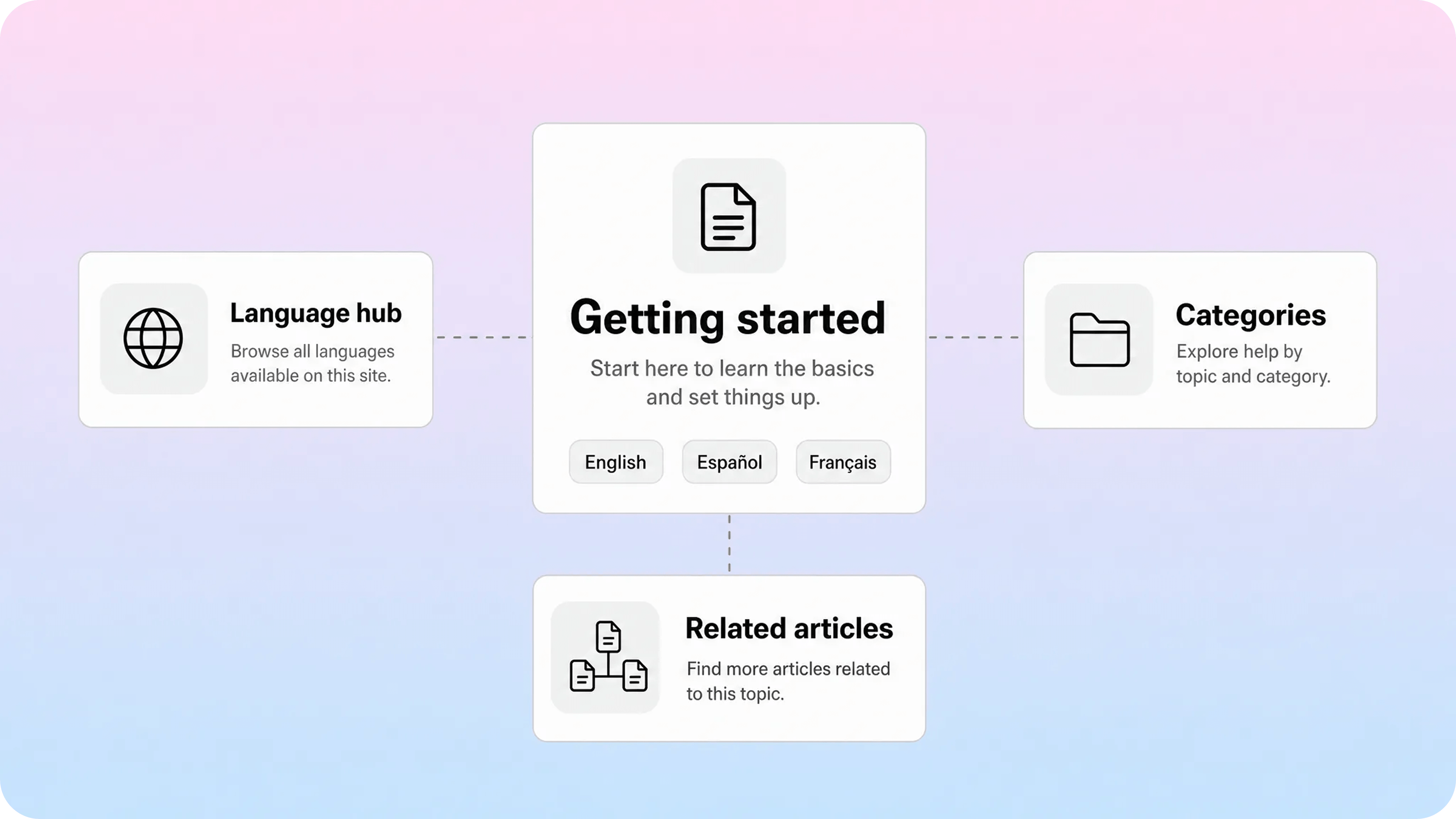
A language switcher is not just a visual control. It is a promise that the same content exists in another language and that the reader can move there without losing context.
Native Notion pages do not behave like a full multilingual CMS out of the box. You can publish separate pages, create header navigation on paid Notion Sites, add links between versions, and organize language-specific indexes. But you still need to design the multilingual structure yourself.
For a small site, a simple language block near the top of each page can work:
English
Español
Français
Deutsch
Use the language names in their own language when possible. Someone looking for Spanish should be able to recognize Español without reading the current page language fluently. Avoid relying only on flags because countries and languages are not the same thing. If the translated pages should rank in search, also plan language-specific URLs and hreflang-style relationships; Google’s guidance on localized versions of pages is useful when the site goes beyond a simple manual language list.
For a larger Notion website, organize language versions consistently. A common pattern is one main hub per language:
/en/getting-started
/es/primeros-pasos
/fr/bien-demarrer
If you use Notion Sites, remember that Notion’s publishing settings include manual slugs on paid plans, but a page’s slug does not automatically apply to subpages. That means translated slugs and related language paths need active management. It is not enough to duplicate a page and assume the public URL structure will be clean.
For help centers, language navigation should exist at several levels:
Homepage or help center index
Category pages
Individual articles
Search results
Related articles
Contact or support paths
This is the difference between translating a Notion page and building a multilingual Notion website. A page translation answers one reader once. A multilingual site helps readers keep moving in their preferred language across the whole experience.
Keep translated pages in sync
The hardest part of Notion website localization is not the first translation. It is the third update.
The source page changes. A product setting gets renamed. A screenshot is replaced. A pricing note is clarified. Someone adds a troubleshooting step. If the translated pages do not get updated, the multilingual site starts to drift.
Create a translation maintenance workflow before the site feels large. It can be simple:
Assign one source owner for each page.
Assign one translation reviewer for each language.
Add a Needs translation review status.
Mark translated pages for review when the source changes.
Review translated links, screenshots, and examples along with the text.
Publish only when the translated page matches the current source.
For a small library, this can happen manually. For a larger one, use Notion database views. Create a view for each language, a view for stale translations, and a view for pages ready to publish. If you use automations, trigger reminders when a source page date is newer than the translation review date.
Version control matters too. Keep a short update note on important pages: what changed, when, and whether translations were reviewed. This does not need to become heavy process. It simply gives the team a way to see whether the French article reflects the latest source update or the version from two months ago.
Also decide what should not be translated. Product names, plan names, integration names, keyboard shortcuts, code snippets, URLs, API fields, and UI labels may need special treatment. Some should stay in English. Some should be translated only if the product UI is translated. Some should be explained once and then reused consistently.
This is where a glossary helps. Create a Notion page or database for approved terms:
Source term
Approved translation
Notes
Do not translate?
Example usage
A glossary keeps AI, human reviewers, and support writers aligned. It also prevents the same feature from having three different names across three translated pages.
When a multilingual help center needs more than Notion
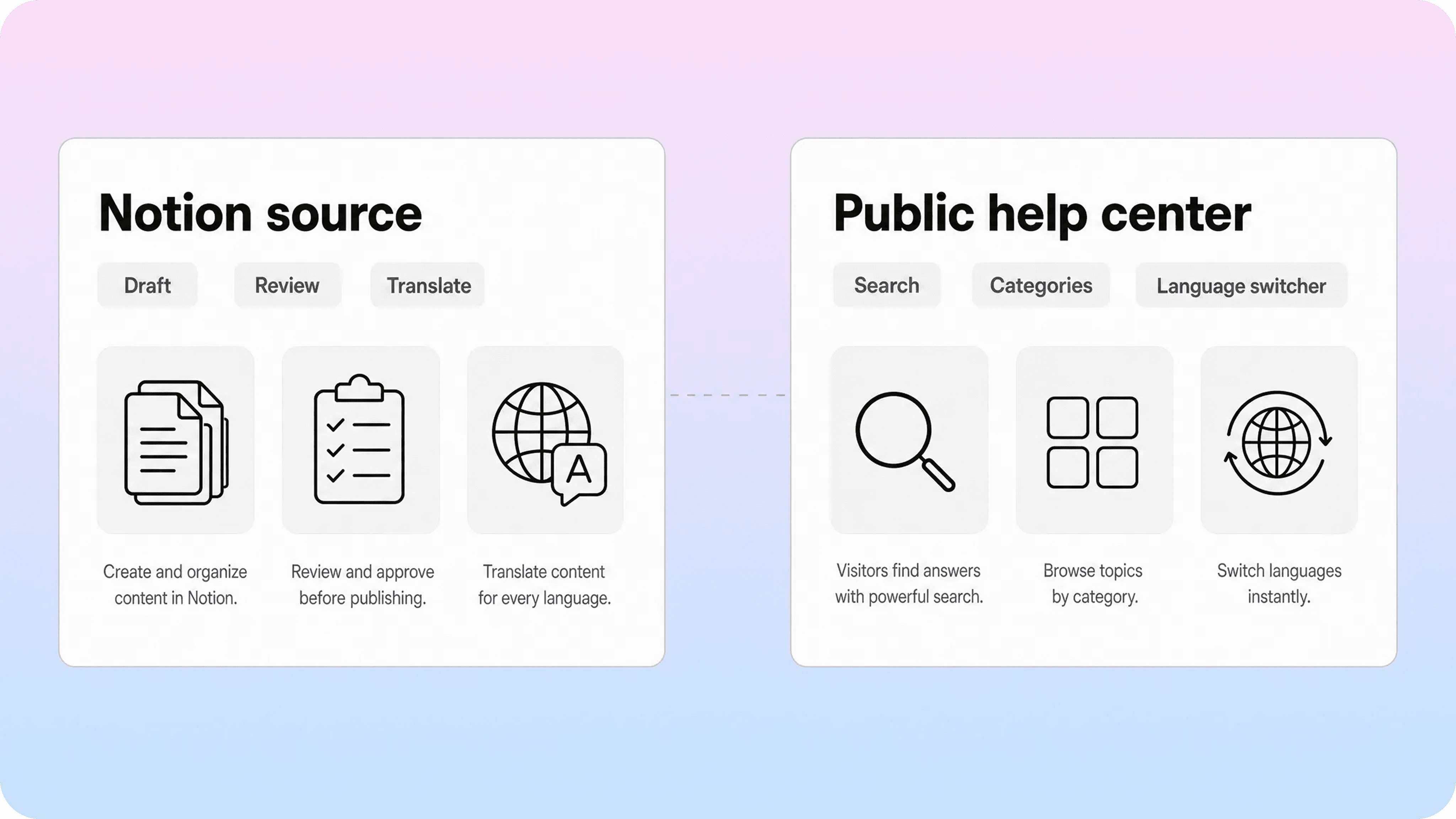
Notion can be a strong place to write and maintain source content. It is flexible, familiar, collaborative, and fast to edit. But a multilingual public help center usually needs more than a set of published Notion pages.
The public layer has to answer practical questions:
Can users search within their selected language?
Can they switch languages from the same article?
Are categories localized, not just article bodies?
Do related articles stay in the same language?
Can support teams see which translated articles are helping?
Can the site keep a clean, branded experience across languages?
Can SEO titles, descriptions, and slugs be managed per language?
Native Notion publishing can work for simple pages and lightweight resource hubs. Helpview’s article on Notion website design makes the broader point: good public pages need clear hierarchy, navigation, readable structure, and next steps. That becomes even more important when readers are moving through translated content.
For support teams, the better model is often:
Keep drafting, review, and ownership in Notion.
Store translated versions in a clear Notion database or page structure.
Use a publishing layer for the customer-facing help center.
Give readers language-aware search, categories, related articles, and support paths.
This avoids turning Notion into something it is not. Notion stays the internal editing layer. The public help center handles the experience customers actually use.
That distinction matters for SEO too. Helpview’s guide to Notion SEO covers public page optimization in more detail, but the multilingual version adds extra responsibility. Each language version needs a page title, description, URL, internal links, and surrounding category structure that make sense in that language. Direct translation is not enough if the page cannot be found, trusted, or navigated.
If you are only translating one page, start small. If you are localizing an entire public help center, design the system before the translation backlog gets out of control.
Conclusion
To translate a Notion page well, duplicate the source, translate the copy, review it carefully, and check the full page experience before sharing or publishing. To build a multilingual Notion website, go further: create a structure for language versions, status tracking, review ownership, language navigation, synchronized updates, and public search. Notion can remain the place where your team writes and maintains content, but a serious multilingual help center needs a customer-facing layer that makes every language version easy to find, browse, and trust.
Frequently asked questions
Can you translate a Notion page automatically?
Yes, you can use Notion AI, external translation tools, browser extensions, or automation platforms to draft a translation, but the result should still be reviewed before publication. Automated translation is most useful as a starting point, especially for clean source pages with clear product terminology.
What is the best way to translate a Notion page?
How do you manage multiple languages in Notion?
Does Notion have a built-in website language switcher?
Is Notion good for a multilingual help center?
Share article:
2 free months of Pro
Turn Notion pages into help center answers.
Keep writing in Notion and publish a real, searchable Notion help center.

Articles
Keep reading