Tips
Zero-result searches in help centers: what they mean and how to fix them

10 Min Read
Zero-result searches show where your help center fails to match customer intent. Learn how to use them to find missing docs, unclear titles, poor wording, and content gaps before they turn into support tickets.
Share article:


What zero-result searches actually tell you
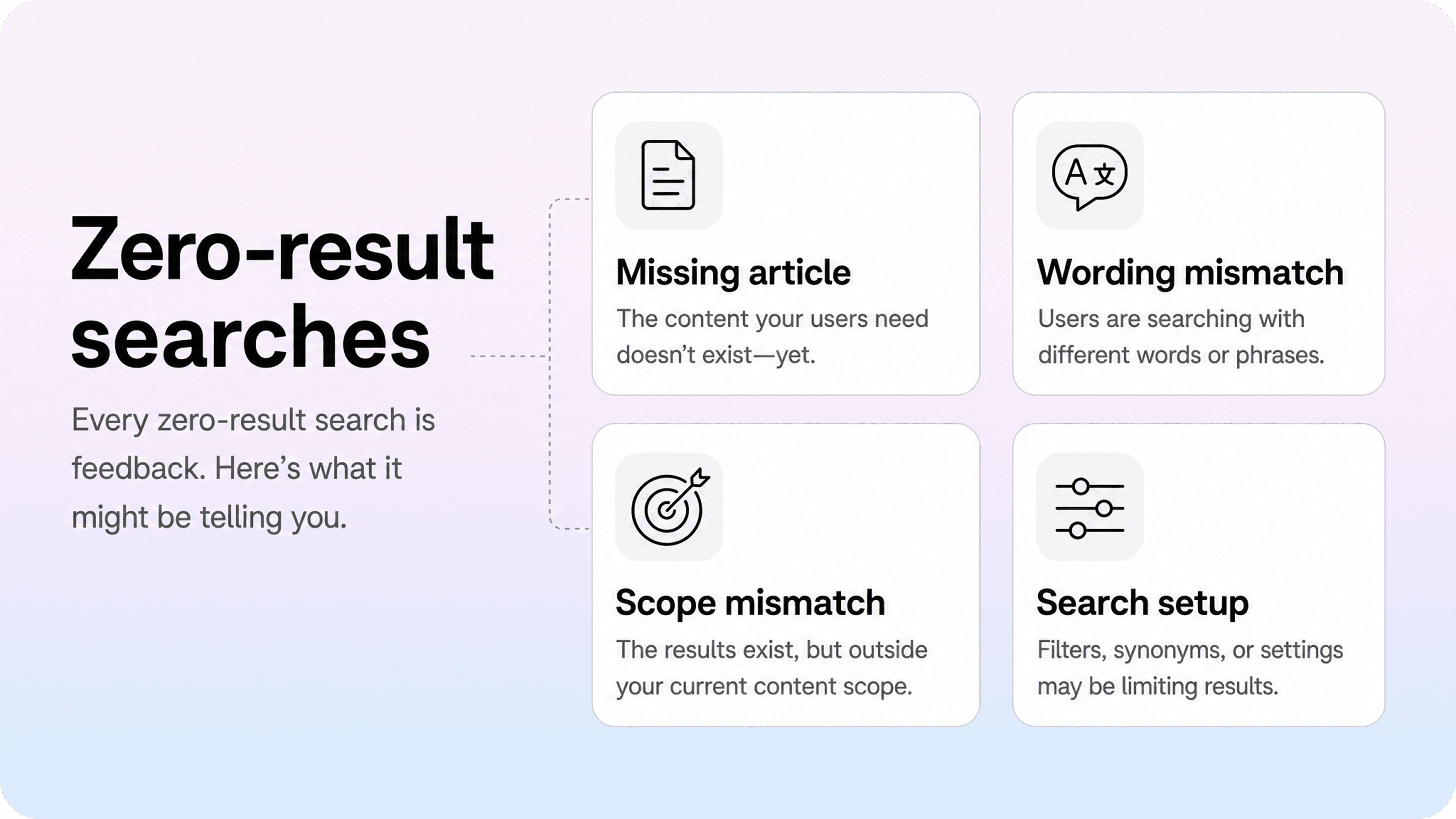
A zero-result search is not just a failed query. It is a record of what a customer believed your help center should be able to answer.
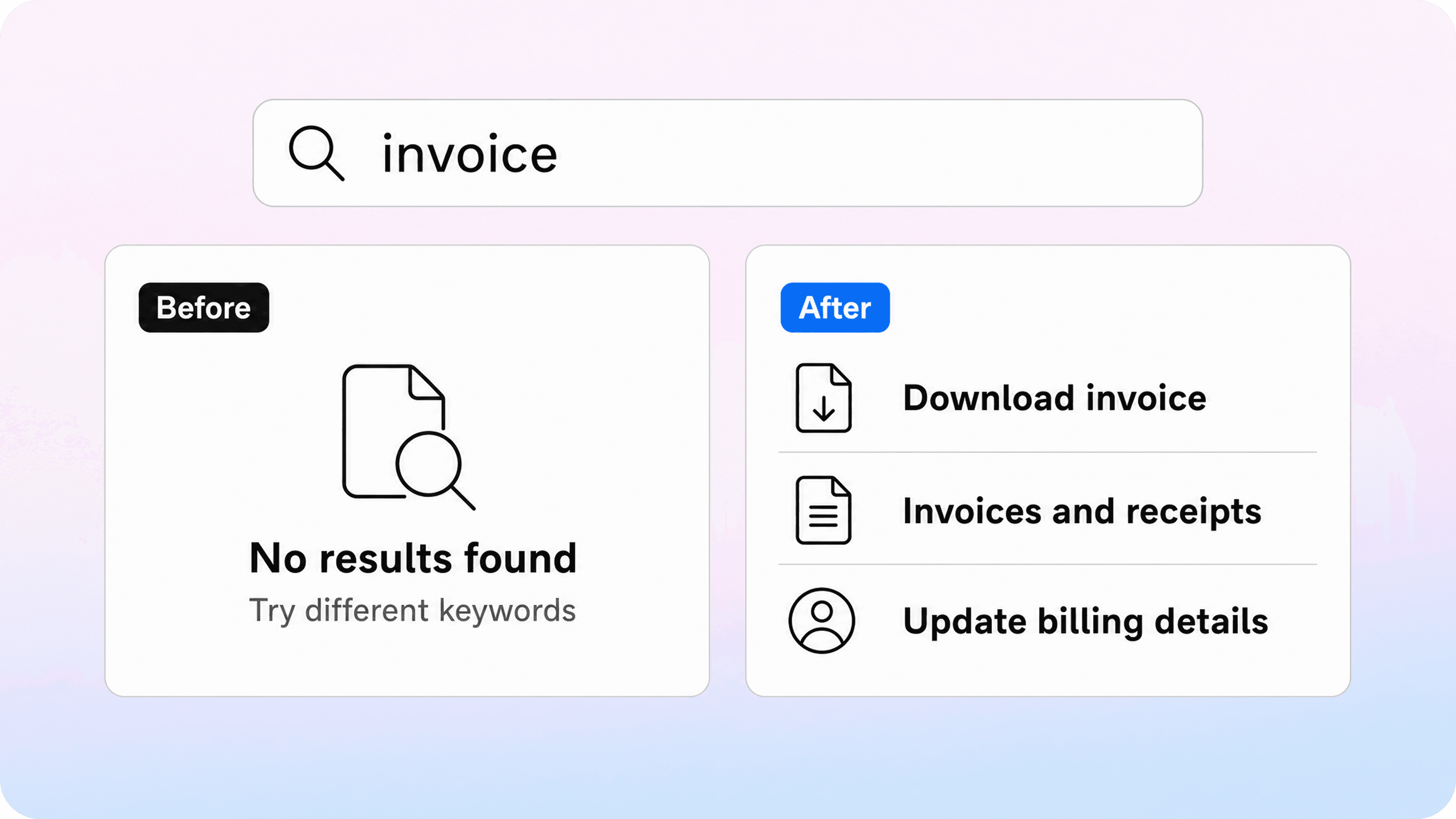
That distinction matters. If someone searches invoice, download receipt, or billing history and gets no results, the issue may not be that the customer used the wrong word. The issue may be that your help center uses language that does not match the way customers describe the problem.
Zero-result searches usually point to one of five problems.
Signal | What it usually means | Example |
|---|---|---|
Missing article | No article answers the customer’s intent | Users search cancel plan, but no cancellation article exists |
Wording mismatch | The answer exists, but under a different title or phrase | Article says receipts, users search invoices |
Scope mismatch | The query is broader or narrower than your article | Users search login error code 403, article only says trouble signing in |
Product confusion | The product creates a question the docs have not explained | Users search for a button that was renamed or removed |
Search configuration issue | Search does not understand synonyms, spelling, filters, or article weighting | teammate does not return workspace members |
A zero-result report becomes useful when you treat those searches as customer evidence, not as a random list of keywords.
The phrase itself is only the first clue. The real question is: what job was the customer trying to complete?
Zero results are not always missing content
The most common mistake is assuming every zero-result search needs a new article.
Sometimes it does. If customers keep searching for refund policy and you do not have a refund article, the fix is obvious. But many zero search results are findability problems rather than content gaps.
For example:
the article exists, but the title uses internal terminology
the article answers the issue, but the relevant phrase appears too far down the page
the category structure hides the article from browsing paths
the search system does not support common synonyms
the result exists, but the search ranking does not surface it
the article is too broad, so the search engine cannot confidently match it to the query
This is why zero-result analysis should sit next to your broader help center review, not apart from it. Search data tells you what customers tried. Article quality, structure, and support tickets tell you whether the answer actually resolves the issue.
If your wider goal is fewer repetitive requests, pair this search review with a broader ticket audit like the one in Helpview’s guide on how to reduce support tickets with a help center.
The best searches use customer language
Customers rarely search with your internal product map in mind.
They search for visible symptoms, tasks, and outcomes:
where is my invoice
invite another user
change email address
export data
can't log in
payment failed
delete workspace
Your help center may use more polished language, but search has to bridge the gap between customer wording and article wording. If it cannot, you get zero results even when your documentation feels complete from the team’s point of view.
This is why zero-result searches are so valuable for documentation teams. They show the language customers actually use before it has been cleaned up by support, rewritten into product terms, or abstracted into an internal content plan.
How to interpret zero search results without overreacting
A zero-result search list can get messy fast. One customer types billing. Another types billings. Another types download paid receipt. Another types a full sentence with a typo. If you treat each query as a separate content request, your backlog will become noisy and misleading.
The better approach is to interpret zero search results in clusters.
Start with a practical review window, such as the last 30 days for a busy help center or the last quarter for a smaller one. Export or copy the queries, then add a few simple columns:
Query | Intent cluster | Current article | Likely issue | Fix |
|---|---|---|---|---|
invoice | Billing documents | Billing overview | Wording mismatch | Add invoice title/synonym |
download receipt | Billing documents | Billing overview | Article too broad | Create focused invoice article |
add user | Team management | Manage members | Synonym gap | Add user, teammate, member |
2fa reset | Account access | No article | Missing content | Create recovery article |
error 403 | Access error | Login help | Scope mismatch | Add troubleshooting section |
This keeps the review grounded in intent. You are not asking, “How many weird searches did we get?” You are asking, “Which customer needs failed repeatedly, and why?”
Separate noise from real demand
Not every failed search deserves action.
Some searches are outside your scope. Some are one-off typos. Some are so vague that no help center could confidently answer them. Others may come from internal testers, bots, or users searching for features you do not offer.
A useful first pass is to sort zero-result searches into four buckets:
Clear intent, repeated: likely worth fixing soon.
Clear intent, one-off: monitor unless the issue is high risk.
Unclear intent: compare with tickets or article feedback before acting.
Out of scope: improve the empty state or route to support, but do not create irrelevant content.
This prevents your help center from turning into a reaction to every search term. The strongest fixes usually come from repeated, high-intent searches tied to real customer tasks.
Look for the support ticket behind the search
Search data becomes more useful when you compare it with support demand.
If people search for invoice, get zero results, and then open billing tickets, the problem is high priority. If they search for api webhook secret, get zero results, and your support team also sees developer setup questions, that may deserve a new technical article. If they search for a retired feature and then leave, the fix may be a short explanation or redirect rather than a full guide.
Good questions during review:
Did this search happen more than once?
Did the user search again with different wording?
Did they contact support after searching?
Does a relevant article already exist?
Would a better title, synonym, or related link solve the issue?
Is the answer stable enough to document publicly?
This is where zero-result searches become more than analytics. They become a prioritization tool for customer-facing documentation.
Watch for product and release signals
A sudden spike in zero search results often means something changed.
Maybe a button moved. Maybe a plan name changed. Maybe a new feature launched without support docs. Maybe users are trying to find a setting that no longer exists. When search terms change quickly, the help center is often reacting to a product moment.
Pay special attention to zero-result searches after:
pricing or billing changes
onboarding changes
new permissions or roles
integration updates
feature launches
UI label changes
policy updates
migration projects
These searches tell you where the product experience is creating new questions. The fix may be an article update, but it may also be a release note, an in-product help link, or a clearer empty state inside the product.
How to fix zero-result searches
Once you understand the intent, choose the smallest fix that actually helps the next customer find the answer.
That matters because zero-result searches can tempt teams into publishing too many thin pages. A new article is useful when the intent is distinct and recurring. But if the answer already exists, the better fix may be a title change, a synonym, a redirect, or a tighter article intro.
Here are the most useful fixes, in order of how often they solve the problem.
1. Rename articles to match customer wording
If customers search for invoice, do not hide the answer under billing documents. If they search for add teammate, do not title the article manage workspace members unless your search handles that synonym perfectly.
Strong help center titles usually describe one clear task, issue, or question:
Download an invoice
Invite a teammate to your workspace
Reset two-factor authentication
Change your billing email
Fix a failed payment
Title changes are often the fastest way to reduce failed searches because they improve both search matching and human scanning.
2. Add synonyms for common wording gaps
Synonyms are useful when customers use several words for the same thing.
Common examples:
Customer says | Your product says |
|---|---|
user | member |
teammate | collaborator |
receipt | invoice |
plan | subscription |
cancel | downgrade |
workspace | account |
sign in | log in |
Synonyms help search understand that different words can point to the same answer. They are especially useful for support concepts where customer language and product language naturally differ.
Do not use synonyms to hide bad article structure, though. If a topic keeps producing high-intent searches, the article itself still needs to be clear, specific, and easy to scan.
3. Create new articles for distinct recurring intent
A new article makes sense when the search intent is specific, repeated, and not fully answered elsewhere.
Good candidates include:
account recovery steps
billing and invoice tasks
plan limit explanations
common error states
integration troubleshooting
permissions and access issues
cancellation, refund, or data export policies
Before writing, check whether the topic should be a standalone article or a section inside an existing article. The boundary should follow the customer’s job. If someone would search for the task directly and expect a focused answer, it probably deserves its own page.
4. Improve the first paragraph of existing articles
Search systems often rely on titles, headings, and early body content to understand what a page is about. Customers do too.
If a relevant article exists but still fails to appear or earn clicks, tighten the opening:
name the customer problem in plain language
mention common alternate terms naturally
say what the article helps them do
avoid long background before the answer
include the most likely fix near the top
For example, instead of opening with a general billing overview, start with: “Use this guide to download invoices, view receipts, and check your billing history.” That one sentence gives both customers and search a clearer match.
5. Split broad articles that try to answer too much
Catch-all pages are common zero-result traps.
A broad article like Billing settings may include invoices, payment methods, plan changes, tax details, receipts, cancellation, and refunds. But a customer searching download invoice does not want a broad billing overview. They want the exact answer.
Split broad pages when:
one page covers several unrelated tasks
search terms point to a specific subtask
support keeps linking to only one section
the article is hard to scan on mobile
the answer appears too far down the page
Then use internal links to connect the pages. The goal is not fragmentation. It is making the right answer easier to land on directly.
6. Add related links and fallback paths
Sometimes the search result is only the first step.
If someone searches payment failed, they may need articles about payment methods, invoices, billing emails, plan status, or contacting support with the right account details. Related links help readers move from one likely answer to the next without starting over.
Good related links reduce failed search loops because the customer does not have to guess the next query.
For a broader structure system, Helpview’s help center best practices guide covers how categories, article clarity, and review habits work together.
7. Improve the zero-results empty state
Even after fixes, some searches will still return nothing. The empty state should help customers recover.
A useful zero-results page should:
acknowledge that nothing matched
suggest a shorter or broader search
show popular categories or articles
offer a clear contact path when needed
avoid making the user feel like they did something wrong
For example:
No articles matched that search. Try a shorter phrase, browse popular topics, or contact support if you need help with this issue.
If your help center can show suggested articles based on partial matches, use them carefully. Three strong suggestions are usually better than a long list of weak guesses.
How to reduce failed searches over time
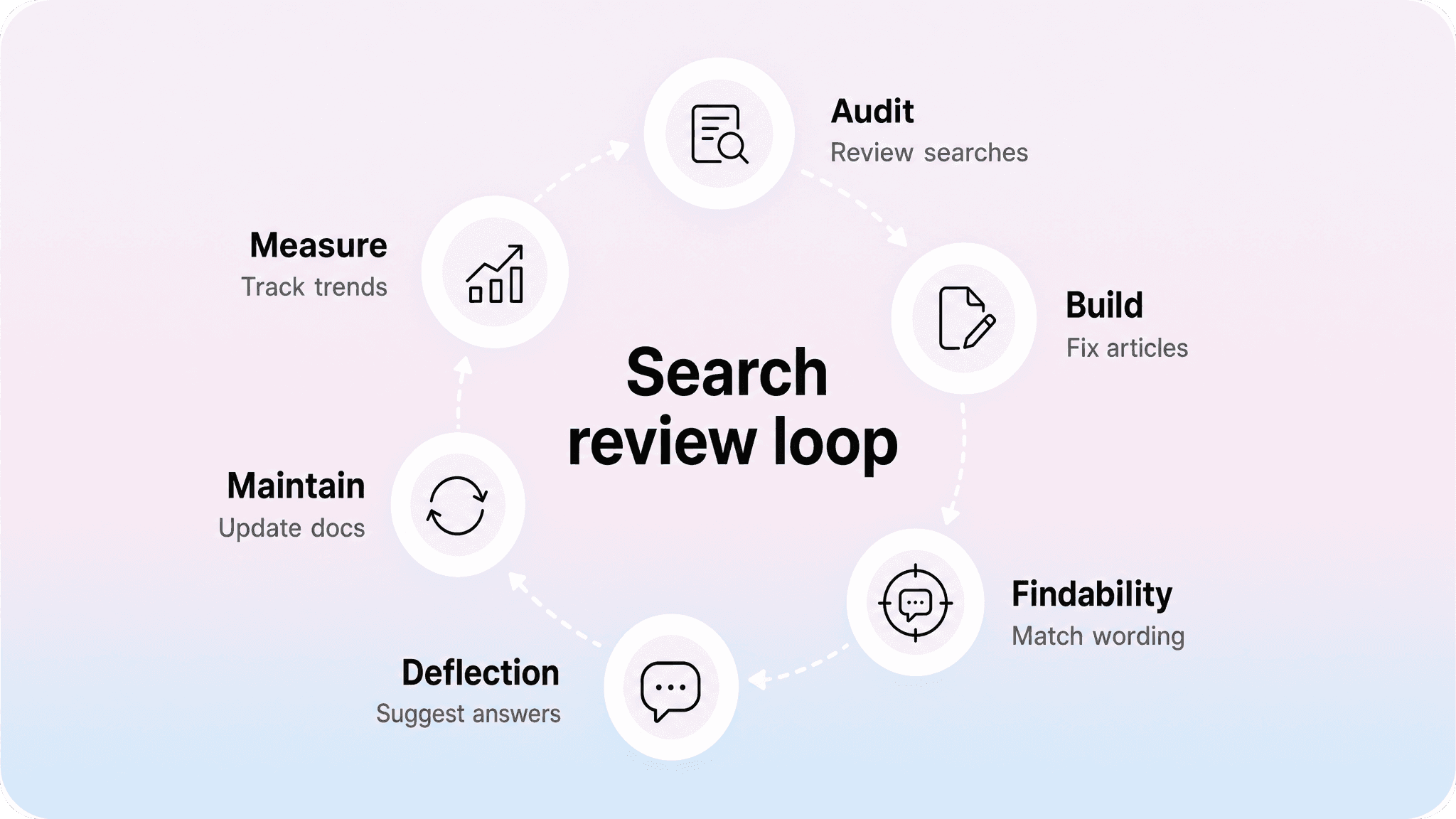
Fixing one batch of zero-result searches is useful. Building a repeatable search review loop is better.
A help center search review does not need to be heavy. For most teams, a monthly check is enough. High-volume support teams may want a weekly review, especially around product releases or major billing changes.
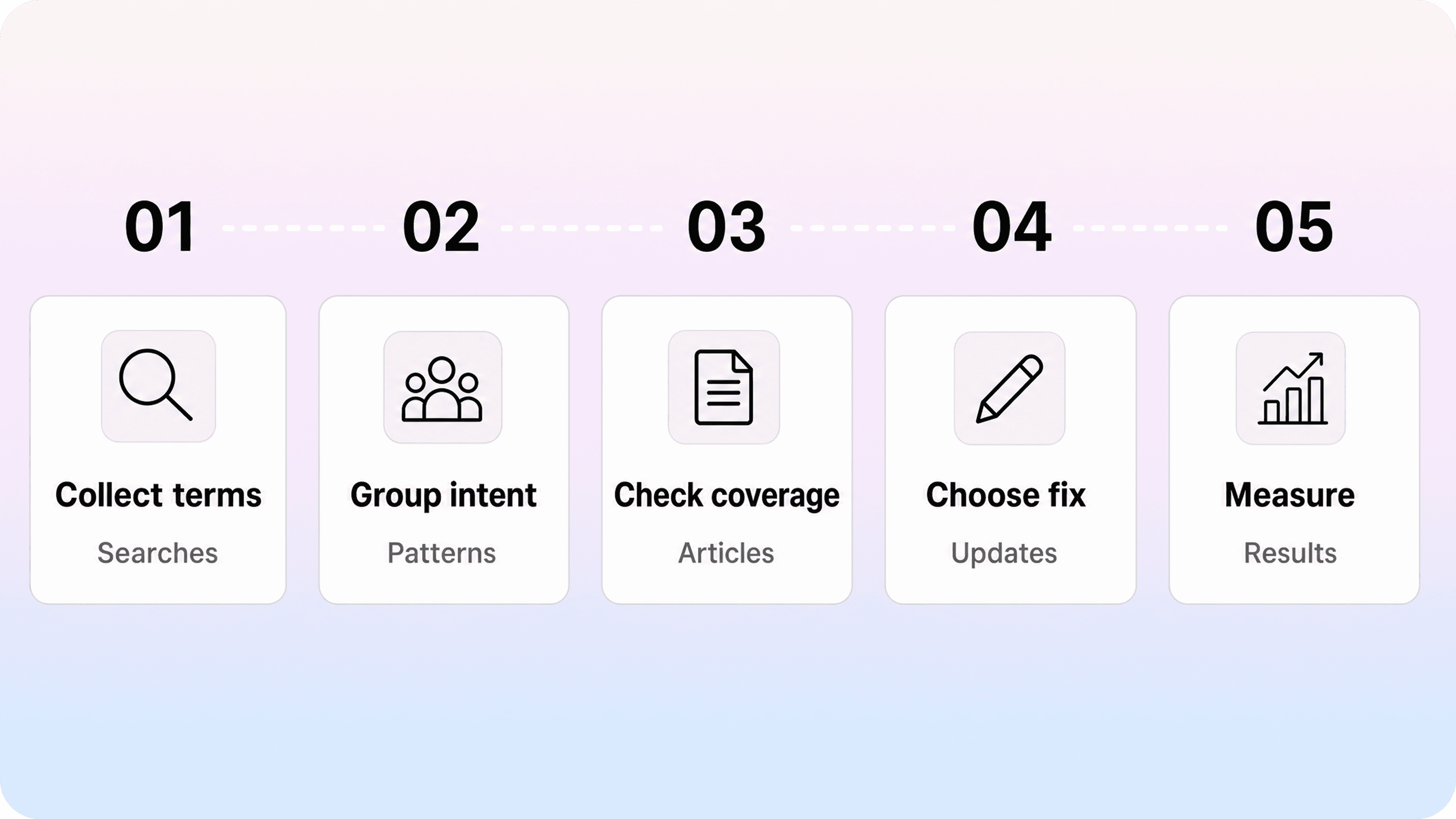
A practical loop looks like this:
Pull recent zero-result searches.
Group them by customer intent.
Compare clusters with existing articles.
Choose the right fix: rename, synonym, update, split, merge, or create.
Ship the change.
Check whether repeat searches and related tickets decline.
That last step is important. The goal is not to close documentation tasks. The goal is to help the next customer find the answer without contacting support.
Track the right metrics
Do not measure success only by the number of zero-result searches.
A raw count can move for reasons that are not bad. If more customers use your help center search, total zero-result searches may rise even while the experience improves. A better view combines several signals:
Metric | What it tells you |
|---|---|
Zero-result rate | How often searches return no useful result |
Repeated failed searches | Whether users keep trying after the first failure |
Search-to-contact rate | Whether failed searches lead to support tickets |
Top failed intent clusters | Which customer needs are not covered well enough |
Fixed cluster recurrence | Whether a shipped fix actually reduced the same failed searches |
Article click-through after search | Whether results look relevant enough to open |
This gives you a more honest picture than a single dashboard number.
Prioritize high-friction topics first
Some zero-result searches deserve more urgency than others.
Prioritize searches tied to:
account access
billing and invoices
payment failures
cancellation and refunds
security settings
data export
onboarding blockers
integration errors
plan limits and permissions
These topics affect trust. Even if the volume is not huge, a failed search in one of these areas can create frustration quickly.
Low-risk or vague searches can wait. High-friction searches should move into your documentation queue sooner.
Build search review into documentation maintenance
Zero-result analysis works best when it becomes part of normal help center maintenance.
You do not need a large content operations process. A lightweight review habit is enough:
check failed searches before planning new articles
review zero-result spikes after product releases
add customer wording to article titles and intros
update synonyms as terminology changes
compare failed searches with support macros and ticket tags
retire or redirect outdated pages that confuse search
If your team already writes docs in Notion, Helpview can help turn those pages into a structured Notion help center with search, categories, and a cleaner customer-facing experience. That makes search review more useful because the content can stay close to the team’s existing writing workflow while still behaving like a real help center.
Common mistakes when fixing zero search results
Zero-result search data is useful, but it is easy to misuse.
The biggest mistakes usually come from reacting too quickly, writing too broadly, or treating search as a technical problem only.
Publishing one article for every query
This creates clutter fast.
If five searches point to the same intent, you probably need one strong article, not five thin ones. Group related terms first, then decide the best page boundary.
Fixing search settings while ignoring bad content
Synonyms and ranking rules can help, but they cannot rescue weak articles forever.
If the article is vague, outdated, or hard to scan, users may find it and still contact support. Search gets people to the page. The page still has to solve the problem.
Using internal language in titles
Internal labels make sense to your team because you already know the product. Customers do not.
If support says workspace members but customers say add user, your help center needs to account for both. The visible title should usually favor the customer’s wording.
Ignoring searches that return results but still fail
A search can technically return results and still be unsuccessful.
If users search, click, search again, and then contact support, the first result did not do its job. Review low-click searches, repeated searches, and search-to-contact behavior alongside pure zero-result data.
Letting the empty state become a dead end
A blank “no results found” page is a support leak.
Even if no article matches, the help center can still offer a path: browse categories, try a shorter query, see popular articles, or contact support with the right details.
A simple checklist for fixing zero-result searches
Use this checklist when reviewing a failed search cluster:
What was the customer likely trying to do?
Does an article already answer that exact intent?
Does the title use the customer’s wording?
Does the intro include common alternate terms naturally?
Would a synonym fix the mismatch?
Is the topic too broad and in need of a focused article?
Is the existing article outdated after a product change?
Are related links helping users continue if the first answer is not enough?
Did the failed search lead to a ticket or contact attempt?
How will you know whether the fix worked?
This keeps the work practical. Each failed search cluster should end with a content or search decision, not just a note in a spreadsheet.
Conclusion
Zero-result searches are not just a search analytics problem. They are one of the most useful feedback loops in a help center.
They show what customers expected to find, which words they used, and where your documentation did not meet them. Sometimes the fix is a new article. Often it is a clearer title, a better synonym, a tighter intro, a split page, a related link, or a better empty state.
The teams that get the most value from zero-result searches review them regularly, group them by intent, compare them with support tickets, and ship small fixes that make the next search more likely to succeed.
That is how you reduce failed searches without bloating your help center. You listen to the searches customers already make, then make the help center easier to understand in their language.
Frequently asked questions
What are zero-result searches?
Zero-result searches are searches that return no matching article or useful result inside a help center, knowledge base, website, or product search experience. In a help center, they often show that customers are looking for answers that are missing, poorly titled, or not matched by the search system.
Are zero-result searches always bad?
How do you interpret zero search results?
How do you fix zero-result searches?
How often should you review zero-result searches?
Share article:

2 free months of Pro
Turn Notion pages into help center answers.
Keep writing in Notion and publish a real, searchable Notion help center.

Articles
Keep reading