Tips
SEO for help centers: audit, fix, ship, track

12 Min Read
Help center SEO is different from blog SEO because the intent is different. People landing on help content are usually not researching a topic. They are trying to solve a problem, complete a task, or confirm what to do next. That is why most help center SEO wins do not come from publishing more pages. They come from fixing the basics: making sure the right pages can be indexed, matching titles to real search language, improving structure, and upgrading weak articles into clearer problem-solving pages. The simplest way to approach it is to audit what exists, fix what blocks discovery, ship improvements in batches, and track what changes in both search and support.
Share article:


TL;DR
Audit crawl and search: confirm indexation, find duplicates, and mine zero result searches for your roadmap
Do keyword research from reality: tickets and in app searches first, then map one problem to one canonical page
Fix structure and on page basics: job based categories, short problem first URLs, titles that match user language, meta descriptions that earn the click
Upgrade content that compounds: rewrite 5 high ticket articles as fix first pages with steps, edge cases, and prevention
Track what proves value: Search Console clicks and queries, internal zero results and refinements, plus repeat tickets and time to resolution
Audit your help center like Google and customers do
Before touching titles, keywords, or rewrites, check what Google can actually crawl and what customers can actually find. A help center audit is not a writing exercise. It is a visibility check that should end with a clear fix list.

Google wants stable, understandable pages. Customers want the fastest path from problem to answer. If you audit with both in mind, priorities become much clearer and your SEO work becomes more useful.
Indexing reality check: what is crawlable, indexable, and accidentally blocked
Start with the technical basics because they decide whether anything can rank.
Check a small set of important URLs first:
a few category pages
a few high-value articles
pages tied to common support issues
You are looking for silent blockers such as:
noindex on article pages
robots.txt blocking key paths
canonicals pointing to the wrong version
duplicate URL variants created by parameters, language paths, or inconsistent formatting
The goal is simple: one clean, stable, crawlable URL per article.
Content inventory: your top viewed articles vs your top tickets are rarely the same list
Once the technical basics are clear, compare what people read with what they still ask support.
List your top ticket themes next to your top viewed articles. The gap between those two lists is usually where the best SEO and content opportunities sit. You may find:
high-ticket issues with no dedicated article
weak catch-all pages that attract visits but solve little
thin pages that should be merged into one stronger answer
That is how a help center SEO audit becomes useful for support too, not just search.
If your goal is not just rankings but fewer repeat requests, pair this with our guide on how to reduce support tickets with a help center.
Search reality check: queries, zero results searches, and pages with impressions but no clicks
Two sources usually tell you most of what you need:
Search Console
internal help center search
Search Console shows where pages appear but fail to earn clicks. Internal search shows what users tried to solve themselves. When both point to the same mismatch, the problem is often naming, article quality, or intent alignment.
If users search “payment failed” but your article is titled “billing issues,” both search engines and humans have to guess too much. Better query matching usually starts with clearer titles and more specific article scope.
Signal you see | What it usually means | Best first move |
|---|---|---|
Page not found in | Not indexed or blocked | Fix noindex, robots, canonical |
Impressions but low clicks | Snippet does not match intent | Rewrite title to mirror query |
Many zero results searches | Missing content or naming mismatch | Create page or rename to user words |
Repeated searches for same intent | Result did not resolve the job | Add steps, edge cases, screenshots |
Multiple URLs per one article | Duplicate content dilution | Standardize URLs and canonicalize |
Mini template: Audit snapshot
Page: [URL]
Primary query: [what users type]
Index status: Indexed / Not indexed / Unsure
Search signal: Zero results / Low clicks / Repeated searches
Fix: Technical / Rename / Merge / Rewrite
Keyword research for knowledge base content, not blog vanity
Keyword research for a help center is not mainly about chasing volume. It is about translating the way customers describe problems into pages that are easy to find, click, and trust.
Good help center SEO sounds like support language, not marketing language. That is why ticket wording, search queries, and product-specific pain points often matter more than generic keyword lists.
It also helps to study both the experience and the stack behind it. Our roundup of the best help center examples shows how strong category logic, search, and article design improve findability, while our guide to the best help center software compares the tools teams use to support that experience.
Start with ticket language and in app search terms, then expand to Google phrasing
Your best keyword source is often your own support and search data.
Start with:
ticket themes
chat logs
internal search terms
onboarding questions
recurring “how do I...” requests
Then compare those terms with how the same problems appear in Google. This helps you avoid writing titles that make perfect sense internally but miss the language users actually search.
Build small clusters: one problem, one page, a few close variants
Help centers perform best when each page owns one main job. The biggest risk is spreading the same answer across several overlapping pages.
A cleaner structure looks like this:
one canonical article per problem
close variants folded into that article
supporting pages only when they serve a real purpose, such as prerequisites, edge cases, deeper troubleshooting, or policy detail
a few intentional internal links that show how the pages relate
This keeps your help center easier to navigate and stops similar pages from competing with each other.

How many keywords per page: one primary, a few natural variants, then stop
This is where help content often starts sounding unnatural.
A simpler rule works better:
choose one primary phrase for the page
use it naturally in the title and opening lines
include a few related variations a real customer might use
place those variations where they fit naturally, such as headings, step labels, troubleshooting notes, and image alt text when relevant
stop before you start forcing awkward synonyms
Clear language usually performs better than trying to squeeze every keyword variation into one article.
Structure beats cleverness: categories, URLs, and navigation that rank
If your help center feels organized to your team but confusing to customers, search engines usually see the same problem. Structure shapes how people browse, how pages connect, and how clearly your help center signals what belongs together.
That makes structure an SEO issue, not just a UX one. Clear categories, readable URLs, and useful navigation help both customers and crawlers reach the right page faster.

Information architecture: group by jobs to be done, not internal team names
The fastest way to lose people is naming categories after departments or internal initiatives. Customers do not browse your org chart. They browse for outcomes.
Avoid category names like Customer Success, Platform, Operations, or Product Updates. Use job-based buckets instead, such as:
Get started
Account and security
Billing and invoices
Integrations
Troubleshooting
A few practical rules help:
keep top-level categories to roughly 5 to 8
put the most common jobs first
make Troubleshooting easy to spot
if a category name needs explanation, it is probably internal jargon
URL structure rules: short, readable, problem first
URLs are part label and part promise. They should be easy to scan, stable over time, and predictable.
Rules that usually age well:
keep URLs short and descriptive
front-load the problem or task
use hyphens consistently
avoid dates, random IDs, and deep nesting
standardize parameters and trailing slashes so you do not create duplicates
If you can say the URL out loud and it still makes sense, it is probably good.
Internal linking: use “related articles” like a map, not a junk drawer
Internal links are where help center SEO quietly wins. They connect related pages, reduce dead ends, and help search engines understand which page should lead.
Make links intentional:
add a prerequisite path near the top when users need to do something first
add a fallback path inside troubleshooting when the main fix fails
add a logical next step at the end when users typically continue somewhere else
Keep it disciplined:
3 to 6 related items per article is usually enough
every link should be one click away from the current problem
use descriptive anchor text that matches real user language
On page optimization for help center articles
On-page SEO in a help center is not about squeezing keywords into every sentence. It is about making the page easy to understand for two readers at once: a search engine and a user who already wants the answer fast.
Win the click first, then make the page easy to resolve.

Titles that win clicks: front load the problem, keep it human
Your title is both a ranking signal and a UX cue. Most help centers waste it on vague labels that sound tidy but do not solve anything.
A stronger title usually:
leads with the problem or task
uses the words customers use
makes it obvious this is the right page
stays clear and scannable instead of clever
Avoid titles like “Billing issues,” “Troubleshooting,” or “Payments FAQ.” Those are category labels pretending to be answers.
Meta descriptions that earn the click, not just the crawl
Meta descriptions may not directly change rankings, but they often affect whether someone clicks. In help content, that matters.
Write them like a promise:
say who the page is for
say what the user will do
set a simple expectation
include one trust signal if useful
Keep them short, specific, and readable. No filler.
Scannability: short paragraphs, bullets, steps, and a ruthless table of contents
Help center readers scan first. If they cannot spot the path to the answer quickly, they leave and try again somewhere else.
Make the page easier to resolve:
keep paragraphs short
use numbered steps for the main fix
add a short prerequisites block where needed
include a fallback section for when the first fix does not work
use a short table of contents only when the page has multiple paths or causes
Support issues are rarely perfectly linear, so your headings should match real situations users recognize.
Technical SEO that help centers commonly mess up
Technical SEO is rarely exciting, but it often decides whether your best article ranks at all. The goal is not complexity. The goal is boring reliability: search engines can crawl the help center, understand which pages matter, and identify the right version of each article.
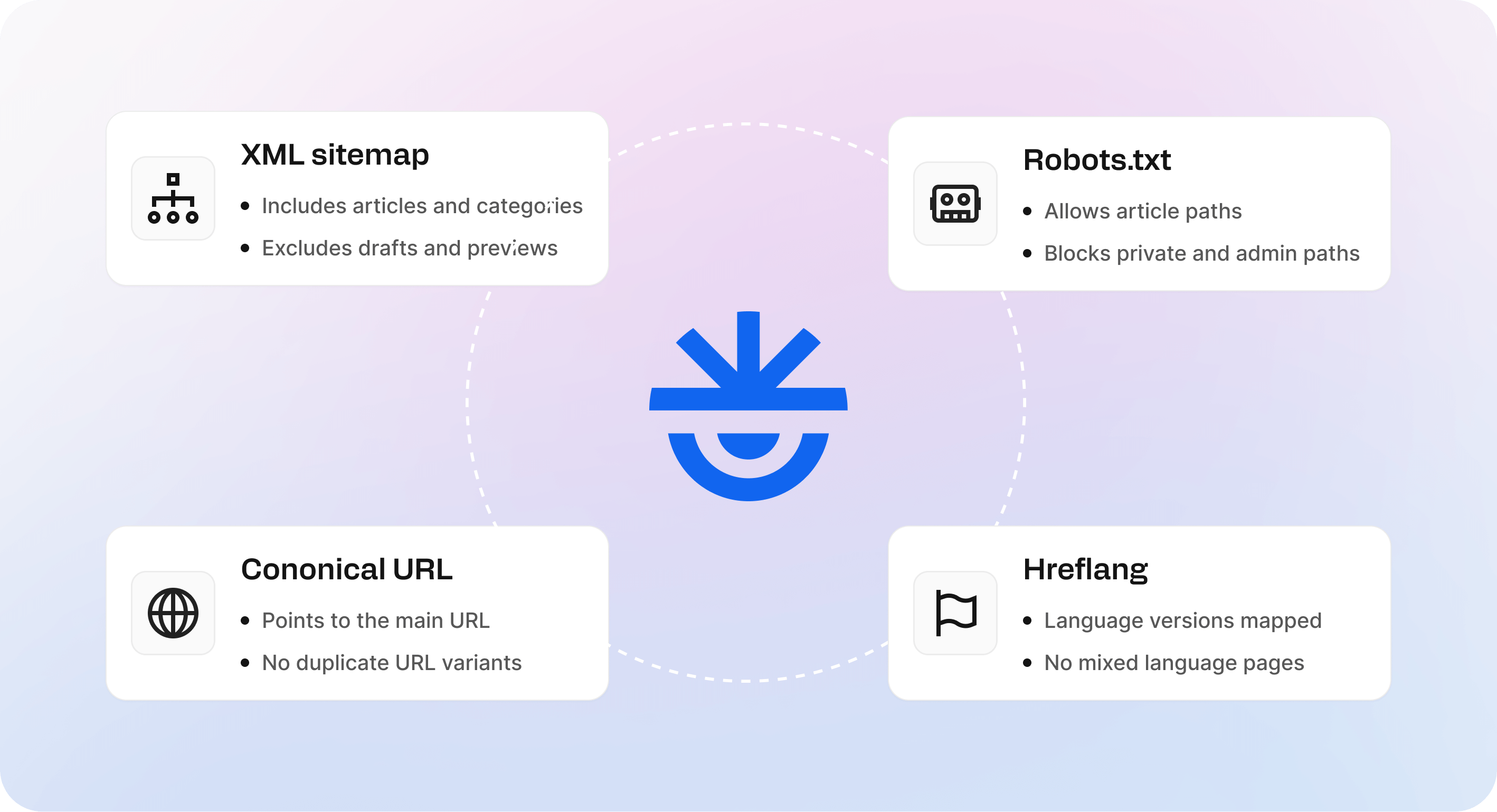
XML sitemap and robots.txt: make crawling boring and reliable
A help center should be easy to crawl because most of its value sits in static, indexable content.
Make sure:
your sitemap includes the pages you want indexed
robots.txt does not block key content paths
private, draft, or preview URLs stay out of search
category and article pages load consistently
Good crawling setup does not create rankings on its own, but poor setup can quietly block everything else.
If you want a sanity reference for what help center SEO settings typically include, Zendesk lays out the basics in About search engine optimization in the Help Center.
Canonical tags: stop duplicates from slicing your rankings
Help centers create duplicate versions more easily than teams expect. The same article may appear through multiple paths, parameters, or language variations.
Make the preferred version obvious:
every article should have one canonical URL
canonicals should point to that version consistently
duplicate variants should be redirected or handled properly
filtered or search-result pages should not compete with article pages
If the same content is reachable through more than one URL, rankings often get split and signals become weaker.
Multilingual help center SEO: hreflang basics and avoiding language collisions
Multilingual help center SEO can expand reach, but it can also create duplicate confusion if the structure is messy.
Keep it clean:
use distinct URLs for each language
add hreflang so search engines know which version to show
make sure each translation is complete enough to stand on its own
expand into new languages based on real demand, not just coverage ambition
A cleaner language setup helps users land on the right page faster and reduces avoidable overlap between versions.
Content upgrades that compound over time
Most help centers do not need more articles. They need stronger ones. The compounding move is turning average pages into pages that actually resolve the problem, earn trust, and stay useful as the product changes.
For the operational side of article structure, rollout, and deflection, read our help center best practices guide.
Turn weak pages into fix first articles: symptoms, cause, steps, edge cases
A weak help article usually has one of three problems: it explains too much before helping, it skips important steps, or it assumes the reader is calm and patient.
A fix-first article does the opposite:
starts with the symptoms in plain language
adds the most common cause briefly
gives steps a non-technical user can follow
covers the edge cases that often create follow-up tickets
ends with prevention so the same issue is less likely to return
If you want a deeper external reference for this style of work, Document360 covers practical knowledge base improvements in their guide to knowledge base SEO best practices.
Add proof signals: screenshots, short video, and last updated timestamps
Support content is partly a trust game. Proof signals help users feel confident they are in the right place and following the right path.
Use them selectively:
add screenshots where the UI matters
use short video only for flows that are genuinely harder to follow
show a last updated timestamp when the workflow changes, especially for billing and login content
One clear screenshot usually does more than several decorative ones.
Use templates so every new article ships SEO ready
The compounding move is turning your best article format into a default.
A strong template usually includes:
a clear title built around the task or problem
a short intro that confirms what the page solves
a prerequisites block when needed
numbered steps
a troubleshooting section
related topics for the next step or nearby issues
Templates help you keep quality, structure, and language consistent as the help center grows.
If your team already creates these templates and articles in Notion, Helpview can turn them into a searchable Notion help center without changing the way your team writes and updates content.

SEO for help centers examples, what good looks like in practice
Theory is easy to agree with. What helps most is seeing the patterns that work and applying them to your own top support themes.
Below are a few help center article types that tend to work well because they match both search intent and real support behavior.
The password reset pattern: one clear query, one clear solution, strong internal links
This pattern works because the intent is clean. The user wants one thing: access.
A strong page usually:
mirrors the query in the title
confirms the outcome immediately
uses short, linear steps
handles the most common failure in a small troubleshooting block
Internal linking here should stay tight. One canonical reset page can link to edge cases like SSO users or reset emails not arriving without creating unnecessary overlap.
The billing failed pattern: multiple causes, decision tree, and prevention section
Billing issues are messier, so the page needs to behave like a mini diagnosis rather than one generic answer.
What usually works:
title language that matches the problem users type
a short symptom-matching opening
a decision flow that helps users choose the right path
separate steps for the most common causes
a prevention section that reduces repeat issues
The integration setup pattern: prerequisites, steps, troubleshooting, related docs
Integration pages often fail because they start in the middle of the process. Users search for “connect X” and land on a page that assumes setup is already underway.
A stronger integration page usually includes:
a setup-focused title
a clear prerequisites block
numbered steps with screenshots where UI matters
troubleshooting that mirrors real error names
related docs that support the task without cluttering it
Tracking that proves value to support and product
If you do not measure it, help center SEO quickly turns into opinion. The good news is you do not need complicated attribution. You just need a small set of signals that connect search performance to support outcomes.
Search Console metrics: impressions, clicks, top queries per article
Search Console is your outside-the-product view. It shows what search engines display and what users choose to click.
Track three things for your most important articles:
impressions
clicks and click-through rate
the top queries each page is earning
If impressions exist but clicks stay weak, titles and snippets usually need work.
Help center search metrics: zero results searches and refinement rate
Internal search is your inside-the-product view. This is where intent is high and patience is low.
Two signals matter most:
zero-result searches
refinement rate, where users search again with a slightly different phrase
A high refinement rate usually means your titles do not match user language, the top result does not resolve the job, or duplicate pages are splitting relevance.
Support outcomes: ticket deflection, repeats, and time to resolution
This is where SEO becomes useful to support and product, not just marketing.
Track outcomes at the theme level:
repeat ticket volume for the themes you improved
time to resolution
whether upgraded articles reduce follow-up requests on the same issue
A practical way to prove value is to improve one canonical article for one support theme, surface it where the problem happens, and watch what changes over the next few weeks.
Quick checklist
Confirm indexation, sitemap, and no accidental blocks
Spot check 10 key pages with a simple
site:search and confirm your canonical article URLs show upVerify articles you want indexed are not tagged noindex and not blocked by robots
Make sure your sitemap includes the right paths and excludes drafts, previews, and private areas
Fix titles, URLs, internal links, canonicals on your top problem pages
Pick your top 5 to 10 ticket themes and assign one canonical article per theme
Rewrite titles to mirror the exact problem language users type
Standardize URLs so each article has one stable version
Ensure canonicals point to that stable version
Add a small set of intentional internal links: prerequisites, next step, and one fallback fix
Rewrite 5 high ticket articles using a consistent problem to fix template
Start with symptoms in customer language, then the most likely cause
Write steps that a non technical user can follow without guessing
Add edge cases that usually trigger follow up tickets
Add a short prevention section to stop repeat tickets
Update screenshots only where the UI matters
Add measurement: Search Console, analytics, and help center search logs
In Search Console, track impressions, clicks, CTR, and top queries for your canonical articles
In help center search logs, track zero results searches and refinement patterns
In support, track repeat tickets on the themes you upgraded and time to resolution
Frequently asked questions
What is knowledge base search?
Knowledge base search is the search experience inside a help center or documentation hub that helps users find answers quickly. It depends on clear article titles, strong content structure, and language that matches the way users describe their problems. Good knowledge base search is not only about the search tool itself. It also depends on how well the content is organized and written.
What are the best SEO for help centers basics to do first?
How do I optimize a knowledge base for SEO without rewriting everything?
What is the 80/20 rule for SEO?
Do I need a knowledge base SEO tutorial, or can I just follow a checklist?
Share article:

2 free months of Pro
Turn Notion pages into help center answers.
Keep writing in Notion and publish a real, searchable Notion help center.

Articles
Keep reading